
See how it's going.
Overview shows this month at a glance and what to set up next. On Pro, Reports go deeper, for any date range.
This month at a glance.
Overview is the first page you see when you sign in.
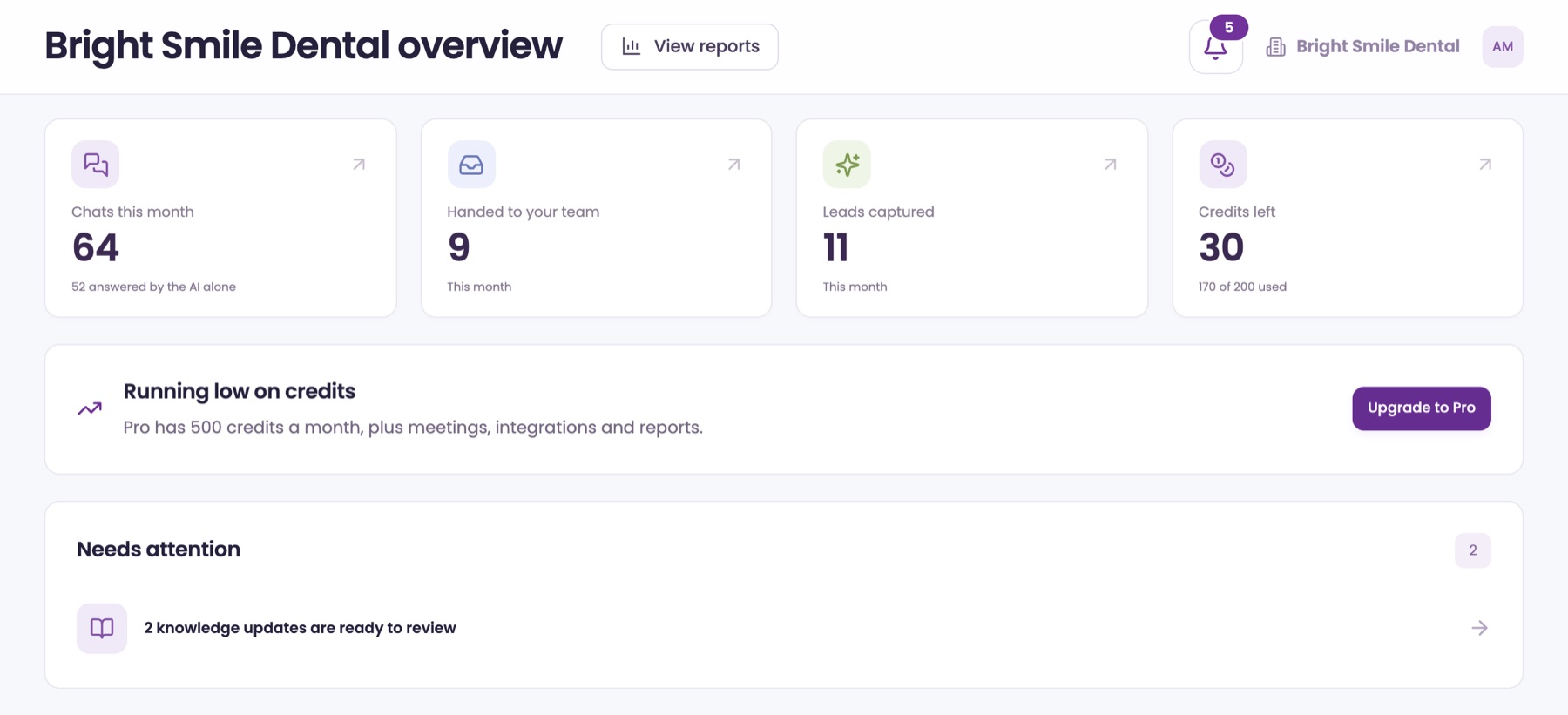
Read the four cards
Open ManagementOverview. The cards show Chats this month (and how many the AI answered alone), Handed to your team, Leads captured and Credits left.
Click a card for details
Chats this month opens History. Handed to your team and Leads captured open Live Inbox. Credits left opens Flex Credits.
Check Needs attention
Knowledge updates that are ready to review show here. Click one to open them in Knowledge. When there's nothing to do, it says You're all caught up.
Watch for the credits card
On Starter, a Running low on credits card appears once you've used 80% of your credits, with Upgrade to Pro. On Pro, a Talk to us about ChatRep card appears after 900 credits in a month. Neither shows during the free trial.
Your setup checklist.
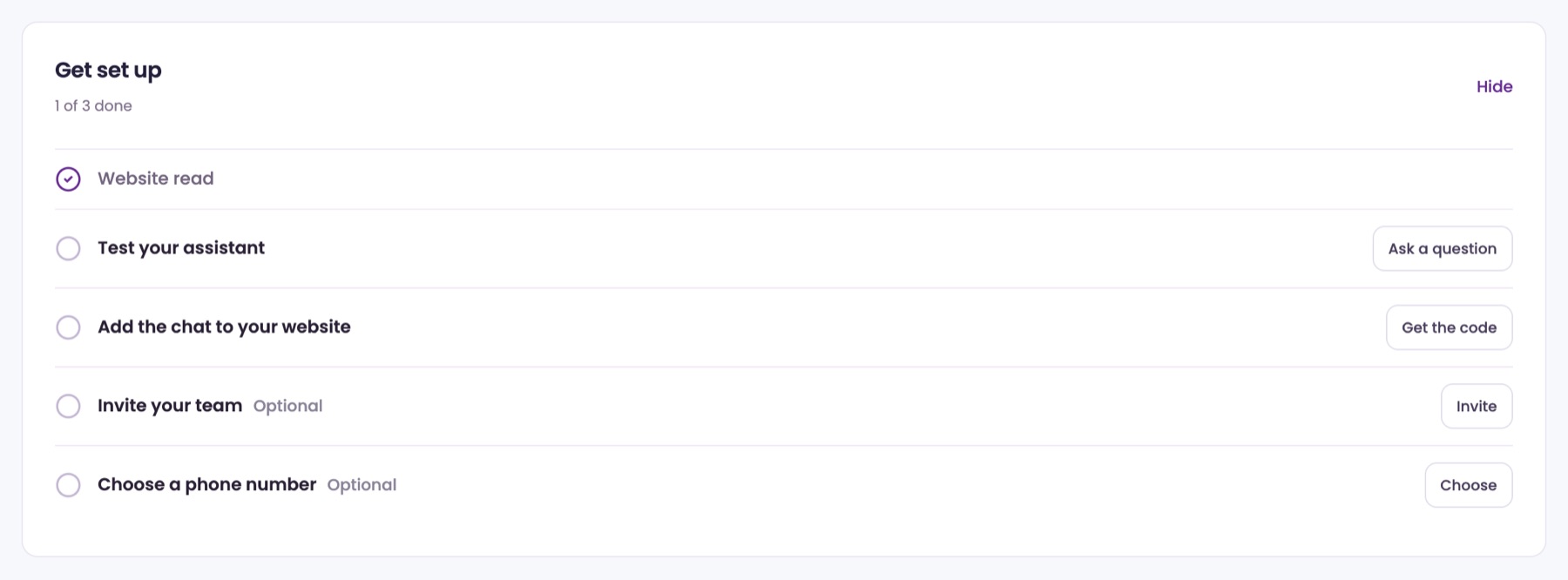
New accounts see a Get set up list on Overview until the main steps are done. Only Client Admins see it.
Do the three main steps
Read your website, Test your assistant and Add the chat to your website. The count shows how many are done, like 1 of 3 done.
Click a step's button
Each open step has a button that takes you there: Open Knowledge, Ask a question or Get the code.
Two optional steps
Invite your team and Choose a phone number are marked Optional. Their buttons are Invite and Choose.
Steps check off by themselves
Each step is marked done when ChatFX sees it happen, like the first time your chat loads on your own website. The list goes away once the three main steps are done. To hide it sooner, click Hide.
This month's numbers.
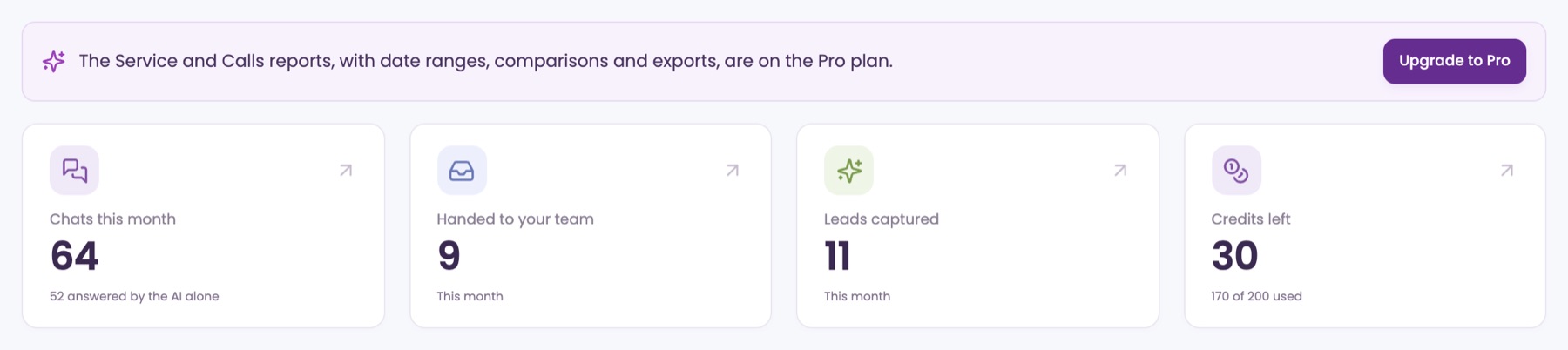
On Starter, Reports shows this month's results. Date ranges and the full reports come with Pro.
Open Reports
Go to ManagementReports, or click View reports on Overview. You'll see the same four cards for this month.
Get the full reports
Click Upgrade to Pro on the notice to open Billing. Pro adds the Service and Calls reports, with date ranges, comparisons and exports.
Every chat, any range.
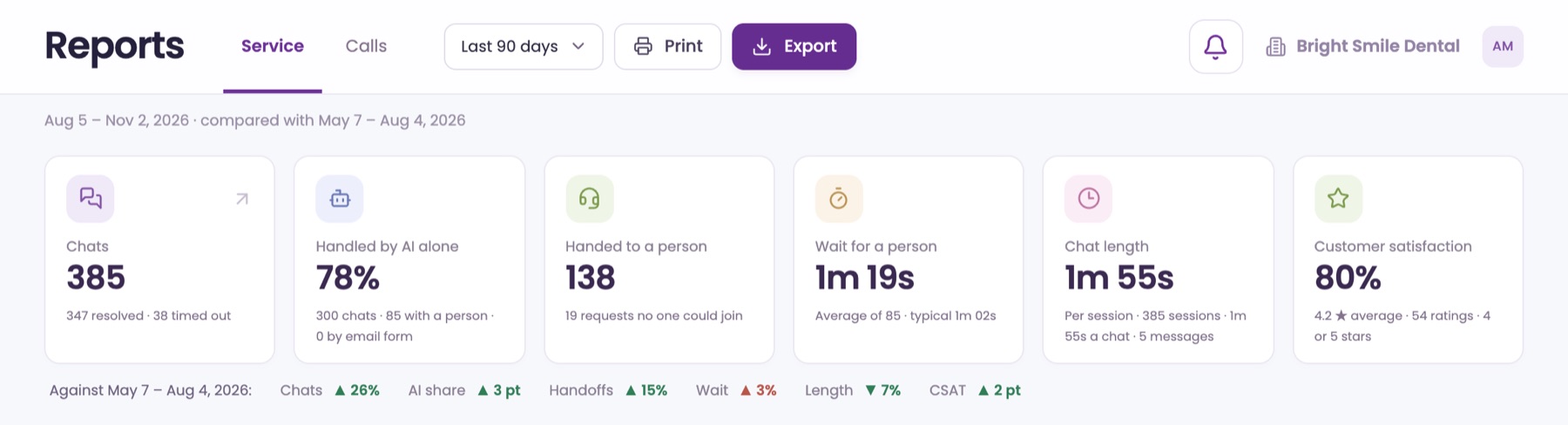
On Pro, the Service tab shows how your chats went: the AI, your team and your customers' ratings. Client Admins and Client Managers see it.
Pick a date range Pro
Use the range menu at the top: Today, This week, Last month and more, or Custom for your own dates. It starts on Last 30 days. Each number is compared with the period before.
Read the cards
Chats, Handled by AI alone, Handed to a person, Wait for a person, Chat length and Customer satisfaction, with details under each.
Look at the charts
Chats over time, AI and people, Customer ratings, Team performance, When chats start, Languages and Paths. Under Customer ratings, click Open on a chat to read it in History.
Print or export
Click Print for a paper copy, or Export to download the numbers as a spreadsheet file.
How your calls went.
On Pro, the Calls tab shows the calls to your ChatFX numbers.
Open the Calls tab Pro
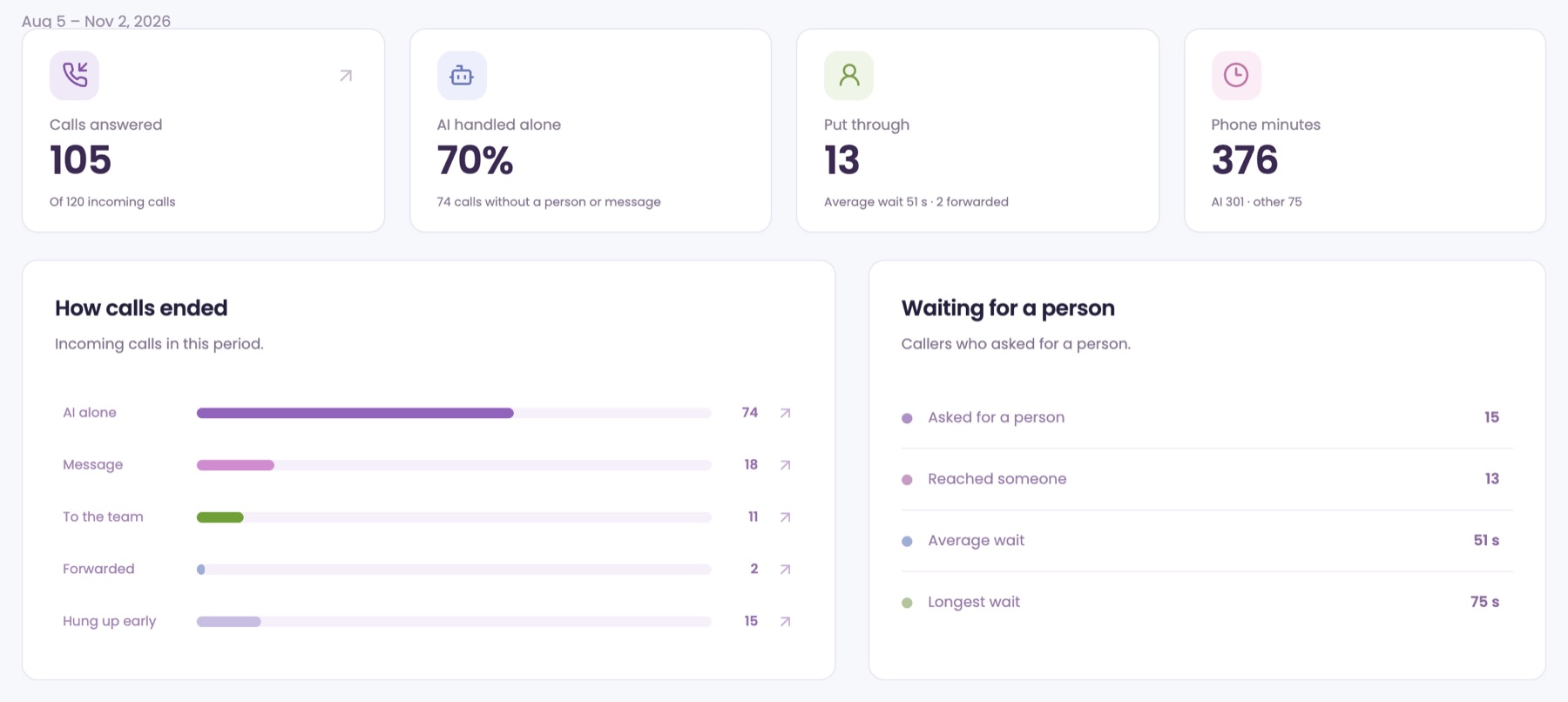
In Reports, click Calls and pick a range. The cards show Calls answered, AI handled alone, Put through and Phone minutes.
See how calls ended
How calls ended splits them into AI alone, Message, To the team, Forwarded and Hung up early. Click a bar to open your calls in History.
Check waits for a person
Waiting for a person shows how many callers asked for a person, how many reached someone, and the average and longest wait.
Ask our assistant or a person.
Our assistant answers questions about ChatFX right away. For anything else, email service@chatfx.com and a real person will reply.
Frequently asked questions
Who can see ChatFX reports?
Client Admins and Client Managers can see the Pro Service report. Client Agents see their own Overview with conversations to handle, chats, leads and customer satisfaction, but Reports is not in their menu.
Can I read the chat behind a customer rating?
Yes. In the Pro Service report, go to Customer ratings and click Open on a chat to read it in History. You can also use History to read past chats and calls in full.
Where can I see what used my ChatFX credits?
Open Flex Credits to see where your credits went. It compares chats with call minutes and shows credits by day for the billing period, as well as past periods. Every call minute on your ChatFX numbers uses a credit.
Will ChatFX warn me when I’m running low on credits?
Yes. On Starter, a card appears on Overview when you’ve used 80% of your credits, except during the free trial. Client Admins also receive an email at 80%, when all plan credits are used if extra credits are allowed, and at their limit.
Why can’t I see the setup checklist on my ChatFX Overview?
Only Client Admins see the setup checklist. It disappears once the three main steps are complete, or earlier if you click Hide. The main steps are reading your website, testing your assistant and adding chat to your website.