
Every past chat, easy to find.
History keeps your past chats and calls. Search them, read the whole conversation, fix an AI answer and save a copy.
Search past chats.
Open History in the left menu. It starts on the Chats tab with the last 30 days.
Search the words
Type in Search transcripts. It finds words said in the chat, the visitor's name or email, or a chat ID.

Narrow it down
Date range offers Last 7 days, Last 30 days, Last month, All time or Custom dates. Person shows the chats one teammate took part in.
On a phone, tap Filters to see them.
Choose who answered
Above the list, choose All, Human or AI. Human shows chats a person joined. AI shows chats the AI answered, even if a person joined later.
Sort and page through
Sort by Newest first, Oldest first, Most messages or Least messages. Show sets 25, 50 or 100 chats per page. Reset filters starts over.
The whole conversation, start to finish.
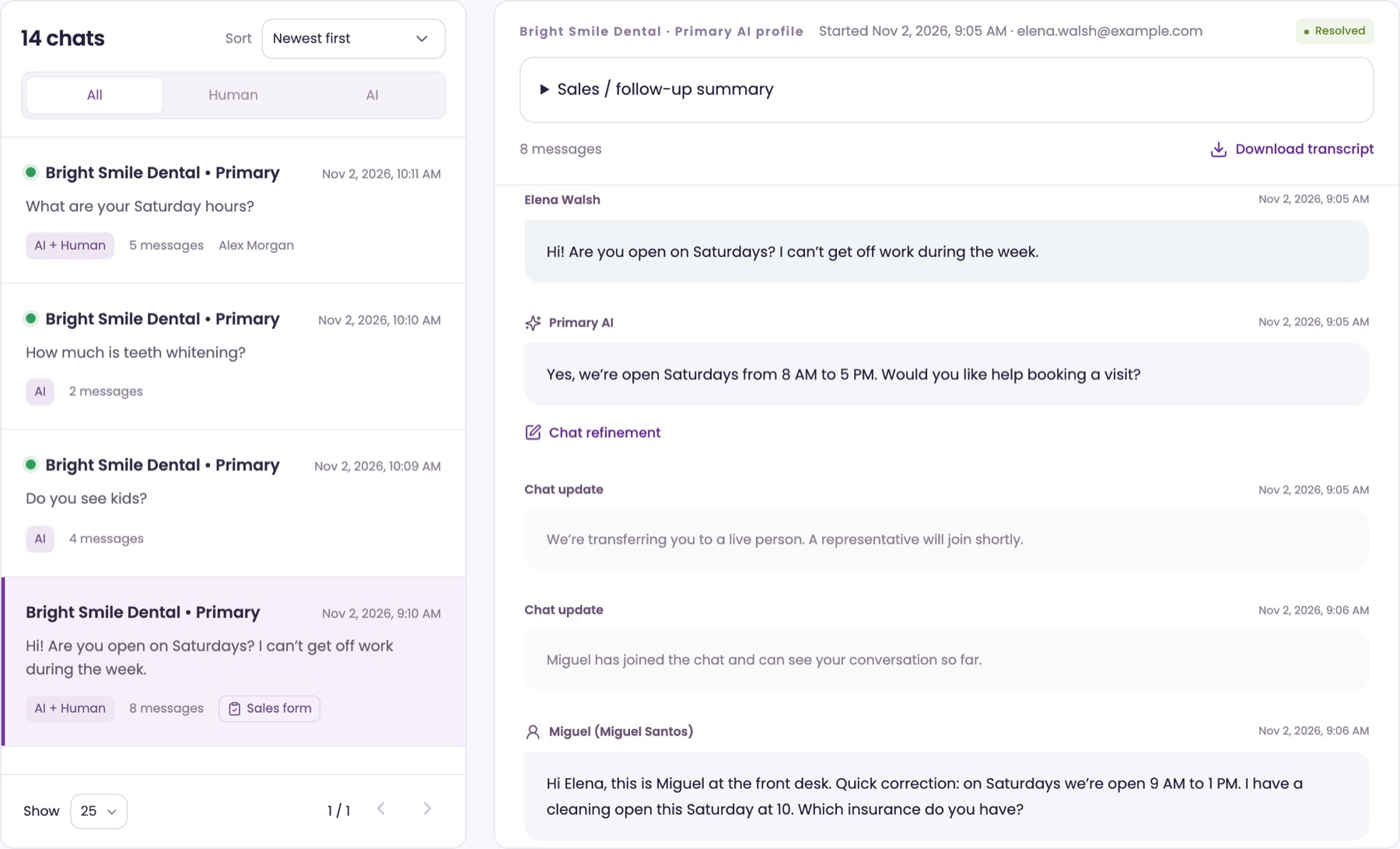
Click a chat in the list to open it on the right.
See who said what
Each message shows who wrote it and when: the visitor, the AI or a teammate. In the list, each chat shows who handled it, the number of messages and any form the visitor sent.
Read the summary
When a chat has one, open Sales / follow-up summary at the top to read the AI's summary.
Read other languages
Messages in another language show in English, marked Translated. Click Show original to see what was written.
Download a copy
Click Download transcript to save the chat as a text file. History saves one chat at a time.
Teach it the right answer.
Found a reply that missed? Correct it from the chat itself.
Open Chat refinement
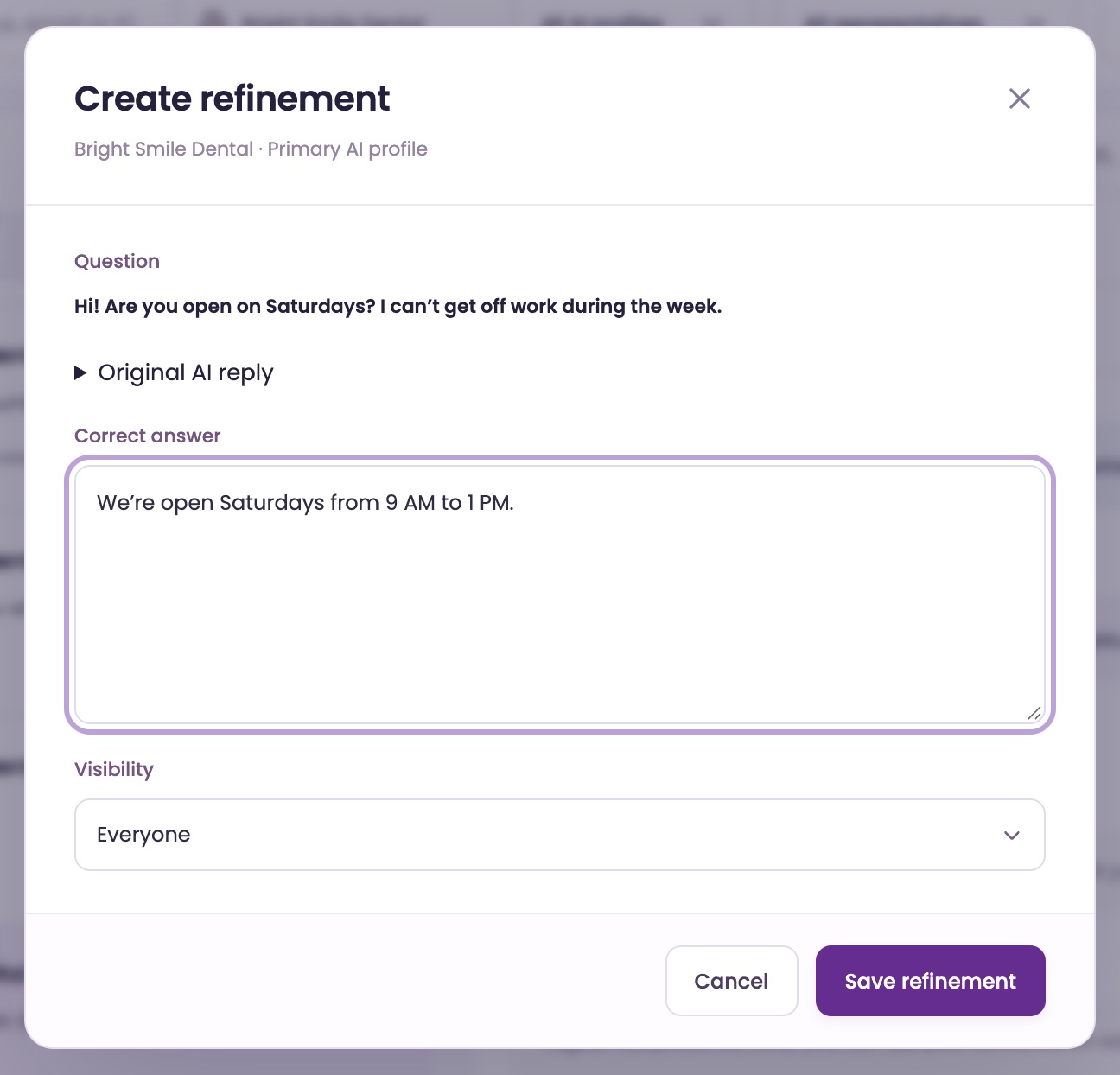
Under the AI's reply, click Chat refinement. The window shows the visitor's question, and Original AI reply opens what the AI said.
Write the correct answer
In Correct answer, write what the AI should say or do next time. Set Visibility to Everyone or Internal only, then click Save refinement.
Wait for review
The reply shows Refinement awaiting review. Once approved, it reads Approved for this AI profile and the AI uses your answer. View correction shows what you wrote.
Past calls, with recordings.
Click the Calls tab at the top of History.
Find a call
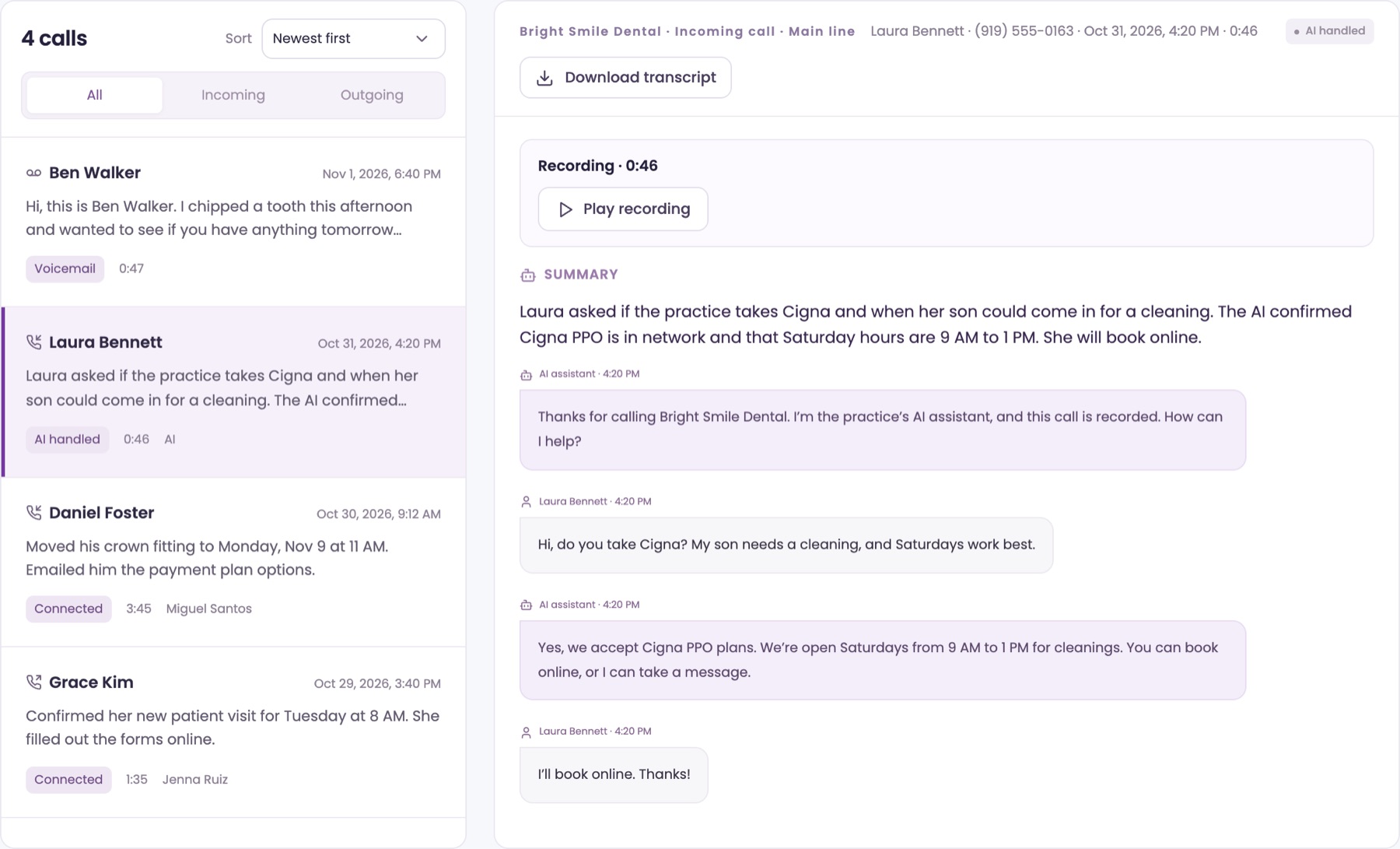
Search by name, number, company or words said. Filter by Outcome, Person and Date range, and choose All, Incoming or Outgoing.
Listen and read
Open a call to play the recording and read the Summary, the transcript and any Notes. Download transcript saves a copy.
Learn how calls work
See the phone answering guide for answering calls, messages and Call back.
Kept as long as your plan says.
ChatFX deletes old conversations on its own, so nothing piles up.
Chats
A chat stays in History for 90 days on Starter and 1 year on Pro, counted from when it ended. Then its messages and the visitor's details are deleted, and it leaves History. Reports still count it.
Calls
On every plan, call recordings are deleted after 90 days, transcripts and summaries after 180 days, and the call itself after 1 year.
Who sees what
Client Admins and Client Managers see every chat. Client Agents see the chats they took part in.
Keep a copy
To keep a chat or call longer, use Download transcript before it's deleted.
Ask our assistant or a person.
Our assistant answers questions about ChatFX right away. For anything else, email service@chatfx.com and a real person will reply.
Frequently asked questions
How long does ChatFX keep chat transcripts?
Chats stay in History for 90 days on Starter and one year on Pro, counted from when the chat ended. After that, the messages and visitor’s details are deleted, but reports still count the chat. To keep a copy longer, download the transcript before it is deleted.
How long are call recordings and transcripts kept in ChatFX?
On every plan, call recordings are deleted after 90 days, transcripts and summaries after 180 days, and the call itself after one year. If you need a transcript for longer, open the call in History and download it before it is deleted.
Can everyone on my team see all past chats?
No. Client Admins and Client Managers can see every chat, while Client Agents can see only chats they took part in. In History, the Person filter can narrow the list to chats involving a particular teammate, within the chats you can see.
How do I correct an AI answer from a past chat?
Click Chat refinement under the AI’s reply, write the correct answer, choose Everyone or Internal only, and save it. The refinement must be approved before the AI uses it. You can find approved answer refinements in the AI Assistant under Approved Knowledge.
Can I respond to an ongoing chat from History?
You can identify an ongoing chat in History by its green dot, but you answer it in Live Inbox. Open the chat there to take it over. History lets you read the conversation so far and see who wrote each message and when.
Can I filter past chats by whether a person or AI answered?
Yes. Above the chat list, choose All, Human or AI. Human shows chats a person joined; AI shows chats the AI answered, including those a person joined later. You can also narrow results by date range or teammate and reset the filters to start over.