
Quick answers for your team.
AI Assistant is a private chat for your team. It answers from your Knowledge, so you can look things up and check what visitors would hear.
Ask like you'd ask a coworker.
Open AI Assistant in the left menu, under Workspace.
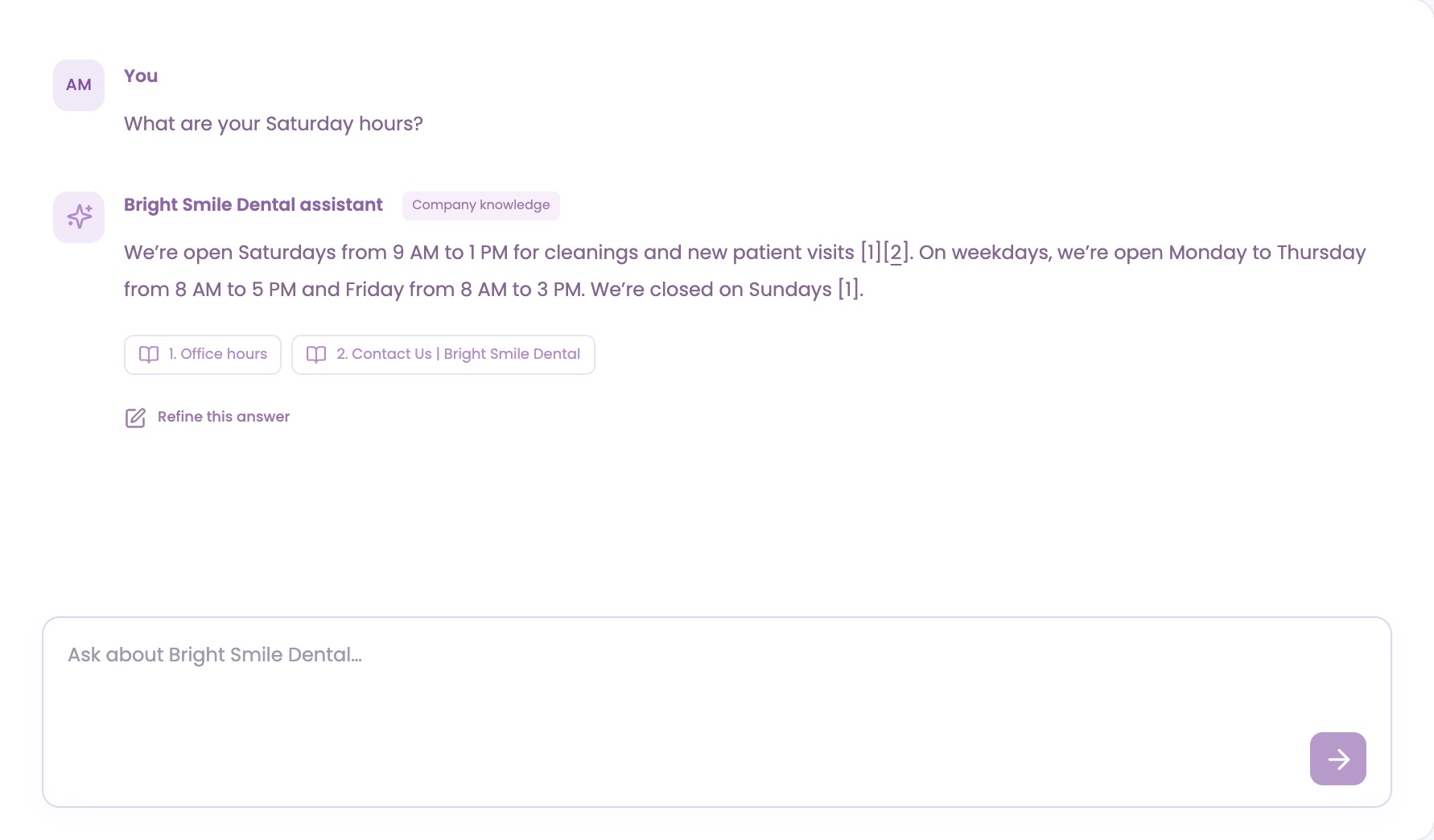
Type your question
Type in the box at the bottom, which starts with Ask about and your business name. Press Enter or click the arrow. Shift+Enter starts a new line.
Check the sources
Numbered sources under the answer show where it came from. Click one to open that page or note.
Ask a follow-up
Keep asking in the same conversation. The assistant keeps track of what you've asked so far.
Start over
Click New conversation at the top to clear the chat and start fresh.
Hear what visitors hear.
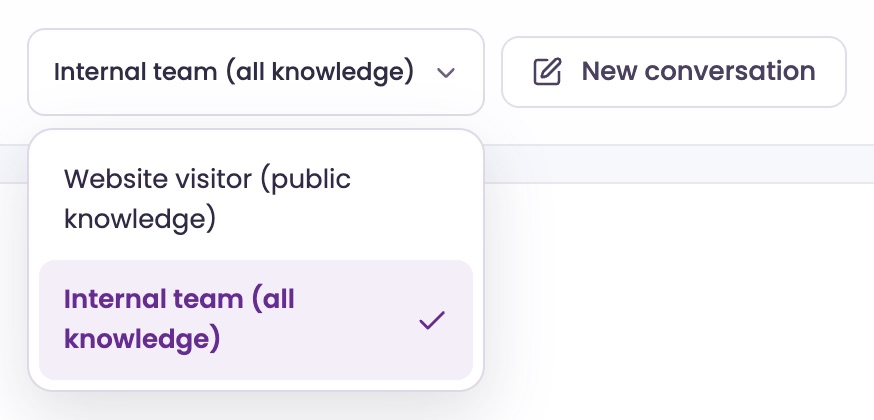
Some knowledge is for your team only. View as switches between the two.
Choose who's asking
At the top, set View as. Internal team (all knowledge) answers from everything. Website visitor (public knowledge) answers only from knowledge marked for everyone, as your website chat would.
Changing it starts a new chat.
See the form visitors would get
When an answer would offer your contact form, Preview contact form shows under it. It opens the form as visitors see it. Nothing is sent.
Know when sources show
As a website visitor, sources show only when Show sources in AI answers is on in Web ChatSettings.
Answers from your Knowledge.
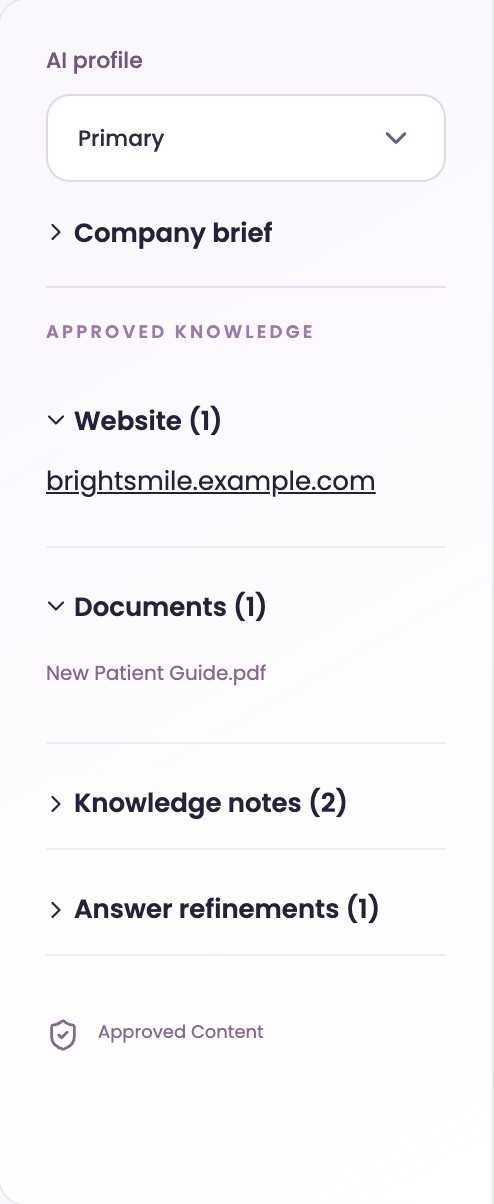
The panel on the left lists what the assistant can use.
See its knowledge
Under APPROVED KNOWLEDGE, open Website, Documents, Knowledge notes or Answer refinements. Click an item to open it.
Teach it something new
Add a note or a document in Knowledge, and the assistant can use it once it's ready. See the Knowledge guide.
Wait for your website
Until your website is read, the assistant shows Your company knowledge is being processed. or Add company knowledge first. Click Go to company knowledge to check on it.
Correct it once.
When an answer is wrong or missing something, save the right one.
Click Refine this answer
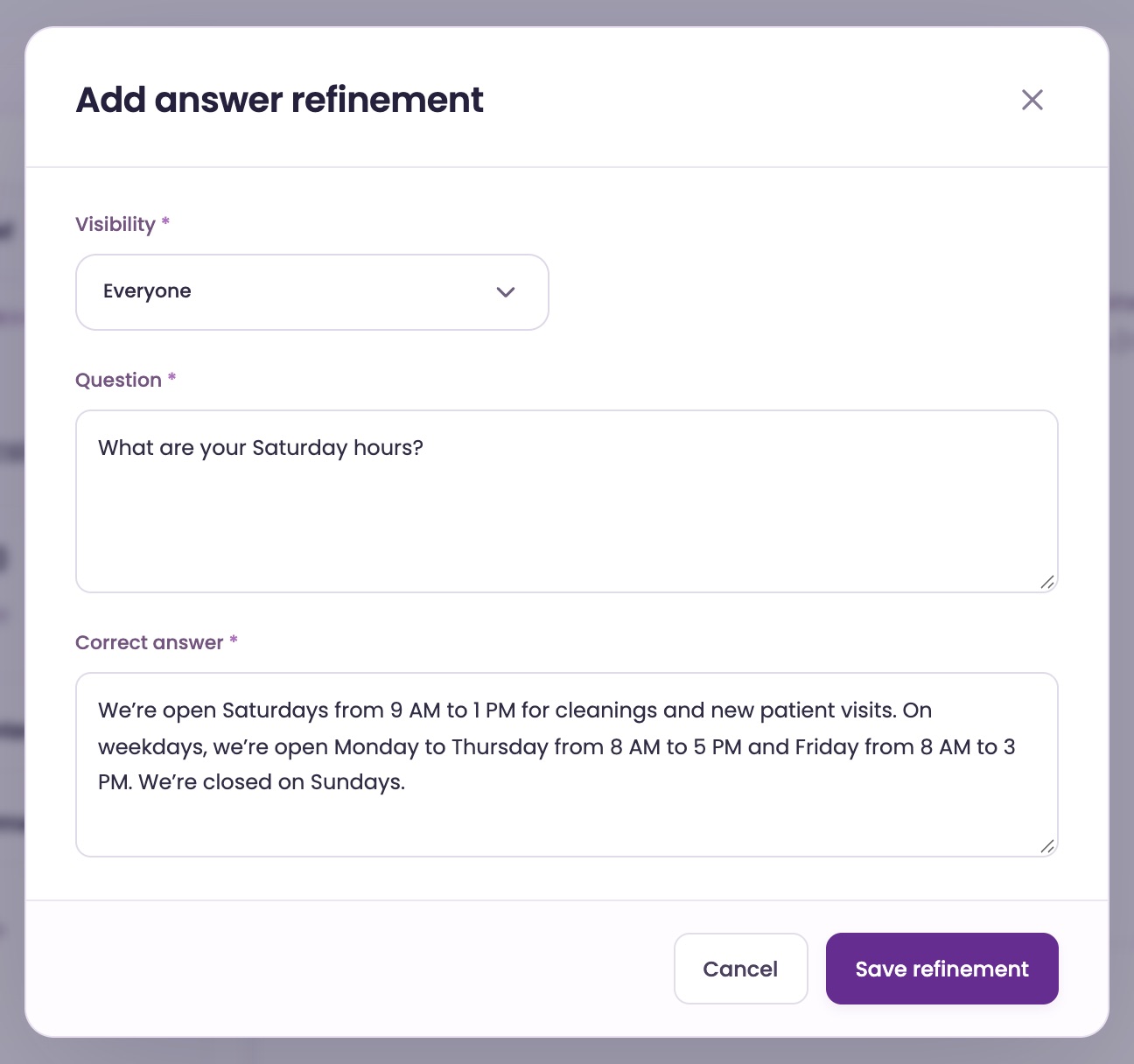
Under the answer, click Refine this answer. The Add answer refinement window opens with the question and the answer filled in.
Write the correct answer
Edit Correct answer. Set Visibility to Everyone or Internal only, then click Save refinement.
Wait for review
Your refinement is saved for review. Once it's approved, the AI uses it.
What it can and can't do.
It's a private helper for your team, not a second inbox.
Only your team sees it
Nothing you ask here reaches visitors. The assistant can't send messages or change your settings.
Conversations aren't saved
Leaving the page, clicking New conversation or changing View as clears the chat. Copy anything you want to keep.
It answers from your Knowledge
Answers come from your business, not the internet. If something's missing, add it in Knowledge.
Drafts for live chats are in Live Inbox
For a suggested reply to a visitor you're chatting with, use Your AI partner in Live Inbox. See the Live Inbox guide.
Ask our assistant or a person.
Our assistant answers questions about ChatFX right away. For anything else, email service@chatfx.com and a real person will reply.
Frequently asked questions
How can I check what a website visitor would hear from the AI?
Set View as to Website visitor (public knowledge) at the top of AI Assistant. It will answer using only knowledge marked for everyone, as your website chat would. Changing the view starts a new conversation.
What should I do if ChatFX gives an incorrect answer?
Click Refine this answer, edit the correct answer, choose Everyone or Internal only, and save the refinement. It is then saved for review; once approved, the AI can use it. You can also add missing information in Knowledge.
Does previewing the contact form send a message?
No. Preview contact form opens the form as visitors would see it, but nothing is sent. When a visitor submits the actual form with their agreement, their details, a summary and the transcript go to your team. You can choose where submissions go in AI Settings.
Are my conversations with ChatFX AI Assistant saved?
No. Leaving the AI Assistant page, clicking New conversation or changing View as clears the chat. Copy anything you want to keep before doing any of those things.
Do questions I ask the ChatFX AI Assistant use credits?
No. Questions in the private AI Assistant don't use credits. Credits count website chats answered by the AI and minutes of AI phone answering instead.
Can ChatFX suggest a reply while I'm chatting with a visitor?
Yes. Use Your AI partner in Live Inbox for a suggested reply during a visitor chat. The private AI Assistant is for looking up information and checking answers; it can't send messages to visitors.