
Step in when it counts.
The AI starts every chat. When a visitor asks for a person, the chat waits in Live Inbox for your team. Here's how to be ready, take it and wrap it up.
Be there when they ask.
Chats and calls go only to people who are Available right now, with ChatFX open.
Switch to Available
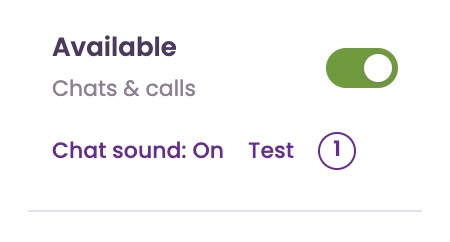
In the left menu, click the switch so it reads Available. Click it again to go Unavailable. It covers chats and calls.
On a phone, tap the menu button at the top left to see it.
Keep ChatFX open
Chats and calls reach you only while ChatFX is open in your browser. If it hasn't heard from your browser for 2 minutes, for example after you close the tab, you're skipped.
Keep the tab showing. While it's hidden behind another tab, the chat sound doesn't play.
Turn on the chat sound
Click anywhere on the page once, since browsers block sound until you do. Check that the left menu says Chat sound: On.
Click the number next to it to pick Chime, Ding-dong, Bell, Pop or Alert. Test plays it. Your choice is saved in this browser only.
Know your limit
Each person takes up to 2 chats at a time, counting chats offered to them. Close a chat to make room for the next one.
From the AI to your team.
The AI answers first. A person joins only when the visitor asks for one.
A visitor asks for a person
They click Human in the chat window, or ask the AI for a person in their own words. The Human button shows only while someone on your team is Available.
ChatFX offers the chat
Your Chat routing setting in Web ChatSettings decides who gets it:
Round robin offers it to one person at a time, taking turns. Fewest open chats offers it to the person with the fewest chats. Anyone (first to accept) shows it to everyone Available, and the first to accept gets it.
Your team has 2 minutes
After 1 minute, the visitor sees that you're still connecting them. After 2 minutes with no one accepting, they're offered your email form or go back to the AI, depending on your Web Chat settings.
A missed chat switches you off
If a chat was offered only to you and you didn't accept it in time, you're switched to Unavailable and the left menu says You missed a chat. The same happens if a visitor's last message to you goes unanswered until the chat closes.
Switch back to Available when you're ready.
See who's waiting and jump in.
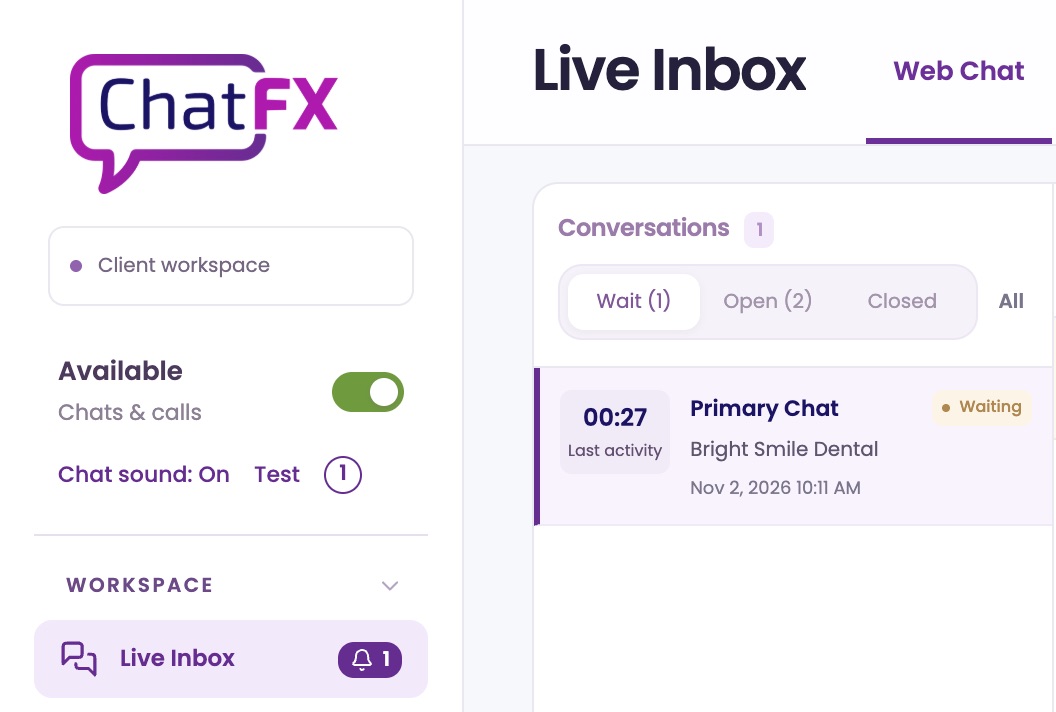
A waiting chat comes with the chat sound and a number on Live Inbox in the left menu.
See who's waiting
When a chat is offered to you, Live Inbox in the left menu shows a bell with a number. Click it to open the Wait list.
Accept the chat
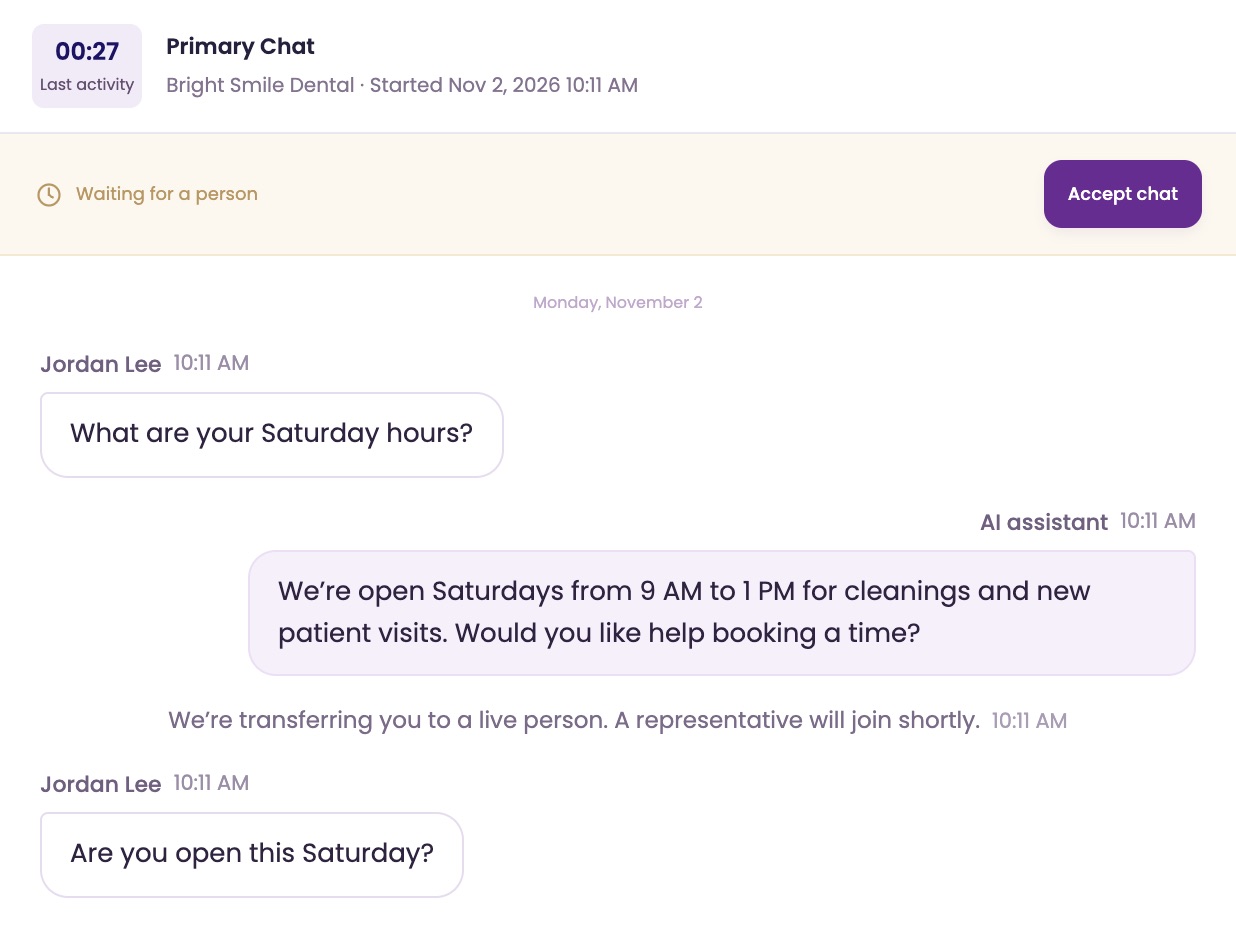
Open the chat. When the strip at the top says Offered to you or Waiting for a person, click Accept chat. You see everything said so far, and the visitor sees that you've joined.
If the button says Set available to accept, switch to Available first. If the strip names a teammate, only they can accept it.
Find other chats
Open shows chats the AI or a person is handling, Closed shows finished ones and All shows everything. Closed chats stay here for 30 days. Older ones are in History.
Each chat shows a timer: Last activity while it's open, Total duration once it's closed.
Know which chats you see
Client Admins and Client Managers see every chat, including ones the AI is handling. Client Agents see chats offered to them and chats they took part in.
You can read a chat the AI is handling, but you can't join it until the visitor asks for a person.
Help them, then wrap up.
Write in English. ChatFX translates for visitors who write in another language.
Reply to the visitor
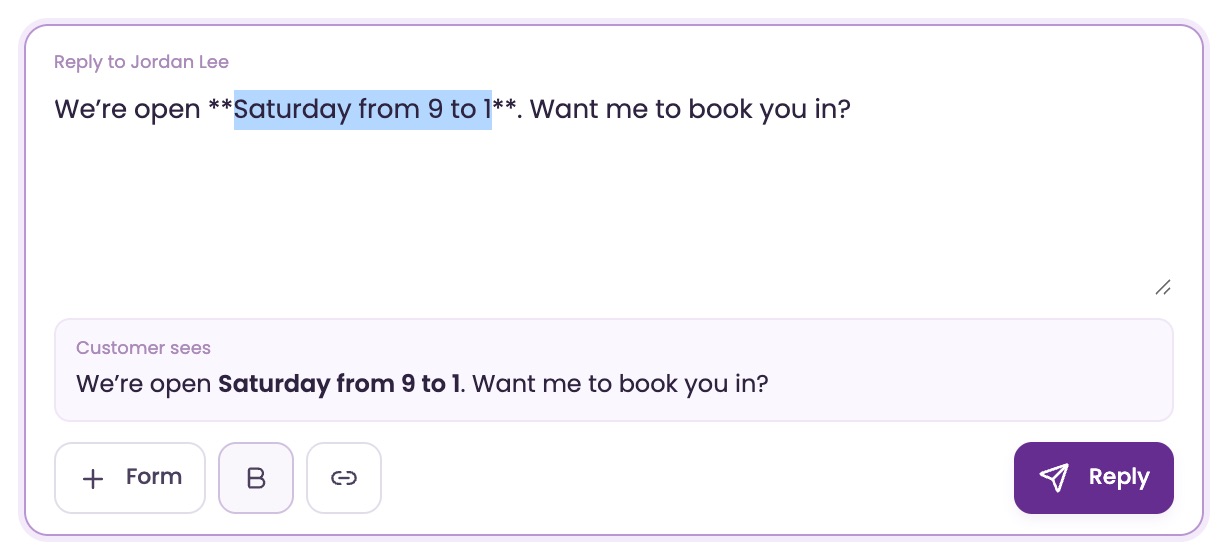
Type in the box under Reply to and the visitor's name, then click Reply. The visitor sees that you're typing.
Select words and click Bold or Link to format them. A Customer sees preview shows how it will look.
Let the AI draft it
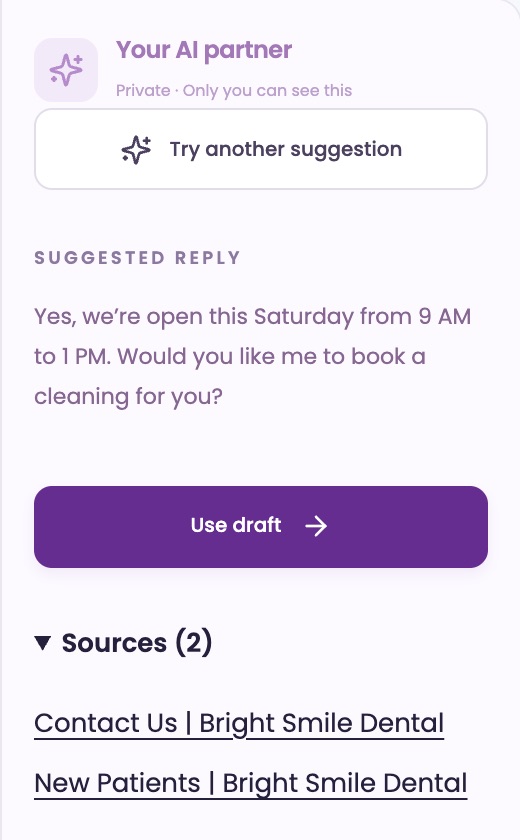
Your AI partner on the right drafts a reply from your knowledge when the visitor's latest message needs an answer. Only you see it.
Click Use draft to put it in your reply box, edit it, then click Reply. Try another suggestion writes a new one.
Send a form or link
Click + Form and choose Send Lead Form, Book Meeting or Send URL. It goes under your next reply as a button.
These come from the next steps in AI Settings, so + Form shows once one is set up. Book Meeting needs Pro and meetings set up.
Read other languages
A visitor's message in another language shows in English, marked Translated. Click Show original to see their words. On your own replies, Show translated shows what they received.
Close the chat
Click Close chat at the top right. The visitor is told the chat closed and asked to rate it. You can close chats you accepted.
Chats also close on their own after a few minutes with no messages. Set the time in Web ChatSettings with Close when idle.
More tabs, one inbox.
Live Inbox has three more tabs at the top: Reply, Voice and Meetings.
Answer a website lead
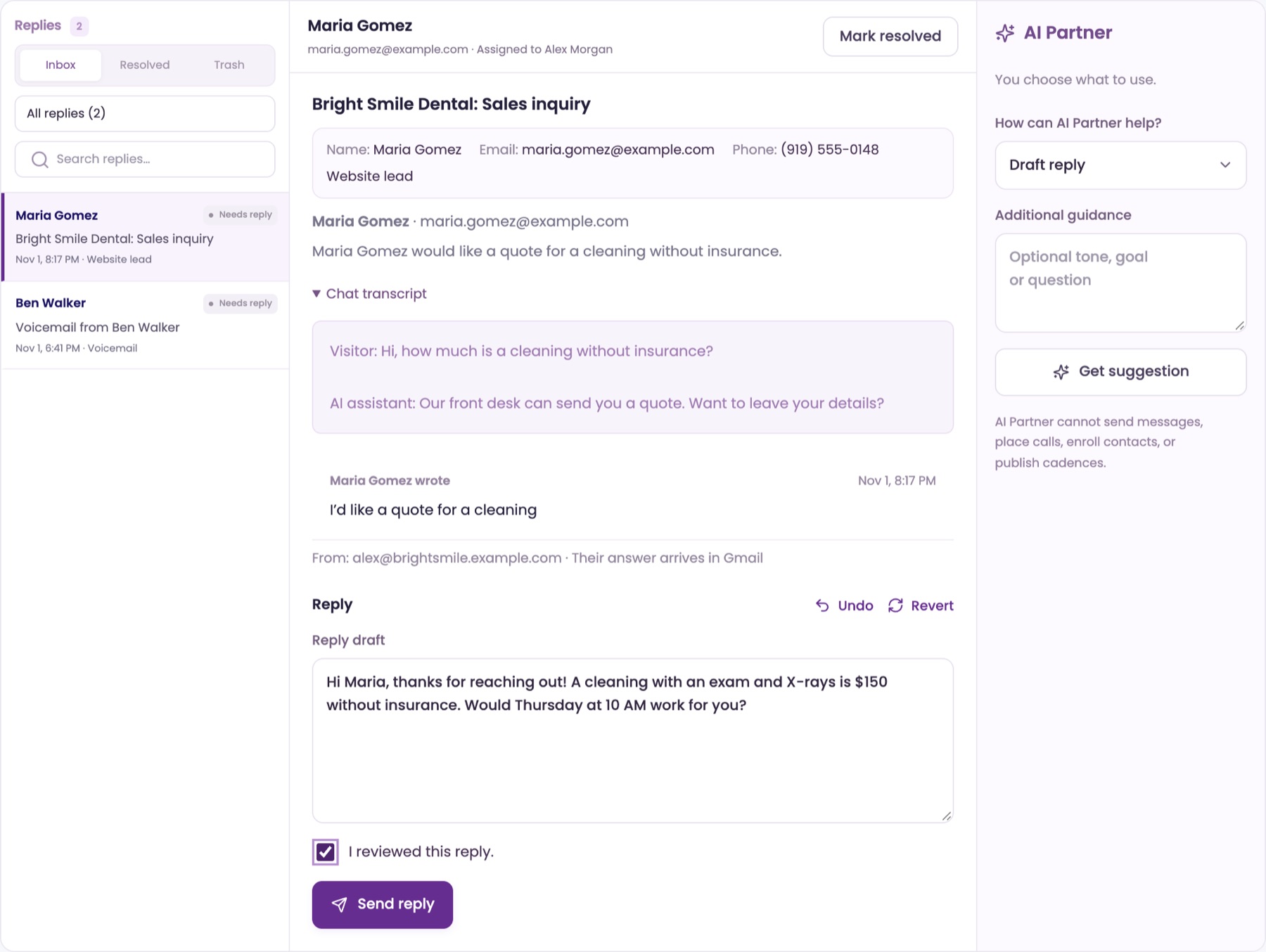
When a visitor sends your contact form, it goes to one person's Reply tab as a Website lead, with the chat transcript. Web Chat settings choose who gets each lead.
Write in Reply draft, or click Get suggestion on the right, then Insert into draft. Check I reviewed this reply. and click Send reply. It's sent from your own email.
Mark it resolved
Click Mark resolved when you're done. It moves to Resolved, and Reopen brings it back. Needs a reply shows only what still needs you.
Answer calls and messages
Calls that need a person ring you in the browser and show on the Voice tab. Messages callers leave go to one person's Reply tab as Phone message or Voicemail, with Call back. If the caller left an email, you can also answer in Reply draft, like a website lead.
See the phone answering guide for the details.
See booked meetings Pro
The Meetings tab lists meetings under Upcoming and Past. Open one to see who it's with, About this meeting and the Chat before booking.
Use Reschedule, Change Location or Cancel meeting, or Book meeting to book one for a customer.
Check the bell
The bell at the top right lists new website leads and phone messages. Click one to open it. Mark all as read clears the count.
Ask our assistant or a person.
Our assistant answers questions about ChatFX right away. For anything else, email service@chatfx.com and a real person will reply.
Frequently asked questions
Why am I not hearing live chat notifications?
Check that you are Available, ChatFX is open in your browser, and the tab is showing. The chat sound does not play while the tab is hidden. Click anywhere on the page once to allow browser audio, and check that the left menu says Chat sound: On.
How does ChatFX choose which team member gets a live chat?
Your Chat routing setting determines who gets the offer. Round robin takes turns, Fewest open chats picks the person with the fewest chats, and Anyone shows it to everyone Available for the first person to accept. You can change this in Web Chat settings.
What happens if no one accepts a live chat?
After two minutes, the visitor is offered your email form or a return to the AI, depending on your Web Chat settings. If the chat was offered only to you and you missed it, ChatFX switches you to Unavailable. You can switch back when you are ready.
Can I transfer a live chat to a teammate?
There is no transfer button, but you can step away by telling the visitor and switching to Unavailable. The chat then goes to the next Available person. If no one is free, the visitor is offered another way to get help.
Can I reply to a live chat in a different language?
Yes. Write your reply in English and ChatFX translates it for a visitor who writes in another language. Their messages appear in English with a Translated label; you can select Show original to read their words and Show translated on your reply to see what they received.
Can I answer website leads and phone messages in Live Inbox?
Yes. Website leads and phone messages appear in the Reply tab, where you can write a response. To send replies from your own email, connect it in Your workspace under Email & calendar. Phone messages also have a Call back option; the phone answering guide has more details.