
Bring in your team.
Invite people, choose what each person can see, and decide who takes live chats and calls.
Invite your team.
Add as many people as you need. Every plan includes unlimited team members. Only a Client Admin can invite.
Open Users & Roles
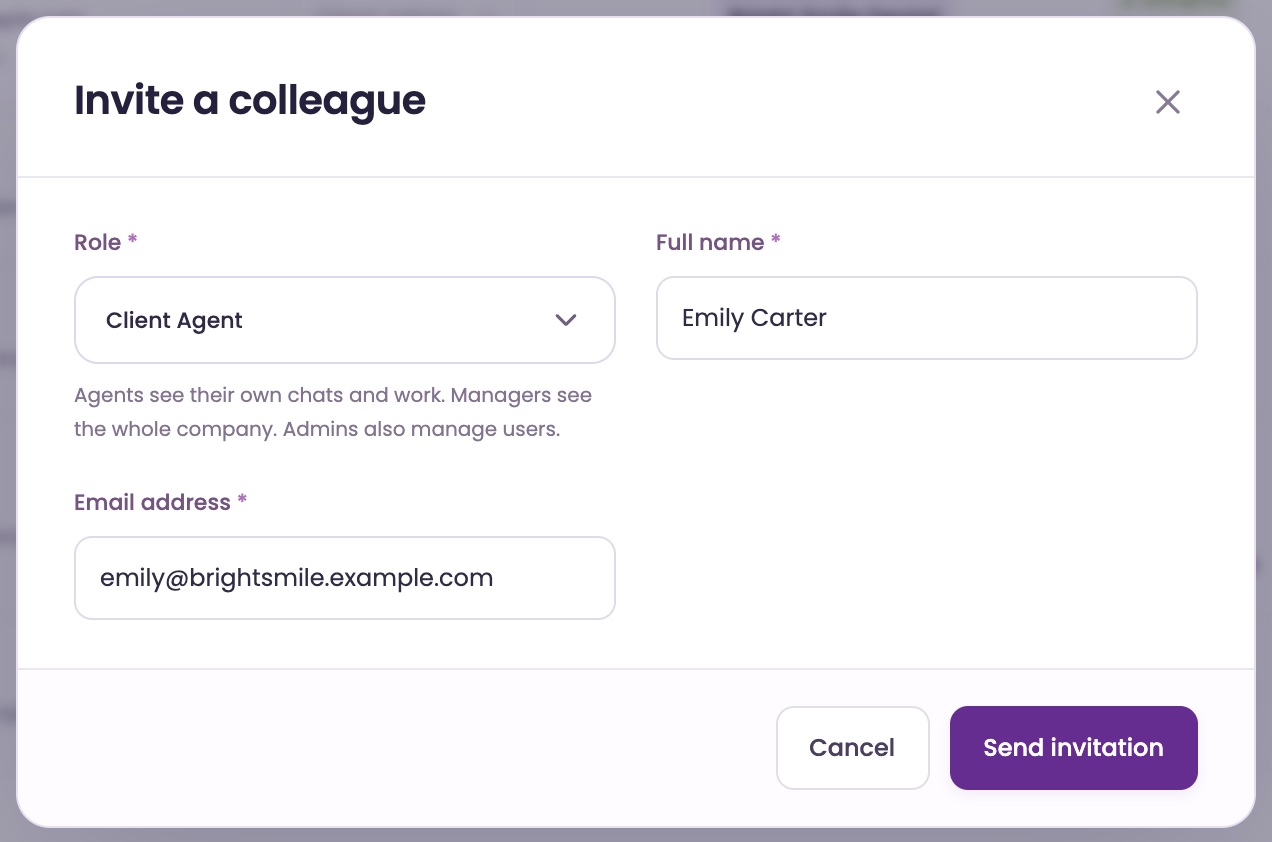
In ChatFX, go to SettingsUsers & Roles and click Invite a colleague.
Add their details
Choose a Role, then type their Full name and Email address. Click Send invitation.
The role starts at Client Agent. See the roles below if they need more.
They accept by email
They get an email called You're invited to ChatFX. They click Accept invitation, choose a password of at least 12 characters and click Save password.
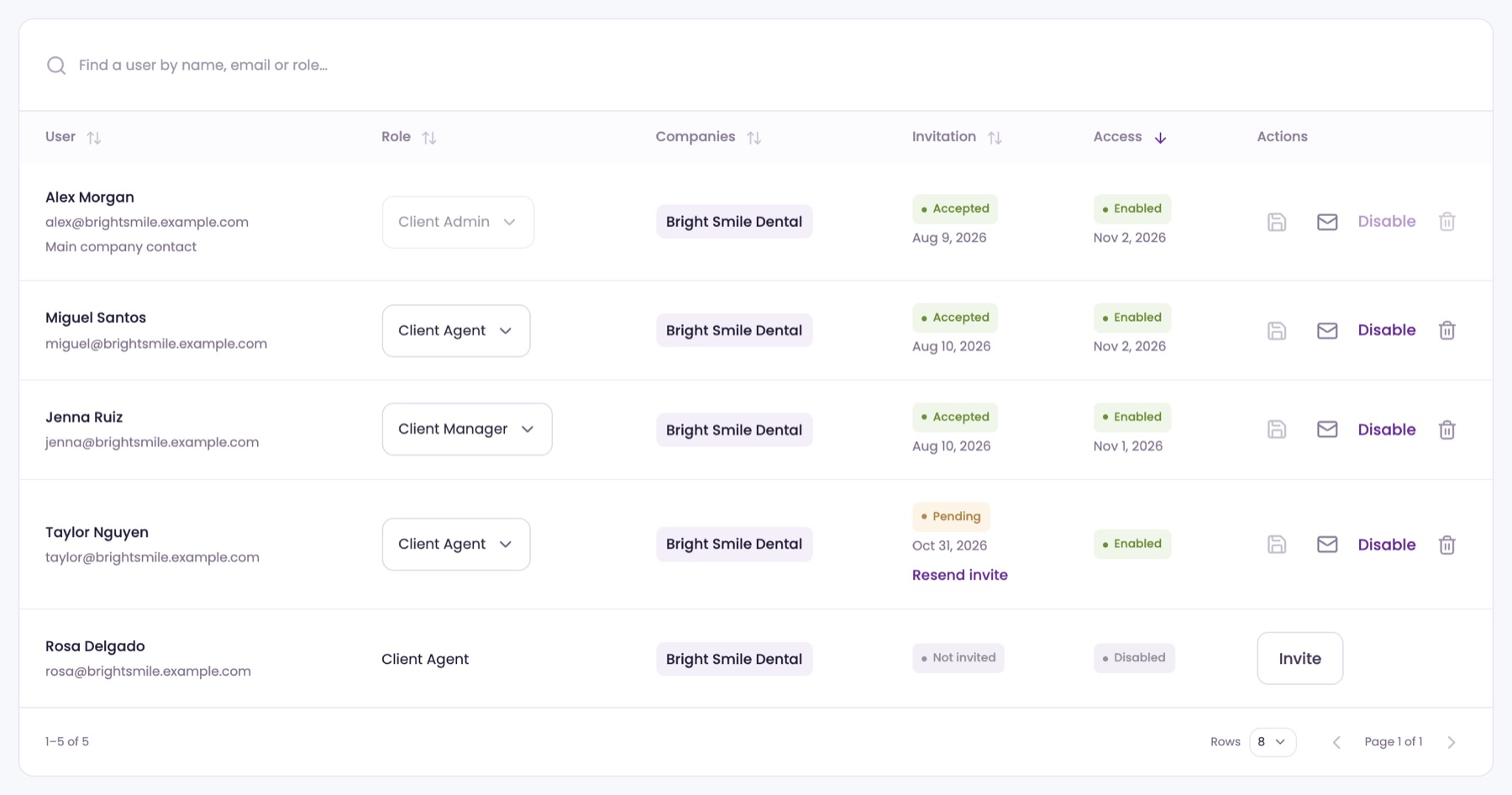
Until then, the Invitation column shows Pending. Click Resend invite under it if the email got lost.
They can take chats right away
New people can answer chats and calls from the start. They switch to Available when they're ready.
Choose what each person sees.
Each person has one of three roles. You can change a role at any time.
Client Agent
For people who answer customers. They see Live Inbox, AI Assistant, History, Knowledge and Overview.
Client Manager
Everything an Agent sees, plus Reports, Flex Credits, People, Web Chat and Phone Lines.
Client Admin
Everything, including AI Settings, Billing and Users & Roles. Admins invite people and change roles.
Change someone's role
In SettingsUsers & Roles, pick the new role in their Role menu, then click the save button (the disk icon) on their row. You'll see Role saved.
You can't change your own role, so you never lock yourself out.
One switch: Available.
When a chat or call needs a person, ChatFX offers it to the people who are Available. The AI keeps helping in the meantime.
Go Available
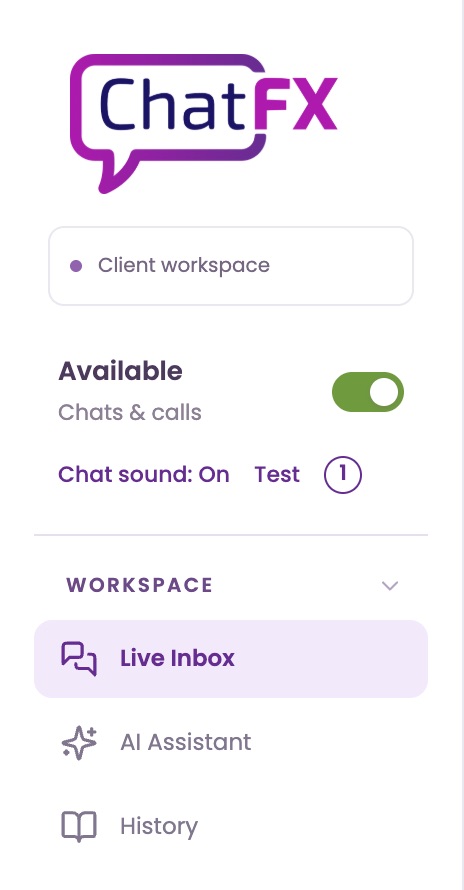
At the top of the left menu, turn on the switch marked Chats & calls. It reads Available when it's on and Unavailable when it's off.
Missed one? Switch back on
If a chat or call offered only to you goes unanswered, ChatFX switches you to Unavailable, so the next one goes to someone who's there. Turn the switch back on when you're ready.
Hear new chats
Under the switch, Chat sound: On plays a short sound for each waiting chat and a ring for calls. Click Test to hear it, or the number beside it to pick another sound.
Turn chat off for someone
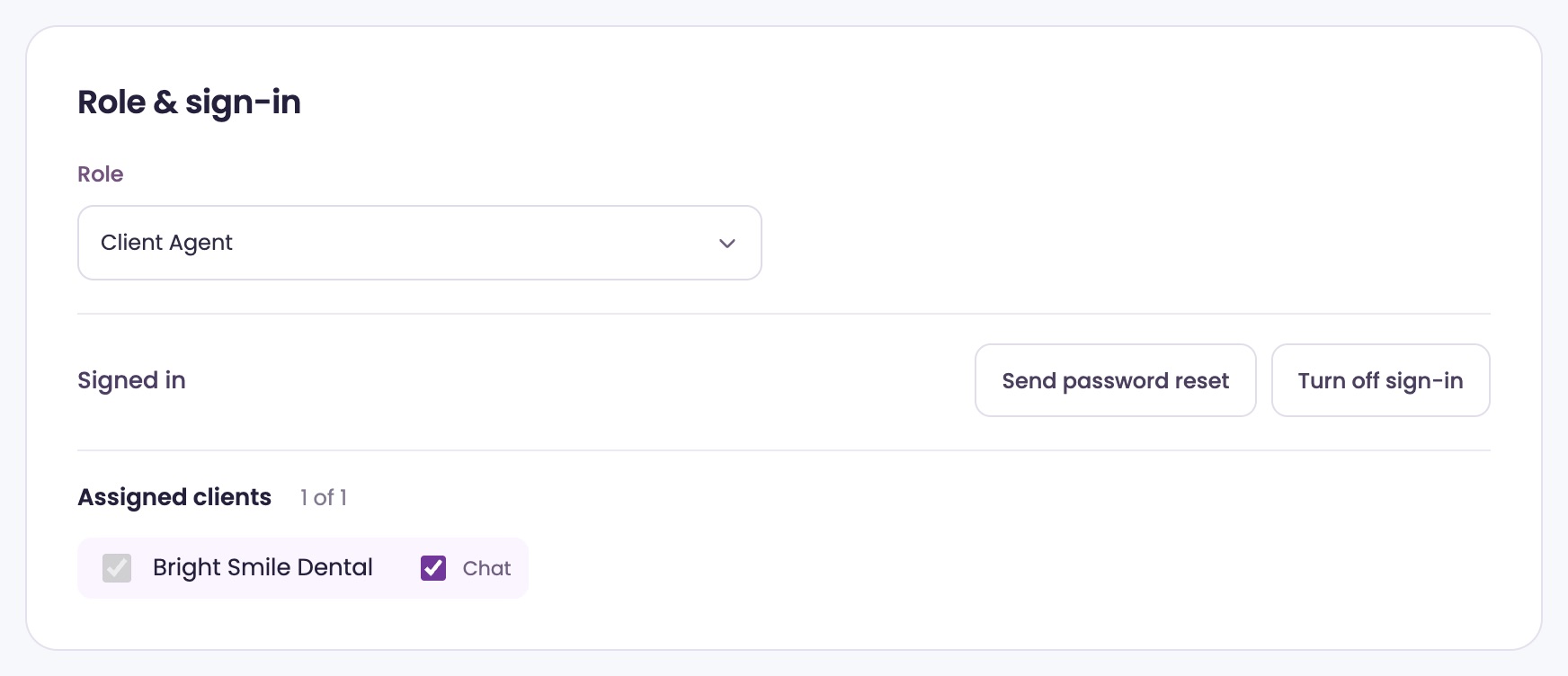
Open ManagementPeople and click their name. Under Assigned clients, uncheck Chat next to your company. It saves right away, and their Available switch goes away.
People and Users & Roles.
Users & Roles is for sign-ins: inviting, roles and access. People shows your team and who's Available.
See who's Available
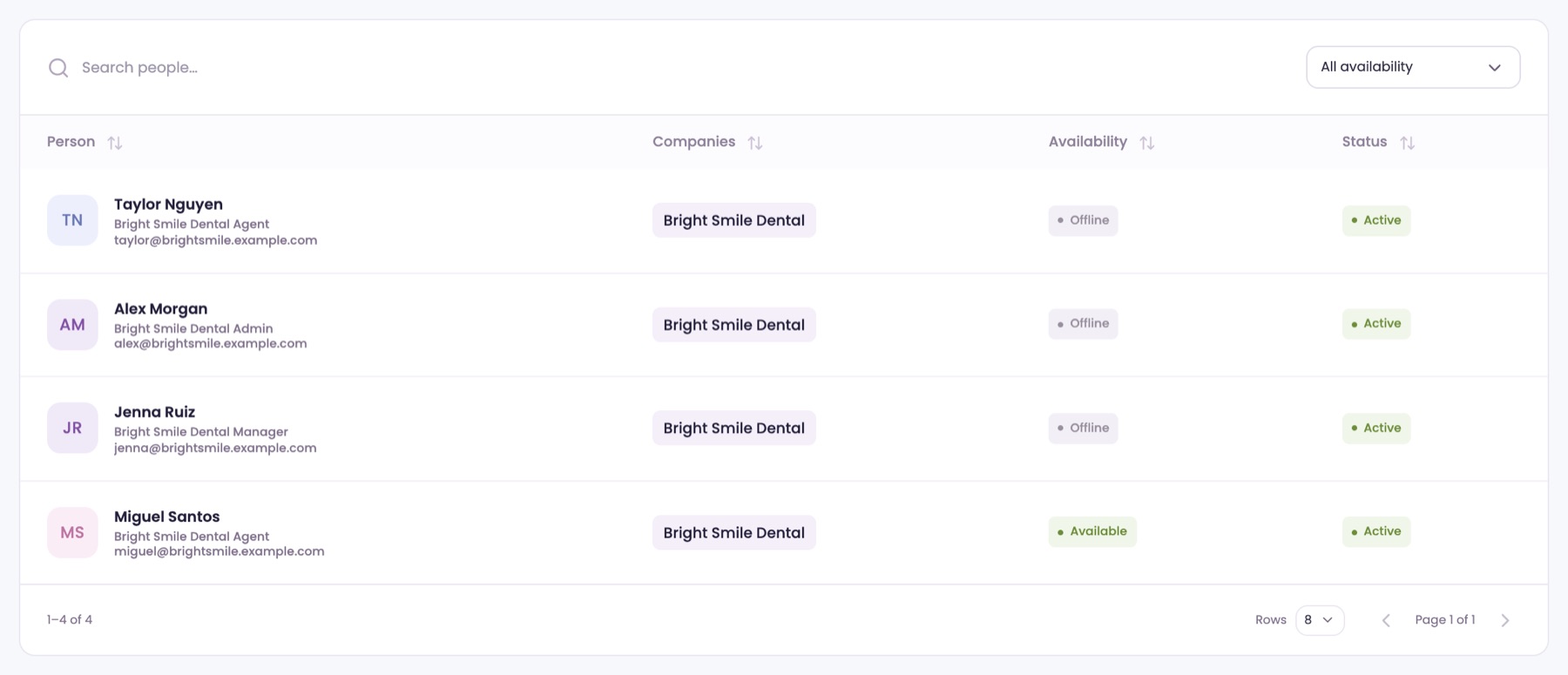
Open ManagementPeople. Each person shows their role and email, and the Availability column shows who's Available right now.
Open someone's page
Click a name. The Role & sign-in card shows their role and their sign-in: Invitation sent, Signed in or Sign-in turned off. You can change their Role here too.
Help them sign in
On their page, click Send password reset. They get an email to choose a new password. In Users & Roles, the envelope icon on their row does the same.
Remove their access.
Their past chats and history stay in ChatFX either way.
Pause their access
In SettingsUsers & Roles, click Disable on their row. They can't sign in, and Access shows Disabled. Click Restore to let them back in.
Delete their sign-in
Click the trash icon on their row and confirm. Their sign-in is deleted. Their People profile and past chats are kept, and they show as Not invited.
Invite them again later
Click Invite on their Not invited row. You can't disable or delete your own access.
Ask our assistant or a person.
Our assistant answers questions about ChatFX right away. For anything else, email service@chatfx.com and a real person will reply.
Frequently asked questions
Which ChatFX role should I give someone who only answers customers?
Choose Client Agent for someone who answers customers. Agents can access Live Inbox, AI Assistant, History, Knowledge and Overview, but they cannot access billing or manage user roles. Client Managers get additional management tools, while Client Admins have full access.
What should I do if a team member doesn't receive their ChatFX invitation?
In Settings > Users & Roles, click Resend invite under the Pending invitation. The team member can then use the email to accept the invitation and choose a password of at least 12 characters. If their row says Not invited instead, click Invite on that row.
Why did ChatFX switch me to Unavailable?
ChatFX switches you to Unavailable if a chat or call offered only to you goes unanswered. This lets the next one go to someone who is there. When you're ready to take chats and calls again, turn the Chats & calls switch back on.
Can ChatFX forward calls to another phone if my team doesn't answer?
Yes. In Phone Lines > Forwarding, you can forward urgent calls or all calls where the caller asks for a person. Your team rings first; if nobody answers, the forwarding number rings. Press 1 to take the call, or the AI takes a message. See the phone answering guide for the settings.
What happens to a team member's chats when I remove their ChatFX access?
Their past chats and history stay in ChatFX whether you disable their access or delete their sign-in. Disabling prevents them from signing in until you restore access. Deleting removes their sign-in, but keeps their People profile and shows them as Not invited.
Can I replace my two-step sign-in app if I get a new phone?
Yes. In your account sign-in settings, click Replace to change the app. You'll first need a code from your current app. You can also turn off two-step sign-in there, which likewise requires a code from the app.