
Let customers book a meeting.
Connect your calendar and choose who holds meetings. Your AI then offers open times in the chat and on calls. Meeting booking is part of the Pro plan.
Start with your calendar.
Each person who holds meetings connects their own Google or Microsoft calendar. You can connect on any plan.
Open Your workspace
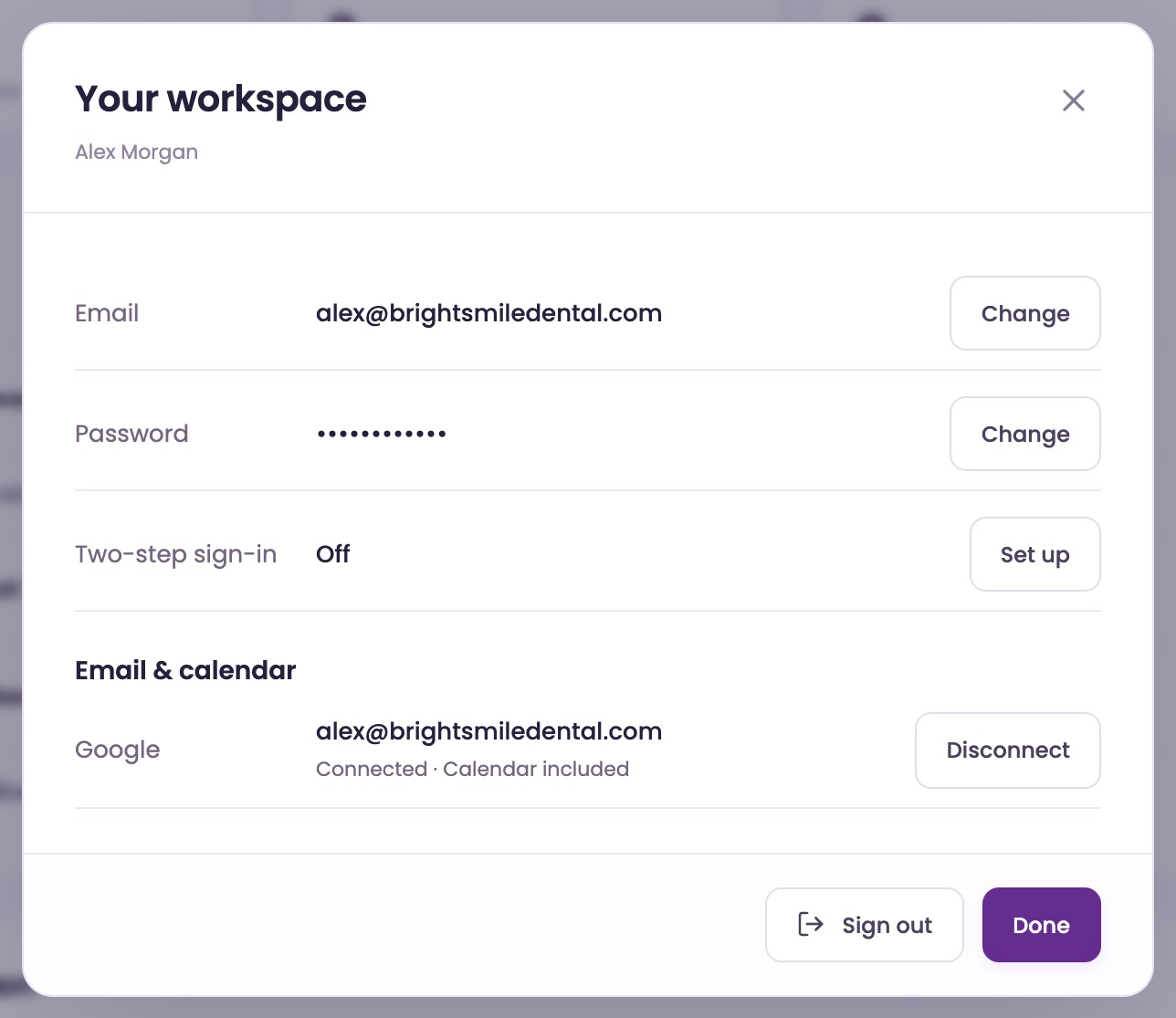
Click your name at the bottom of the left menu, or your picture at the top right. The Your workspace window opens.
Connect Google or Microsoft
Under Email & calendar, click Connect Google or Connect Microsoft and sign in. Microsoft needs a work account.
On Google's or Microsoft's page, allow everything it asks for, including your calendar.
Check it's connected
Your address shows with Connected · Calendar included. Meetings now go on your calendar, and your meeting emails go out from your own address.
If it says the calendar isn't included or needs reconnecting, click Connect again.
Choose your meeting type.
Your account has one meeting type. Client Admins and Client Managers see Setup; everyone on your team can book and change meetings.
Open Setup Pro
Open Live InboxMeetings and click Setup.
On Starter, Setup says meeting booking is on the Pro plan, with an Upgrade to Pro button.
Describe the meeting
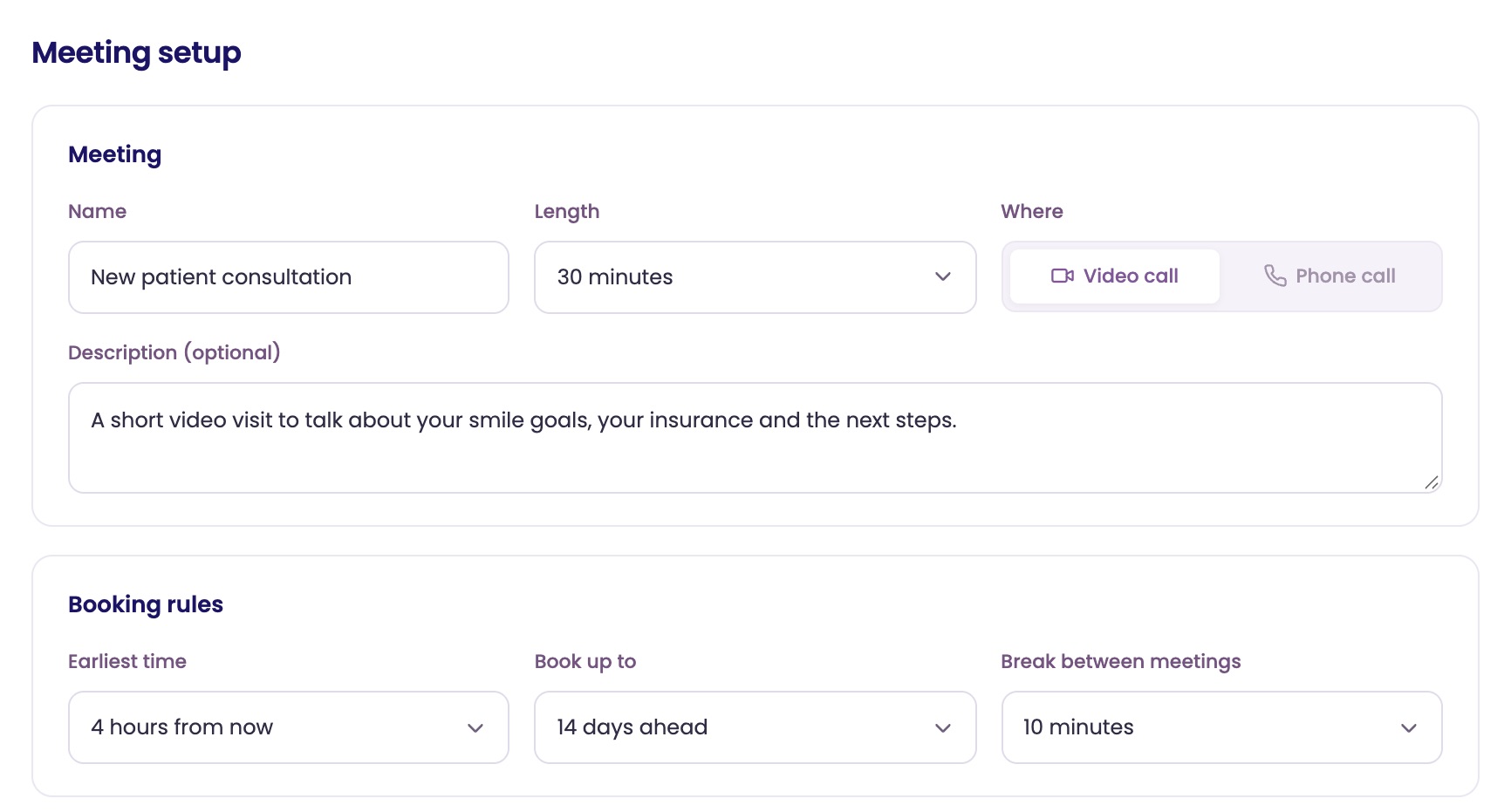
Under Meeting, set the Name customers see (it starts as Intro call), the Length (15 to 60 minutes) and Where: Video call or Phone call.
Add a short Description if you like. It shows on your booking page and in the confirmation email. Phone meetings need a ChatFX phone number.
Set booking rules
Under Booking rules, choose the Earliest time someone can book (1 hour to 2 days from now), how far ahead with Book up to (7 to 60 days) and a Break between meetings.
They start at 4 hours, 14 days and 10 minutes.
Choose who holds meetings.
A host is someone on your team with a connected calendar. ChatFX offers times inside their hours when their calendar is free.
Add a host
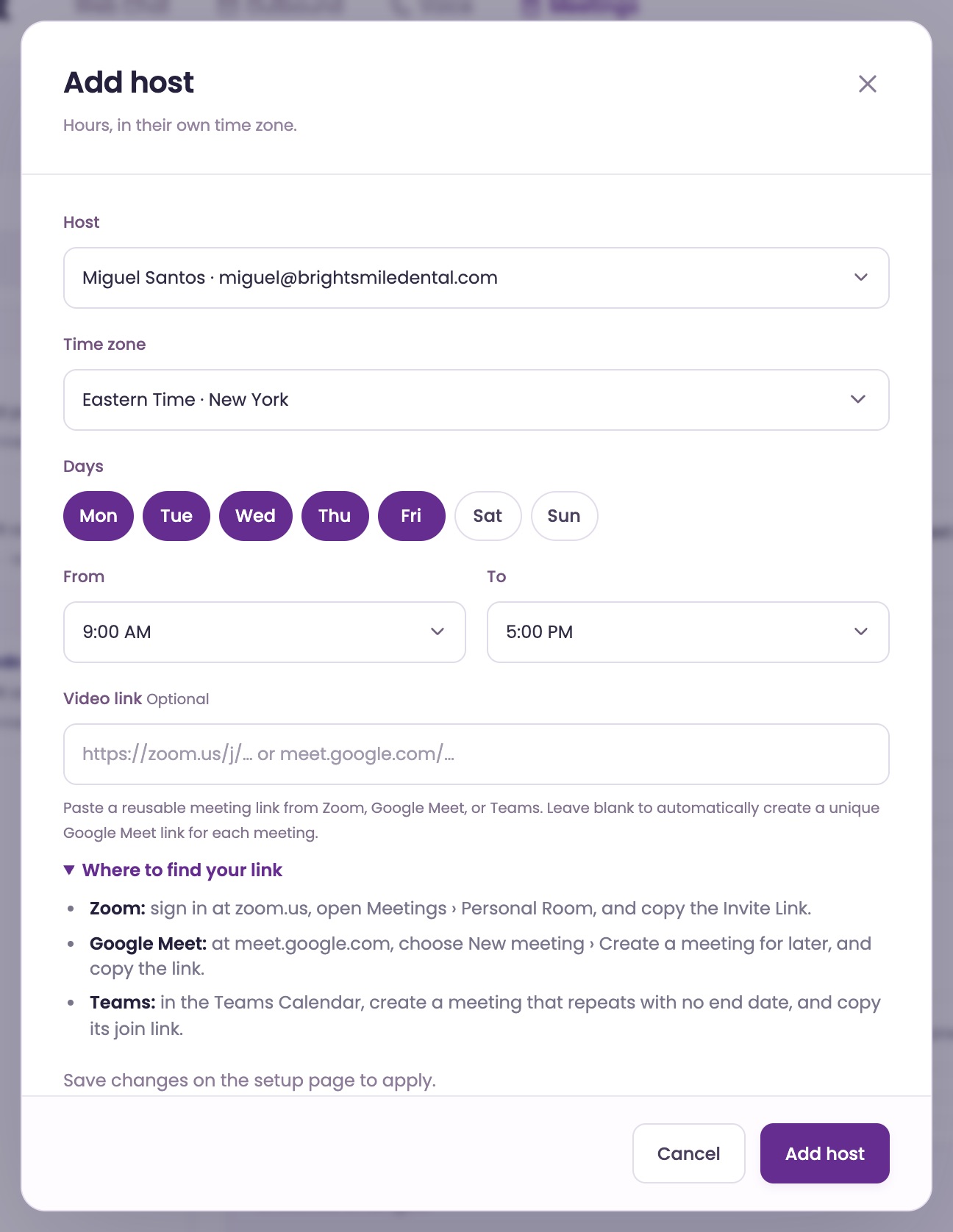
In Setup, under Hosts, click Add host and pick the person. Only people who have connected a calendar are listed.
Set their hours
Choose their Time zone, the Days they take meetings, and From and To times. Each host keeps their own hours.
Add a video link
For video meetings, paste a reusable Zoom, Google Meet or Teams link in Video link. Where to find your link shows where each one keeps it.
Leave it blank and each meeting gets its own Google Meet or Teams link, matching the host's calendar.
Save your setup
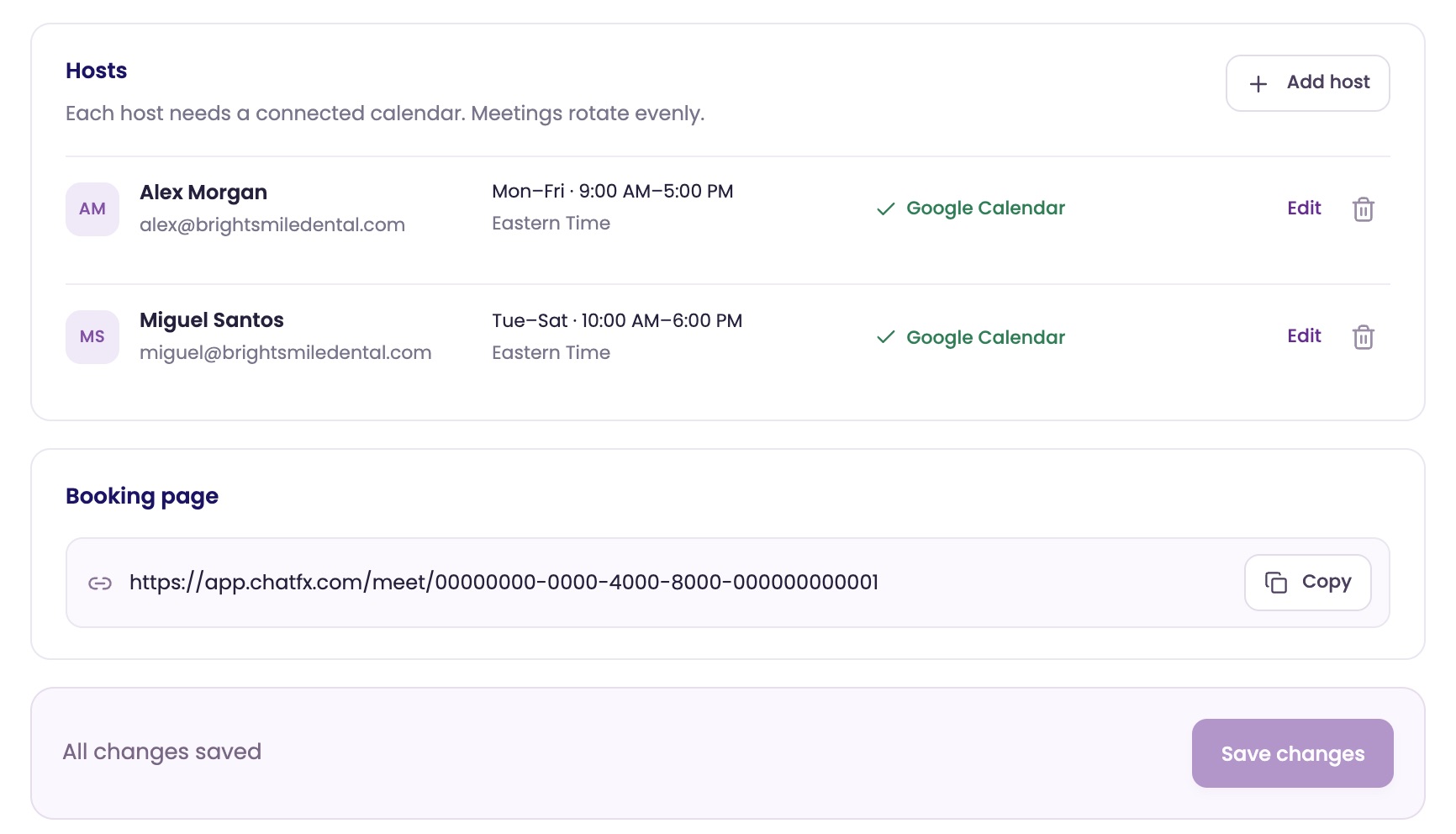
Click Add host, then Save changes at the bottom of Setup. With several hosts, meetings rotate evenly.
Let your AI book the time.
Turn on booking for the conversations where it fits, and share your booking page anywhere.
Turn it on in AI Settings
Open AI Settings. On a conversation path, like Sales, under Optional next steps, check Meeting Booking.
Click Edit to change its Button text (it starts as Book a meeting), then click Save changes.
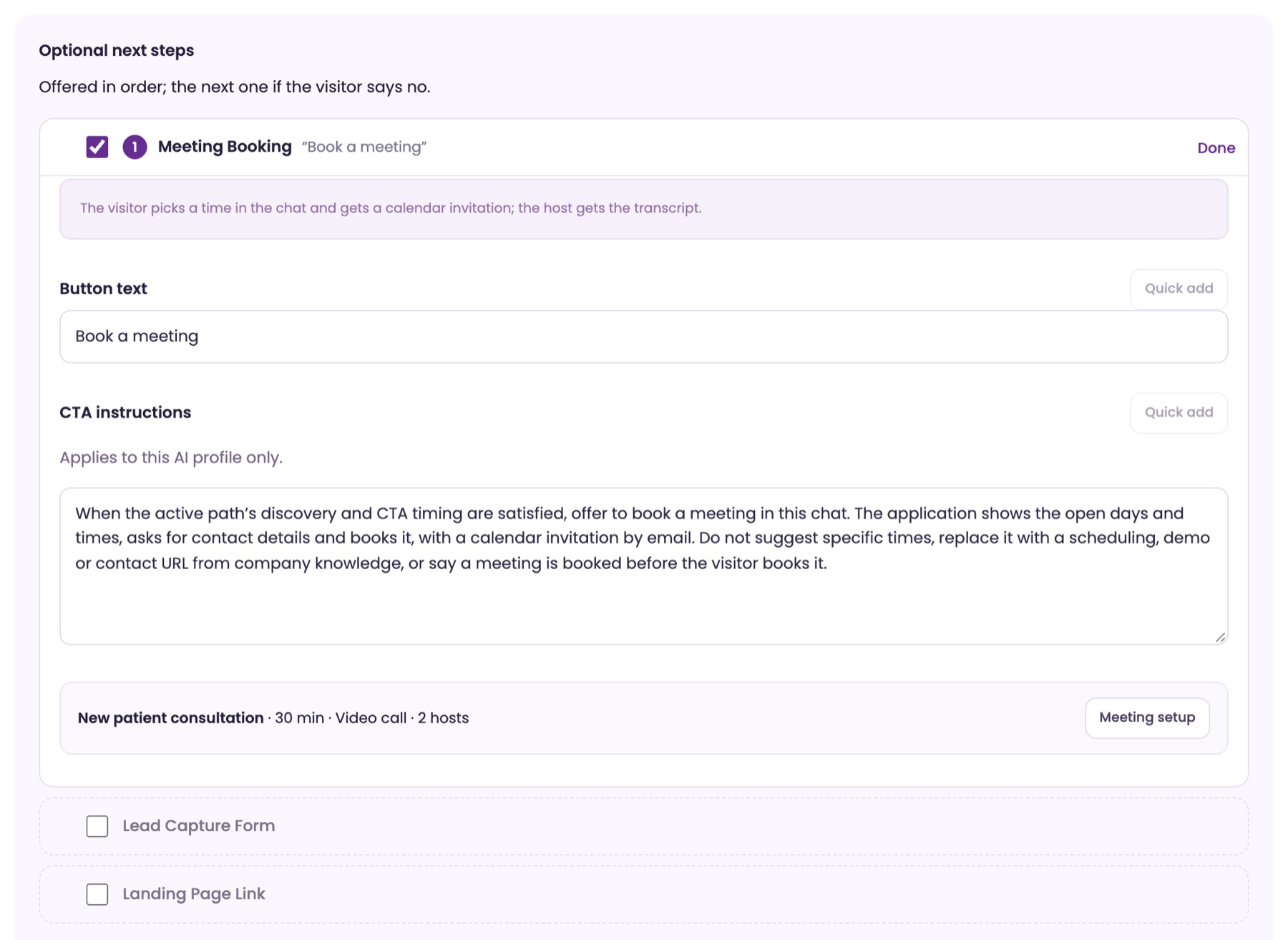
Check for warnings
If the step says No host with a connected calendar, No phone line or Pro plan, the chat can't offer meetings yet. Set up meetings takes you to Setup.
Booking on calls
When a caller wants a call back or a set time with your team, the AI offers to book it. It suggests two open times, takes their name, number and email, and reads the time back before booking.
Share your booking page
In Setup, under Booking page, click Copy and share the link, for example in your email signature. Copy works once a host can take bookings.
Booked in a few clicks.
Customers book in the chat, on your booking page or on a call.
They pick a time
The customer picks a day and a time under Pick a time, shown in their own time zone. Then they add their name and email, plus a phone number for phone meetings.
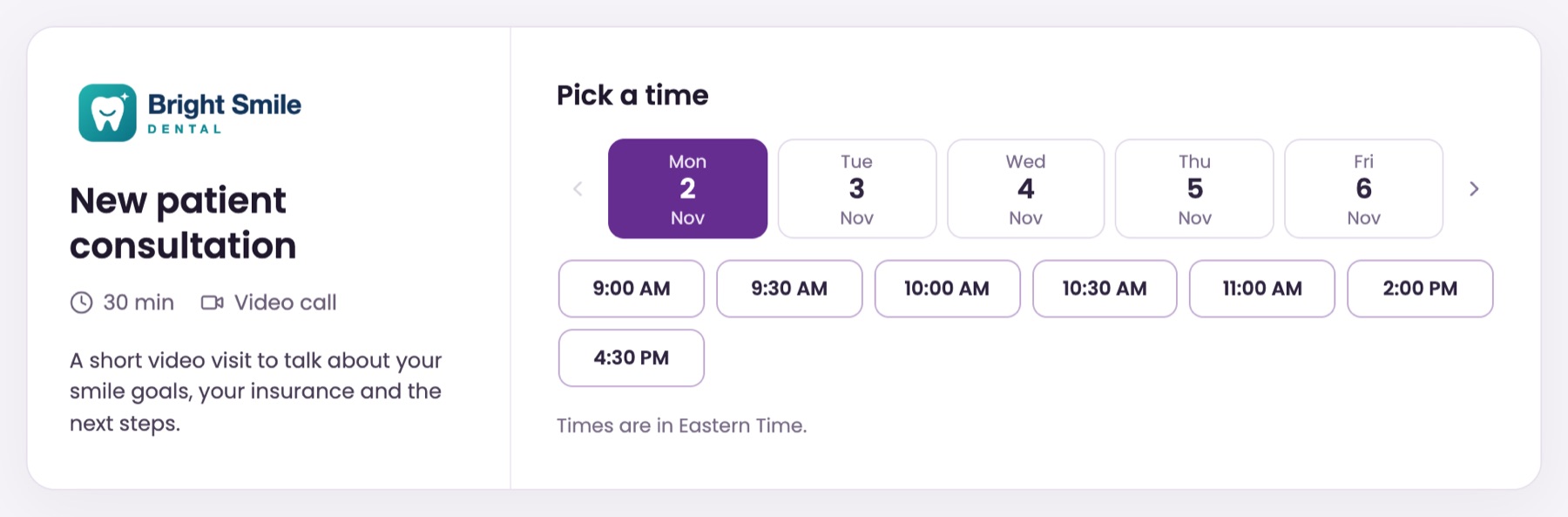
They're booked
They see You're booked. with links to add it to Google, Outlook or iCal. The email invitation comes from the host's own address.
Reminders and changes
They get a reminder a day before, or an hour before for meetings booked less than a day ahead. Reschedule or cancel in their email lets them change it, and the host is told.
The host gets the details
The meeting goes on the host's calendar. The host also gets an email with the customer's details, the AI's summary of what they need and the chat or call transcript.
All your meetings in one place.
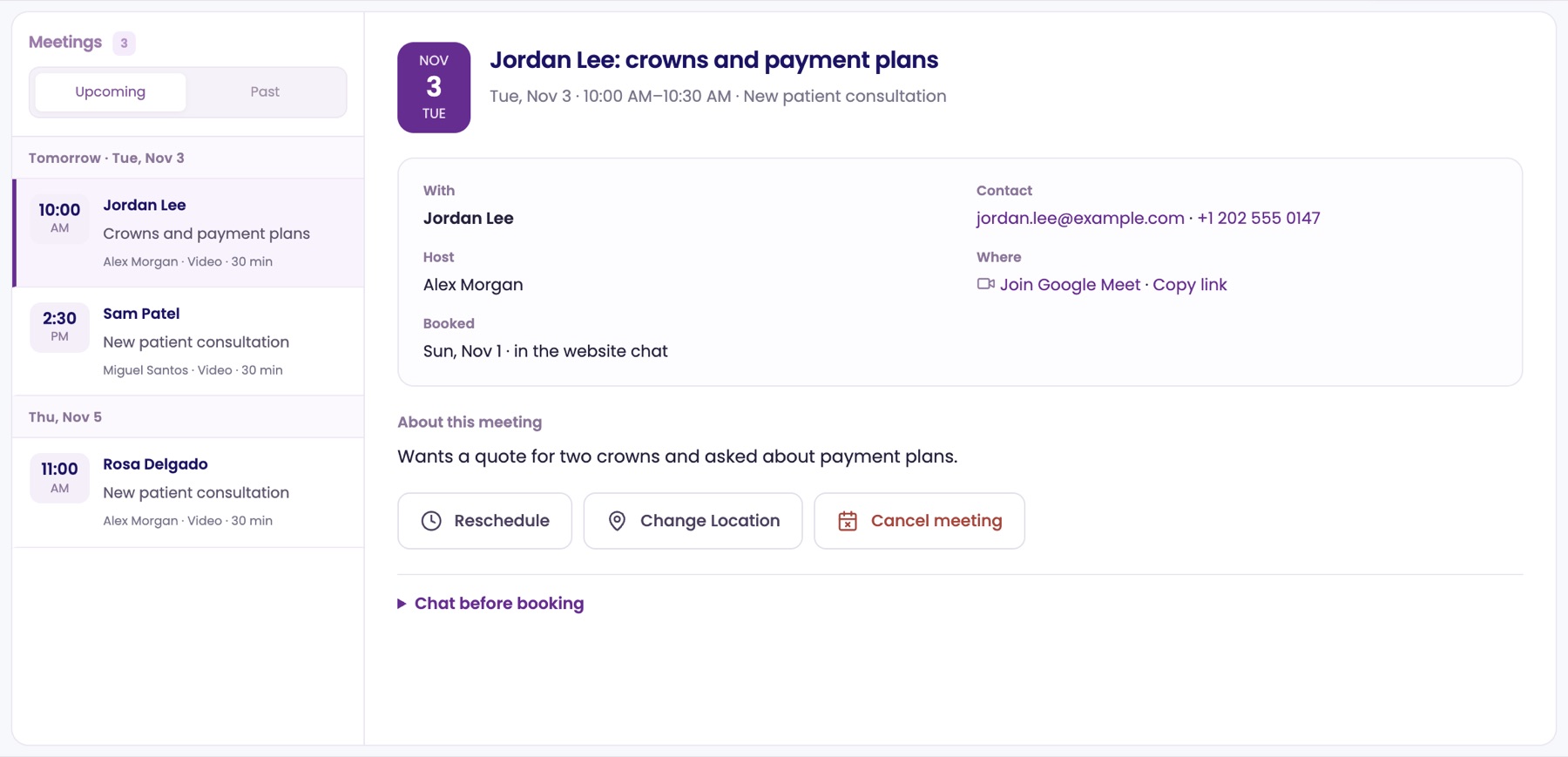
Everyone on your team sees meetings in Live InboxMeetings.
See what's coming up
Upcoming lists meetings by day, and Past has the ones that happened or were canceled. Open one to see who it's with, the AI's summary under About this meeting, and the chat before booking.
Book for someone
Click Book meeting. Pick a Host or Any host (next in turn), set Their time zone, choose a time and fill in their details. With an email, they get the invitation.
Reschedule, move or cancel
On an upcoming meeting, click Reschedule, Change Location or Cancel meeting. The customer gets an email about the change if they gave one.
Call for a phone meeting
For a phone meeting, Call rings the customer from your ChatFX number, so they see your business's number.
Ask our assistant or a person.
Our assistant answers questions about ChatFX right away. For anything else, email service@chatfx.com and a real person will reply.
Frequently asked questions
Why isn't my host available for meeting bookings?
A host must have a connected calendar before they can be offered for bookings. If Setup shows No calendar or Reconnect, the host needs to connect their calendar again under Email & calendar in Your workspace. Their available times also depend on their host hours and calendar availability.
How are meetings assigned when I have more than one host?
Meetings rotate evenly among your hosts. Each host sets their own time zone, meeting days and hours, and we offer times when their connected calendar is free. When booking for a customer, your team can also choose a specific host or select Any host for the next person in turn.
Do I need to provide a video link for every meeting?
No. You can add a reusable Zoom, Google Meet or Teams link to a host's setup. If you leave the video link blank, each meeting gets its own Google Meet or Teams link, matching the host's connected calendar.
Can customers reschedule or cancel a meeting they booked with ChatFX?
Yes. Customers can use the reschedule or cancel links in their meeting email, and the host is notified. Your team can also reschedule or cancel an upcoming meeting in Live Inbox; the customer receives an email about the change if they provided an address.
How does ChatFX book meetings during a phone call?
The AI suggests two available times when a caller wants a callback or a set time with your team. It takes the caller's name, phone number and email, then reads the time back before booking. Phone meetings require a ChatFX phone number.