
Set how your AI answers.
AI Settings shapes how your AI talks, which conversations it handles and what it offers next. Changes apply as soon as you save, and you can test them on the same page.
Set who your assistant is.
These settings apply to every conversation, in chats and on phone calls.
Open AI Settings
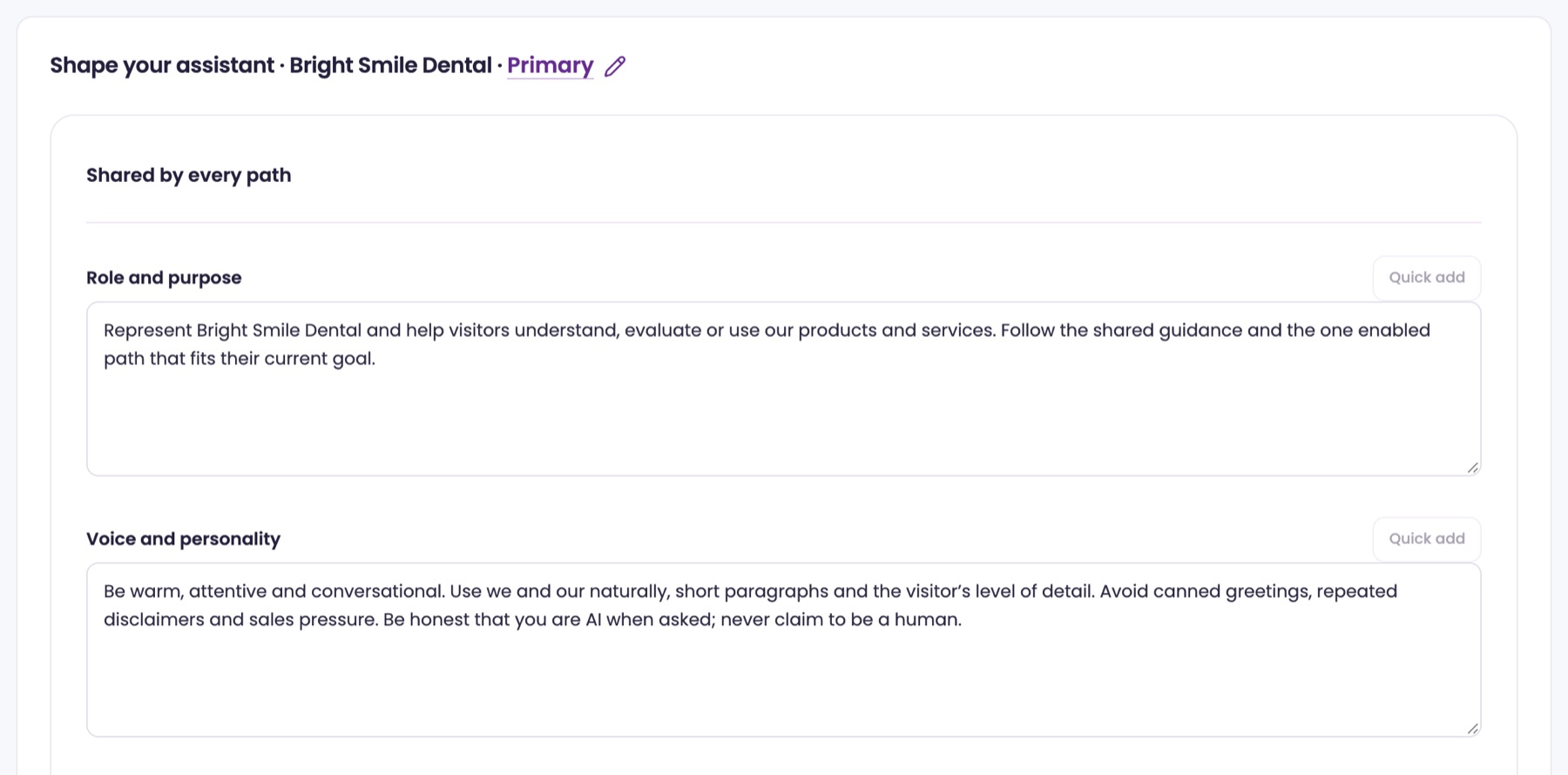
In the menu, open AI Settings. Everything you can change is in Shape your assistant, starting with the card Shared by every path.
Describe its role and voice
Role and purpose says who your AI works for and why it's there. Voice and personality sets its tone. Conversation approach is how it moves a conversation along. Knowledge and constraints is what it may and may not talk about.
Guide visitors and your team
Website visitor guidance applies to website visitors and your team. Internal assistant guidance applies only when your team asks the AI, with internal knowledge.
Start with Quick add
Click Quick add on an empty field to fill it with starter text that uses your company's name. Edit it to sound like you. Quick add is greyed out once a field has text.
Let your corrections lead
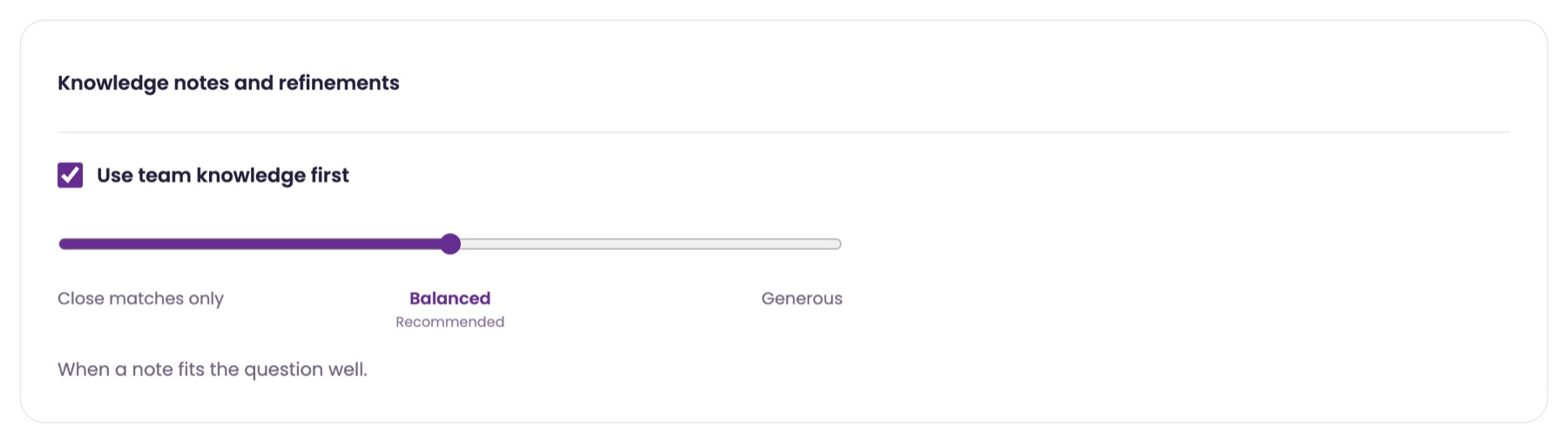
In Knowledge notes and refinements, keep Use team knowledge first checked so your approved refinements lead an answer when they fit. Choose Close matches only, Balanced or Generous. Balanced suits most businesses.
Three kinds of conversations.
Your AI works out what each visitor needs and follows the path that fits.
Know the three paths
Path 1: Customer Service covers accounts, billing, policies and general help. Path 2: Sales covers buying questions and product fit. Path 3: Technical Support covers troubleshooting and errors.
Turn a path on or off
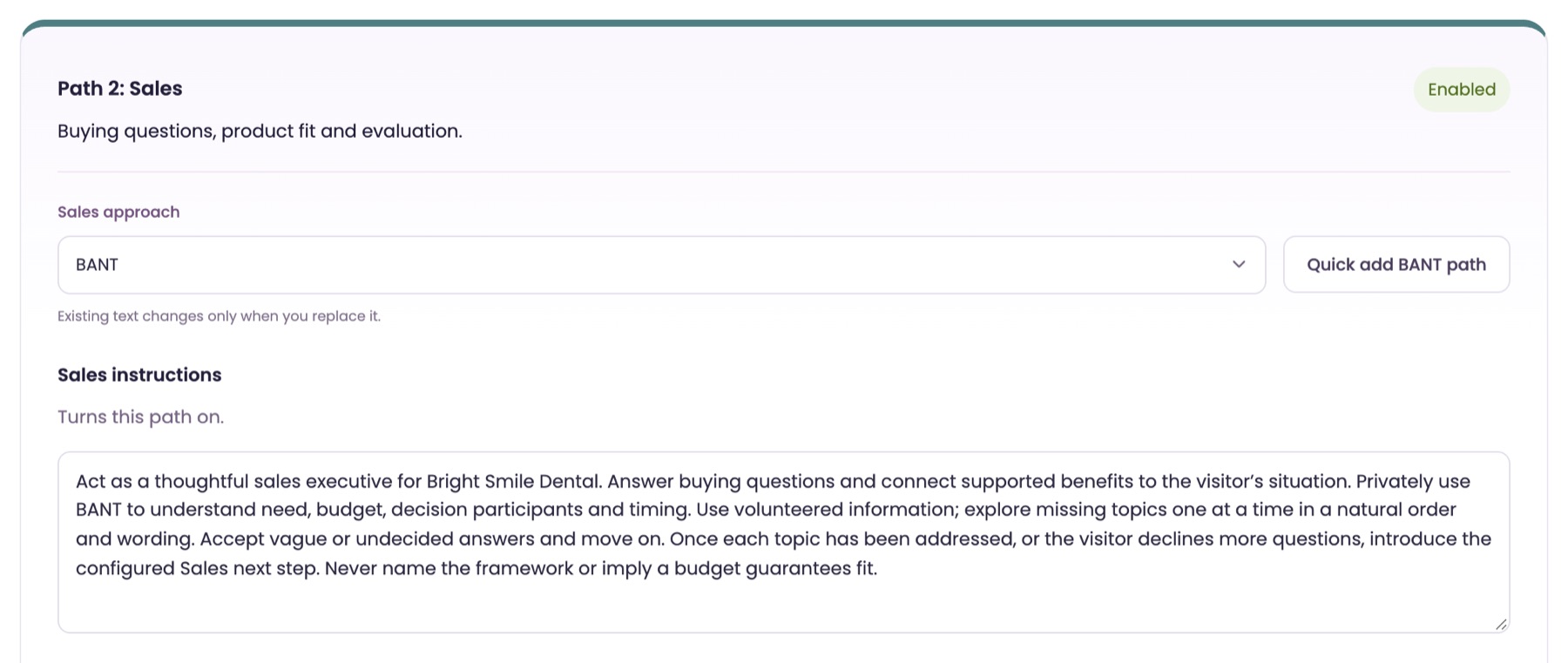
A path is on when its instructions box has text. Empty it to turn the path off; its label then reads Off · instructions blank. Enabled on save means saving turns it on.
Fill a path in one click
Click the path's Quick add button to fill its instructions, examples and timing with starter text. If the path already has text, you're asked first: click Replace path text or Cancel. Your contact form settings stay as they are.
Choose a sales approach
On the Sales path, pick BANT, MEDDIC or General in Sales approach. Existing text changes only when you replace it, so click the Quick add button afterward to use the new approach's wording.
Add example conversations
Example conversations is optional. Use it to show the style you want, not to add facts.
What your AI offers next.
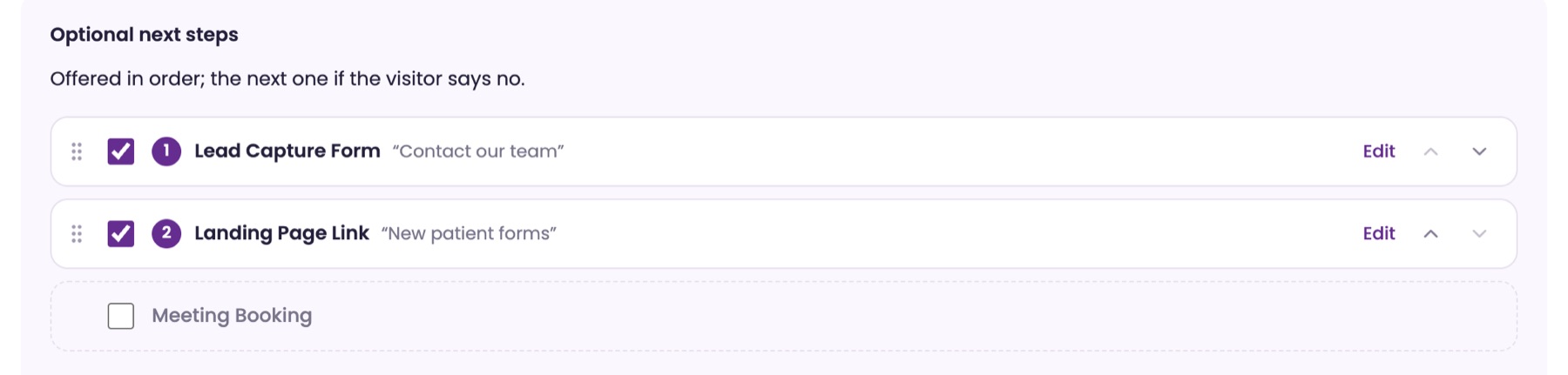
Each path can offer up to three next steps, in the order you choose. If the visitor says no, the AI offers the next one.
Turn on a next step
Under Optional next steps, check Lead Capture Form, Landing Page Link or Meeting Booking. Its settings open. Edit and Done open and close them later.
Put them in order
Drag a step by its handle, or use its up and down arrows. The number shows the order the AI offers them.
Write the button and instructions
Set the Button text visitors see. CTA instructions tell the AI how to offer it, and Quick add gives you a start. For a Landing Page Link, enter the full CTA URL and its CTA link text.
Say when to offer it
When to offer the CTA is optional. Describe the moment a next step would help, like after the visitor asks about prices.
Offer meetingsPro
Meeting Booking lets visitors pick a time in the chat and get a calendar invitation. It needs a host with a connected calendar, and phone meetings need a phone line. Set up meetings opens your meeting setup in Live Inbox.
Collect contact details.
With the visitor's agreement, the form sends their details, a summary and the transcript to your team.
Choose where it goes
Under After the visitor submits, set Follow-up to Live Inbox or Email only. Live Inbox gives each inquiry to one person's Live Inbox and mailbox. Email only sends the form and transcript by email.
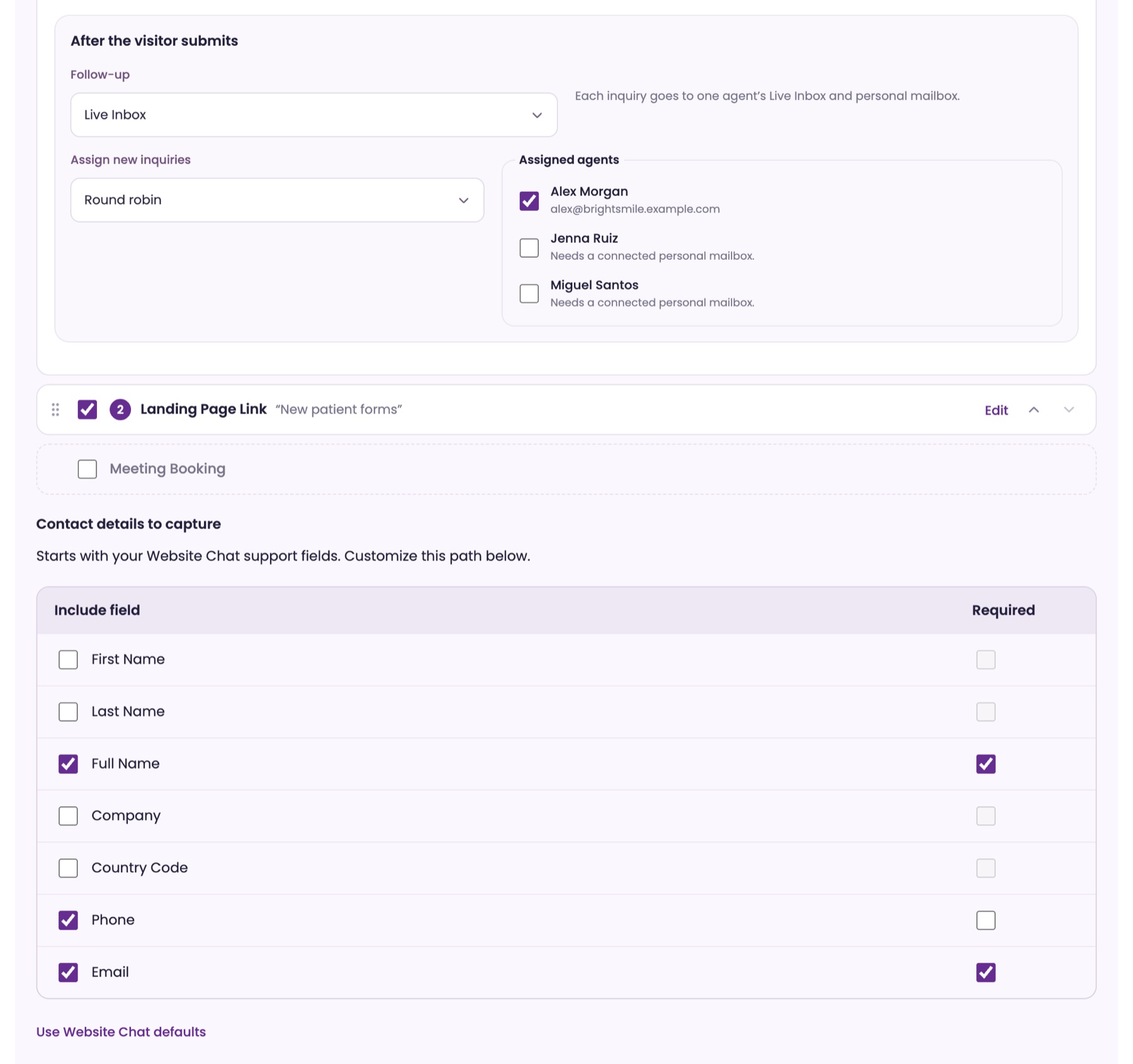
Live Inbox: pick who gets them
Choose Round robin or Fewest open conversations in Assign new inquiries, then check the people under Assigned agents. Each needs a mailbox connected in Your workspaceEmail & calendar before you can check them.
Email only: pick the address
In Send inquiries to, choose a person on your team or Other email…, and add anyone to copy in BCC. The form stays off until it has an email.
Choose the fields
In Contact details to capture, check Include field and Required for each one you want. The list starts from your Web Chat email form, and Use Website Chat defaults puts it back.
Save, then ask real questions.
Test with the questions your customers ask most. A test isn't shown to anyone else.
Save your changes
Click Save changes at the bottom. The bar says Unsaved changes until you do. Saved instructions apply to the AI's next reply.
Ask a test question
Under Try a visitor question, type in Your question and click Test the assistant. The button is greyed out while you have unsaved changes. The test uses your saved instructions and the knowledge visitors can get.
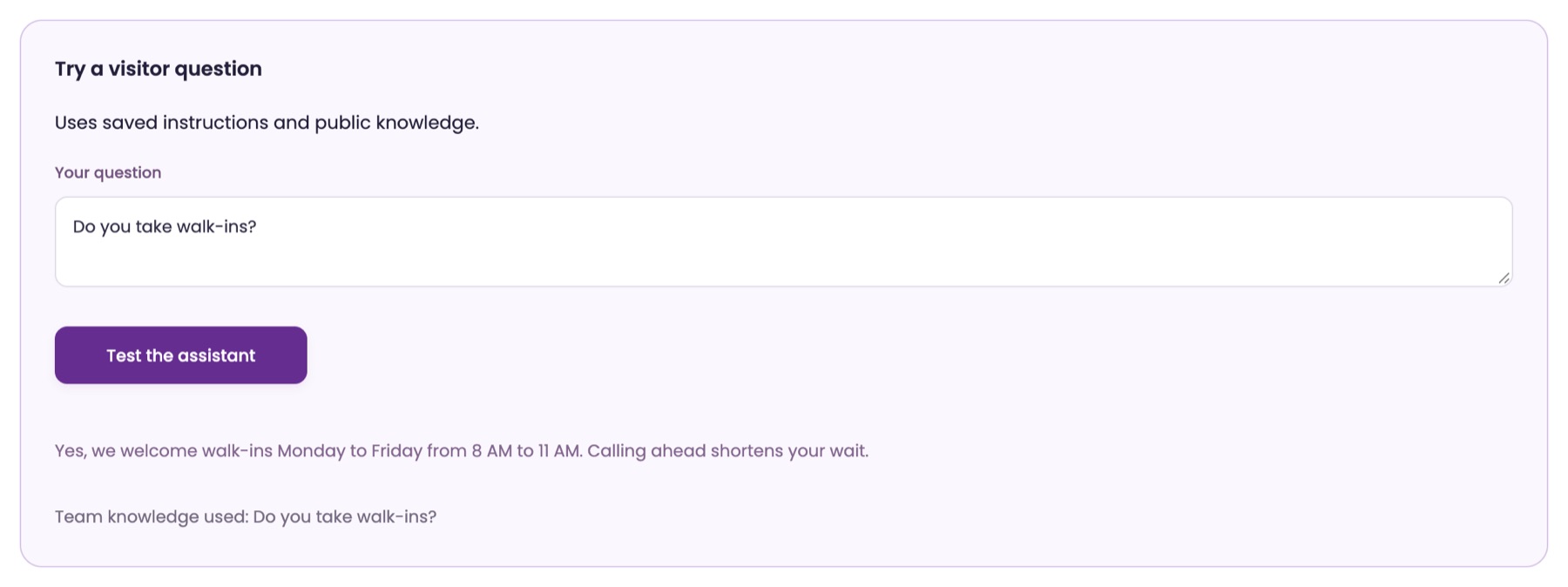
Read the answer
The answer shows as a visitor would see it. Under it, Team knowledge used names any refinements it used, or you see No team knowledge fit this question.
See everything together
Open See the full instructions and shared rules to read all your instructions in one box. It's read only.
What ChatFX sets for you
ChatFX chooses the AI model and reply length, so there's nothing to pick there.
Ask our assistant or a person.
Our assistant answers questions about ChatFX right away. For anything else, email service@chatfx.com and a real person will reply.
Frequently asked questions
Where should I put my business's prices and opening hours for the ChatFX AI?
Put prices, hours and services on your website rather than in AI Settings, so answers stay current. Use AI Settings for the assistant's role, tone, conversation approach and boundaries. You can also add information your website doesn't include through Knowledge.
Can I change how ChatFX handles sales questions without rewriting everything?
Yes. Choose BANT, MEDDIC or General under Sales approach, then use the Sales path's Quick add button to insert starter wording for that approach. Existing text changes only if you agree to replace it; your contact form settings stay as they are.
Can my ChatFX assistant offer to book a meeting?
Yes. On Pro, you can enable Meeting Booking as an optional next step for a conversation path. Visitors can pick a time in the chat and receive a calendar invitation. You'll need a host with a connected calendar; phone meetings also need a phone line.
How can I check whether my AI is using my team's corrections?
Save your changes, then ask a question under Try a visitor question and click Test the assistant. Below the answer, Team knowledge used names any refinements the test used. If none fit, you'll see No team knowledge fit this question.
Who receives contact details collected by the ChatFX assistant?
You choose whether inquiries go to Live Inbox or by email only. For Live Inbox, select an assignment method and agents with connected mailboxes. For email only, choose a team member or another email address and optionally add BCC recipients. With the visitor's agreement, the form sends their details, a summary and the transcript.