
Teach ChatFX your business.
Your AI answers from your Knowledge: your website, your documents and notes, and the corrections you make. Here's how to add to it and keep answers right.
What your AI knows.
Everything the AI answers from is on one page, with buttons to add more.
Open Knowledge
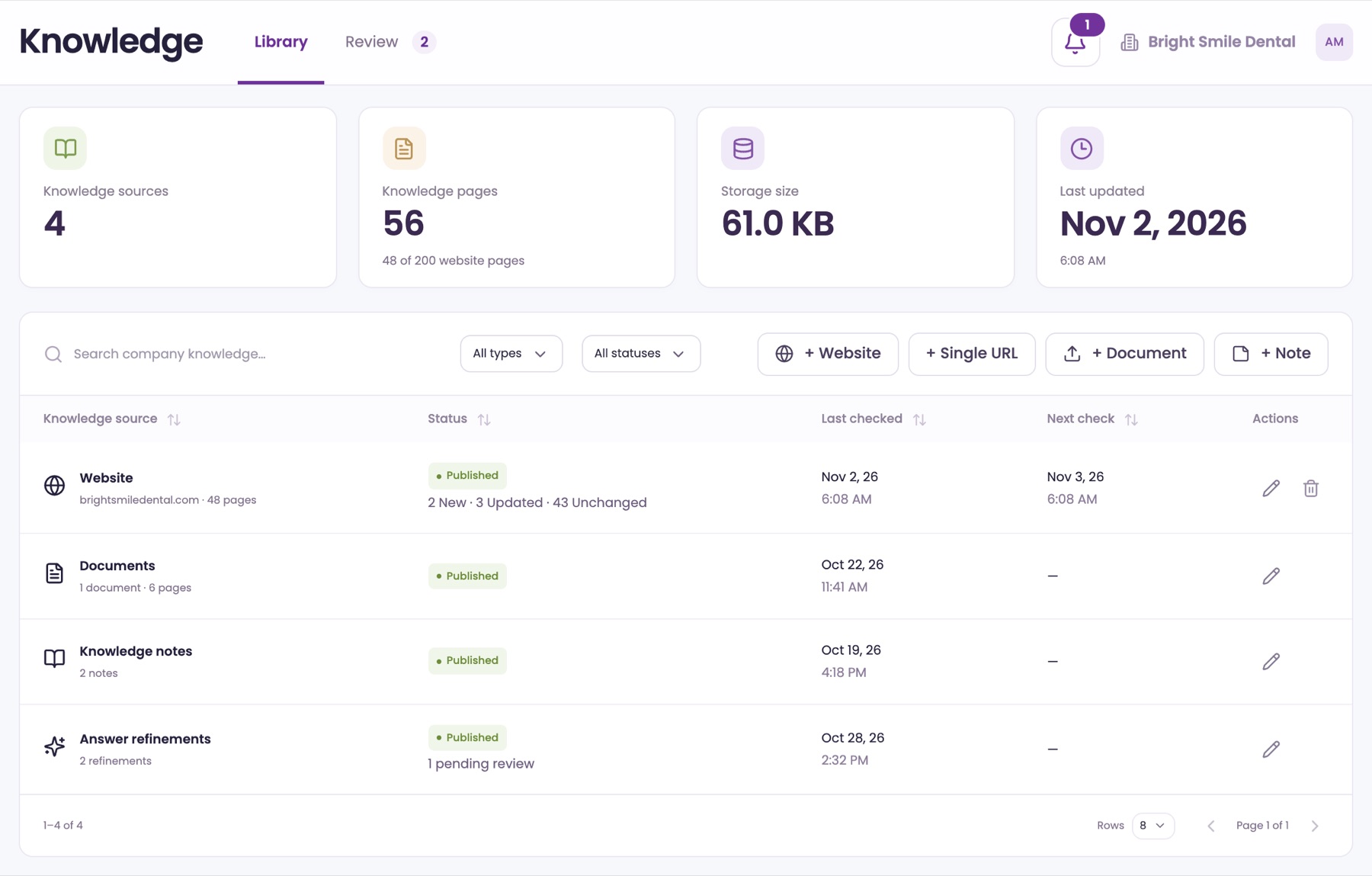
In the menu, open KnowledgeLibrary. The cards show your Knowledge sources, Knowledge pages, Storage size and when it was Last updated. Under Knowledge pages, you see how many pages you use, like 142 of 200 pages.
Add something new
The buttons beside the search box are + Website, + Single URL, + Document and + Note. Each one is covered below.
See what each row is
Each website is one row, with its address and page count. Documents, Knowledge notes and Answer refinements have a row each. Click a row's name, or its pencil, to open it.
Find something fast
Use All types to show only websites, documents, refinements or notes, and All statuses to show one status. The search box matches names and addresses in the list, not the words inside your pages.
Read the status
Published means the AI is using it. Processing means a website is being checked. Preparing means something new is being made ready.
Add your website.
ChatFX reads the website you signed up with. You can add more websites or single pages any time.
It starts at sign-up
As soon as your account is ready, ChatFX starts reading the website you signed up with and adds pages as they're found. Your Overview's setup list shows Website read once the first pages are in.
Add a website
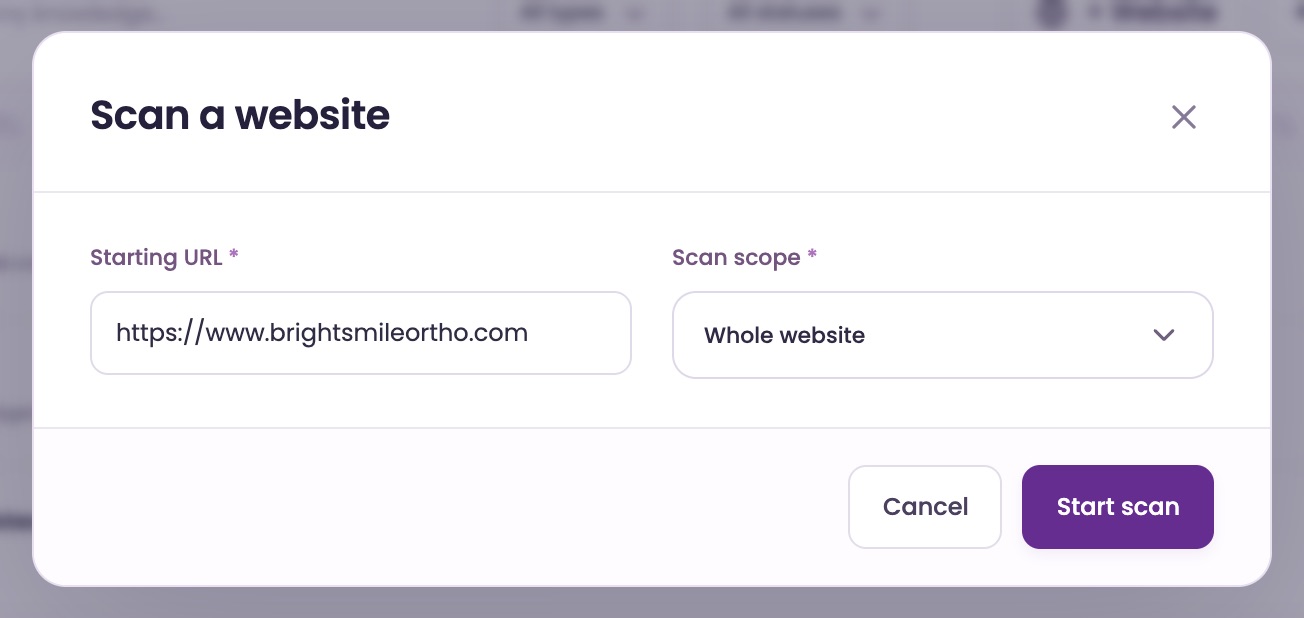
Click + Website. In Scan a website, type the Starting URL, such as https://www.yourbusiness.com. In Scan scope, choose Whole website or This folder and its subfolders, then click Start scan.
A subdomain, like blog.yourbusiness.com, is a separate website.
Choose pages, then import
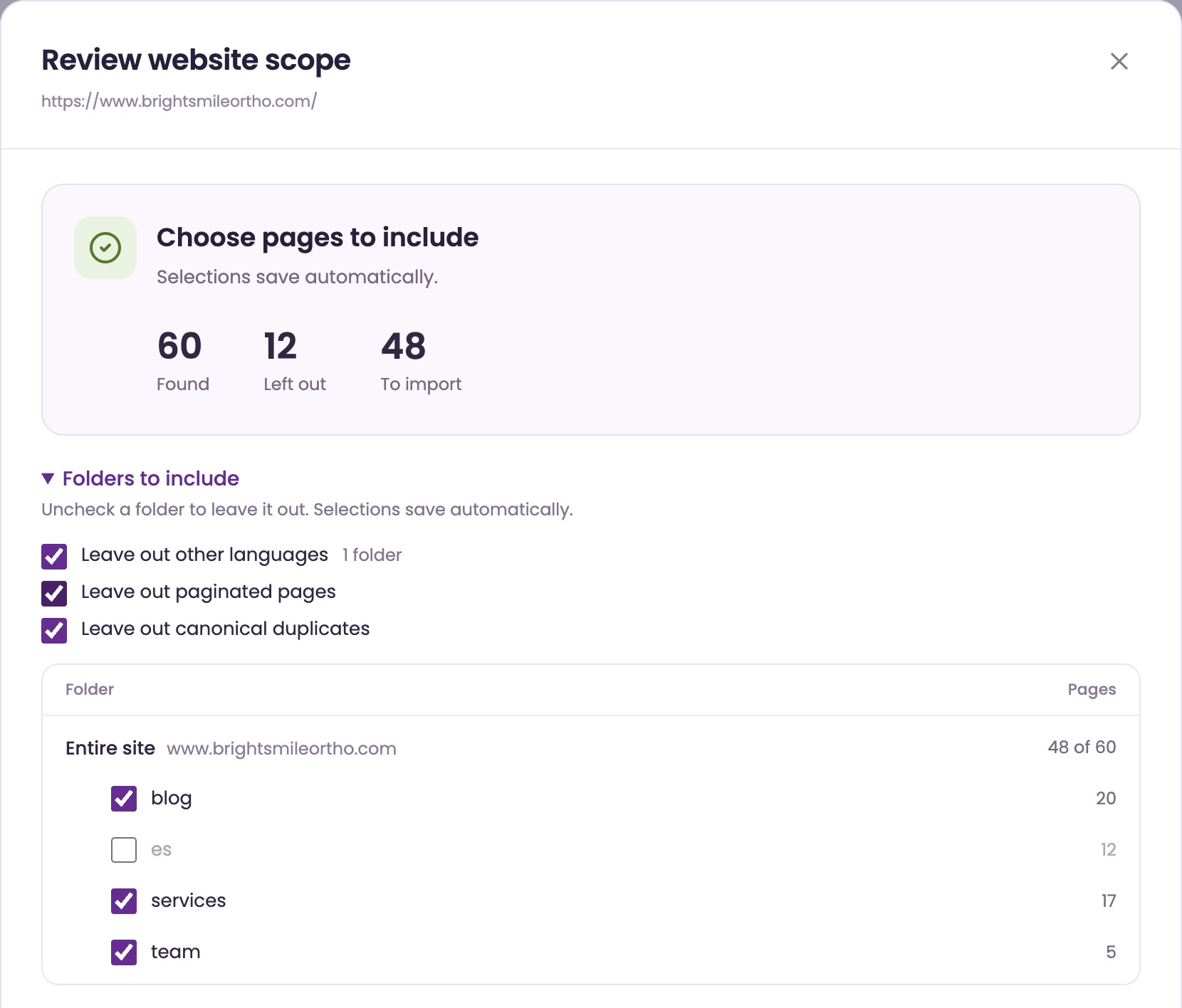
Review website scope opens and finds your pages. When it says Choose pages to include, uncheck any folder under Folders to include, or any page in the Include column. Each choice is saved as you go.
Choose how often to check it in Scan frequency after import, then click the import button, such as Import 48 pages. You can close the window while it works.
Add a single page
Click + Single URL, type the Page URL and click Add page. A page from a website you've added joins that website. Any other page gets its own row and is checked every day.
What it doesn't read
Website checks read public web pages. They skip PDFs and other files, addresses with a "?" in them, pages behind a login, and pages your website asks crawlers not to use. Upload files as documents instead.
Choose the pages to include.
Open a website to choose its pages, set how often it's checked and see what went wrong.
Open Website details
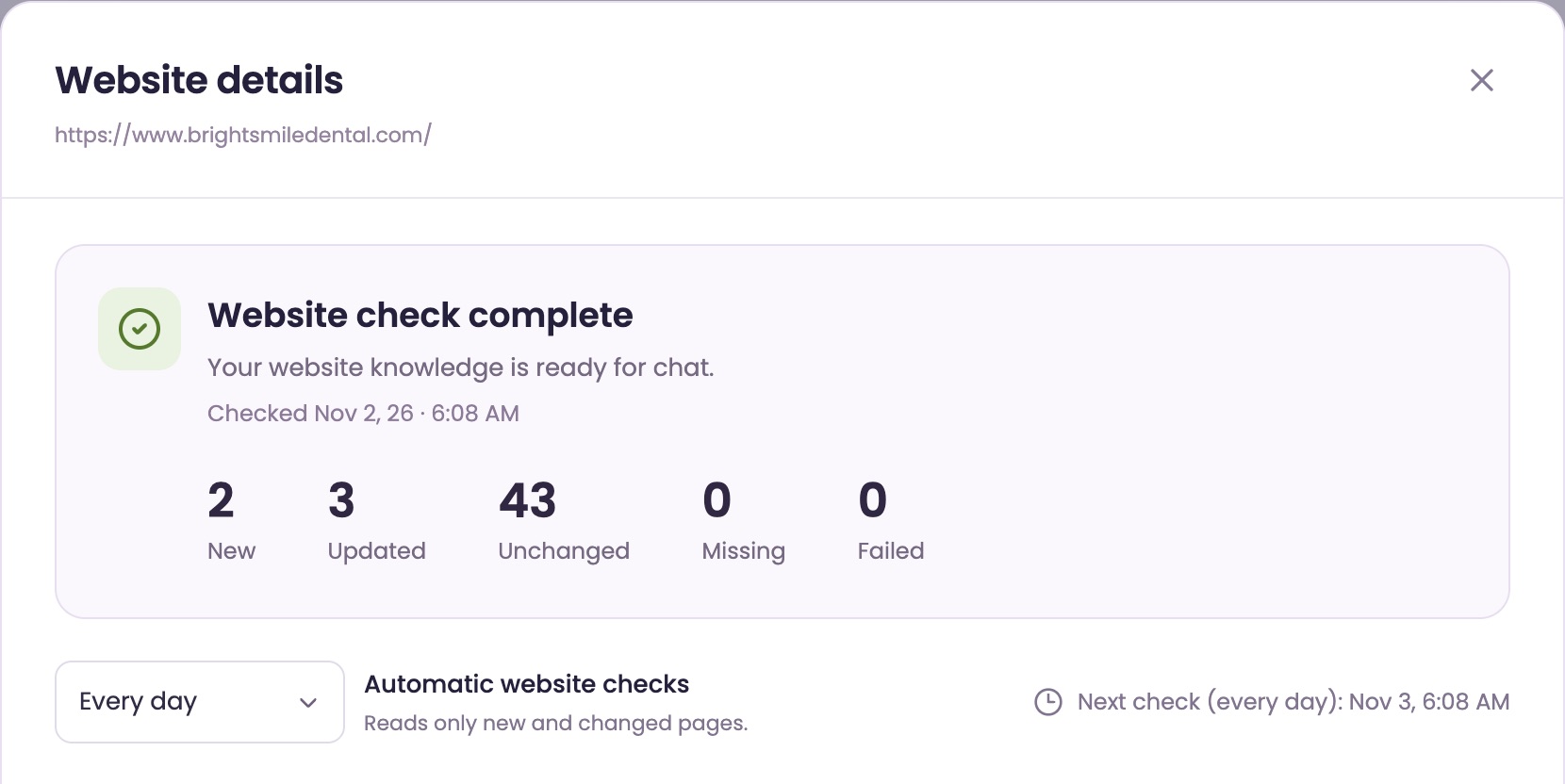
Click your website's name in the list, or its pencil. The top shows what the last check found: New, Updated, Unchanged, Missing and Failed. Click a number to see those pages.
Leave out folders or pages
Under Folders to include, uncheck a folder to leave it out with everything in it. In the Website pages list, uncheck a page's Include box. Changes save by themselves, and the AI stops using those pages right away.
Check a folder or page again to bring it back. It's read at the next check, or click Check for updates to read it now.
Skip copies and translations
Leave out other languages, Leave out paginated pages and Leave out canonical duplicates are checked to start. They skip translated copies of your site, page 2 and on of a list, and pages that copy another page.
Set how often it's checked
In Automatic website checks, choose Every day, every 2 to 30 days, or Off (0 days). Websites start at Every day. Each check updates only new and changed content.
Check for updates checks now. While a check runs, you can Pause it or click Stop check.
Fix problem pages
Click Failed to see which pages failed, and View reason on each. Retry failed pages tries them again. In Check details & history, Copy issue list and Download issues (CSV) give you a list for whoever looks after your website.
Your plan's page limit.
Your plan sets how many pages Knowledge can hold. Every page stored counts: website pages, documents, notes and corrections.
Know your limit
Starter includes 200 pages and Pro includes 1,000. A free trial uses its plan's limit. A document counts its pages: a PDF's pages, a presentation's slides, or about 3,000 characters a page. A note or correction counts by length, usually one page.
See how many you use
The Knowledge pages card shows your count, like 142 of 200 pages.
When pages don't fit
Pages that don't fit are refused as a whole, so nothing is half added. You see a message like “Your Starter plan includes 200 pages of knowledge and 200 are used. Remove pages or documents, or move to Pro for 1,000.”
If a website has more pages than you have room for, finding pages stops at your limit and tells you how many more it found. Leave out folders you don't need and other pages take their place.
Make room
Leave out folders or pages in Website details, or delete a website you don't need. Or move to Pro in Billing for 1,000 pages.
If you're over the limit
Nothing in Knowledge is deleted when you're over, for example after moving from Pro to Starter. You keep every page, but no new pages are added until you're back under.
Add what your website doesn't say.
Upload a file or type a note. Both count toward your page limit.
Upload a document
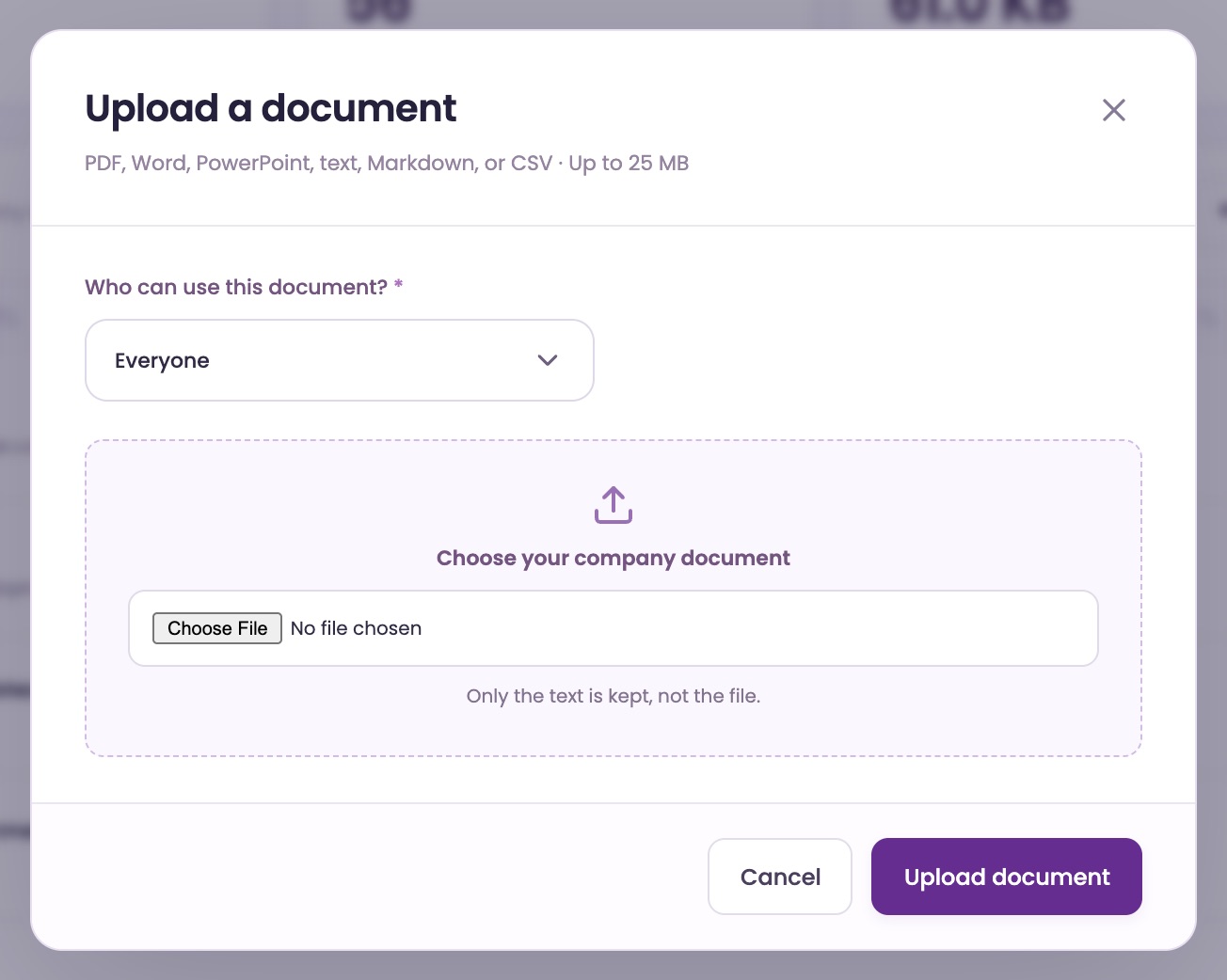
Click + Document, then Choose your company document. You can upload PDF, Word (.docx), PowerPoint (.pptx), text, Markdown or CSV files up to 25 MB. Click Upload document.
Only the text is kept, not the file. A scanned PDF with no real text can't be read.
Add a note
Click + Note, or Add Note above the Knowledge notes list. Type a Source title, write the facts in Knowledge and click Add note. Notes suit short facts, like holiday hours or a policy.
Choose who it's for
Documents and notes start as Internal only, for your team. To let website visitors and callers get answers from one, set Who can use this document? or Who can use this knowledge? to Everyone.
Edit or delete
Open the Documents or Knowledge notes row. The pencil changes the title, who can use it or the text. The trash can deletes it: the AI stops using it right away, and it can't be undone.
To replace a document, upload the new one and delete the old one.
Fix an answer once.
A refinement gives the AI the right answer to a question. Once it's approved, the AI uses it from then on.
Suggest a refinement
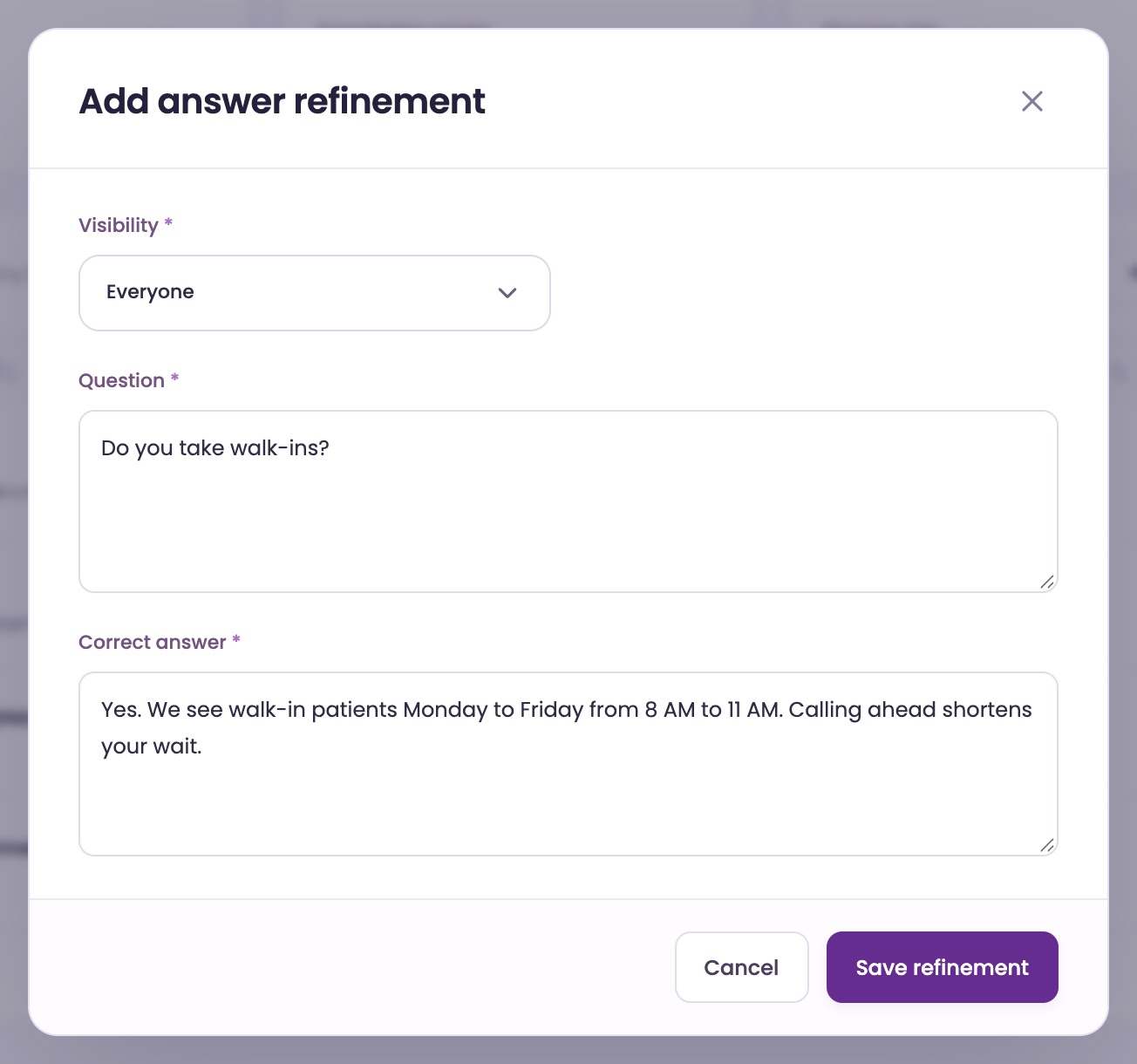
In KnowledgeLibrary, scroll to Answer refinements and click Suggest a refinement. Type the Question and the Correct answer, then click Save refinement.
Choose who it's for
Set Visibility to Everyone for an answer your website visitors and team can get, or Internal only for your team alone.
Track its review
A new refinement shows Pending under Review status while our team reviews it. Once it's Approved, the AI starts using it.
While it's Pending, you can change your own refinement with its pencil.
Fix it from a chat
In History, open a chat and click Chat refinement under the AI reply you want to fix. The question is filled in, and Original AI reply shows what the AI said. Write the Correct answer and click Save refinement.
Find answers to improve.
ChatFX flags website chats that could have gone better and groups them by question.
See what's waiting
Open KnowledgeReview. The number on the tab shows how many cards are waiting.
A chat is flagged when the AI couldn't find the answer in your Knowledge, when the visitor rated it 1 or 2 stars, or when someone on your team stepped in. Cards appear a few minutes after the chat ends.
Read a card
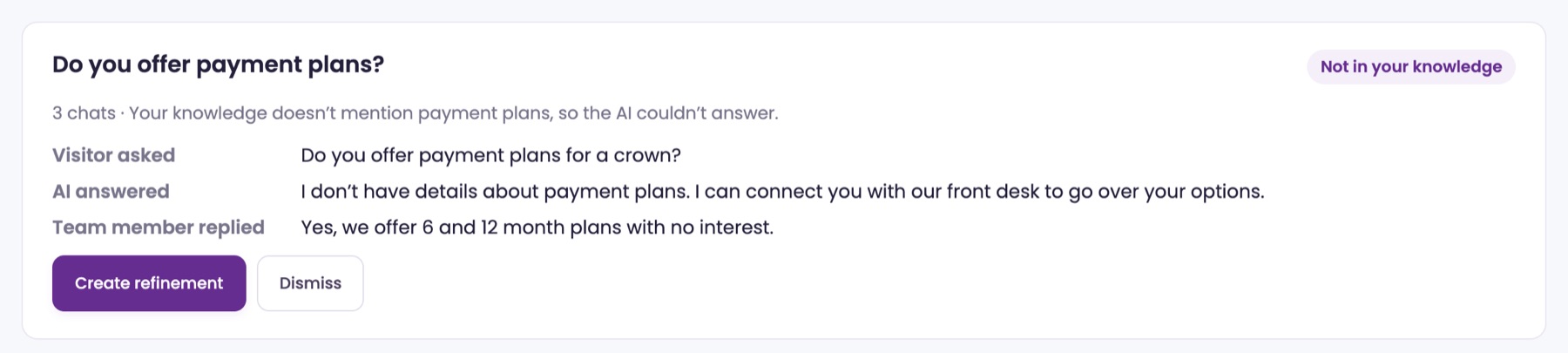
Each card shows the question, a tag and how many chats asked it. Not in your knowledge means the answer wasn't there. Knowledge conflicts means your knowledge says two different things.
Below that you see what the visitor asked, what the AI answered, and any team reply or rating. Show more opens long replies.
Create a refinement
Click Create refinement. The Correct answer may already hold a suggestion, built from your team's reply or your knowledge. Check it or write your own, choose Visibility, and click Save refinement.
It goes to review like any other refinement, and the card leaves the list.
Dismiss what doesn't need a fix
Dismiss deletes the card. Changed your mind? Click Undo on the notice right away. Cards nobody acts on are deleted 30 days after their last chat.
Ask our assistant or a person.
Our assistant answers questions about ChatFX right away. For anything else, email service@chatfx.com and a real person will reply.
Frequently asked questions
Can ChatFX read pages behind a login or PDFs on my website?
No. Website checks read public web pages and skip pages behind a login, PDFs and other files, URLs containing a question mark, and pages your website asks crawlers not to use. You can upload supported files as documents instead, provided they contain readable text.
Can I keep some knowledge for my team only?
Yes. Documents and notes start as Internal only, so your team can use them but website visitors and callers cannot. To let visitors and callers get answers from one, change its audience to Everyone. You can also set the visibility of an answer refinement.
What happens to my knowledge if I downgrade my ChatFX plan?
Your existing knowledge stays in place, even if you are over the new plan’s page limit. However, no new pages can be added until you are back under the limit. You can make room by excluding pages or folders or deleting knowledge you no longer need. Manage your plan in [Billing](https://chatfx.com/support/billing/).
How do I correct a wrong answer from the ChatFX AI?
Create an answer refinement with the question and the correct answer. You can suggest one in Knowledge or create one from an AI reply in History. Our team reviews it, and the AI starts using it once approved. In [AI Settings](https://chatfx.com/support/ai-settings/), keep Use team knowledge first checked so approved refinements lead an answer when they fit.
Can ChatFX answer Shopify order questions without adding each order to Knowledge?
Yes. With the [Shopify integration](https://chatfx.com/support/integrations/), the AI can check an order after the customer provides the email and order number on it. If they do not match after three tries, a person takes over. The connection is read-only, so the AI cannot change or cancel orders.