
Connect the tools you already use.
Let your AI check orders in your Shopify store, add your leads to HubSpot, and book meetings on your Google or Microsoft calendar.
Four tools, one page.
Client Admins and Client Managers open Integrations. Shopify and HubSpot are on the Pro plan. Google Workspace and Microsoft 365 work on every plan.
Open Integrations
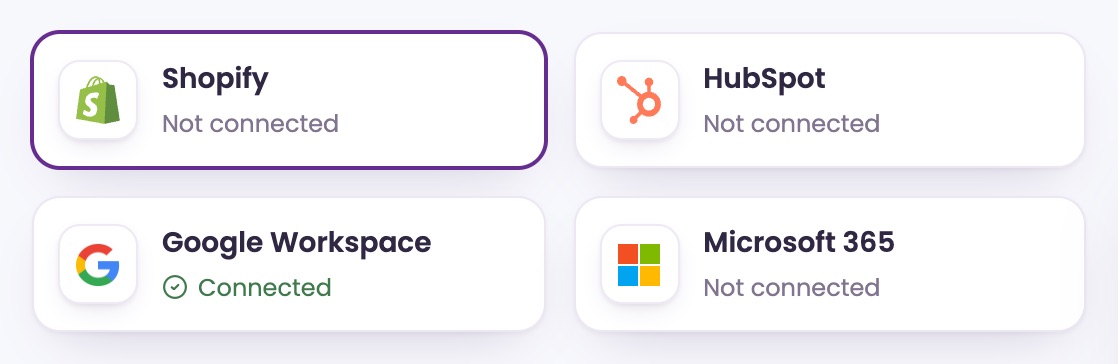
Open SettingsIntegrations. Each card says Connected or Not connected. Click a card to see its settings.
On Starter
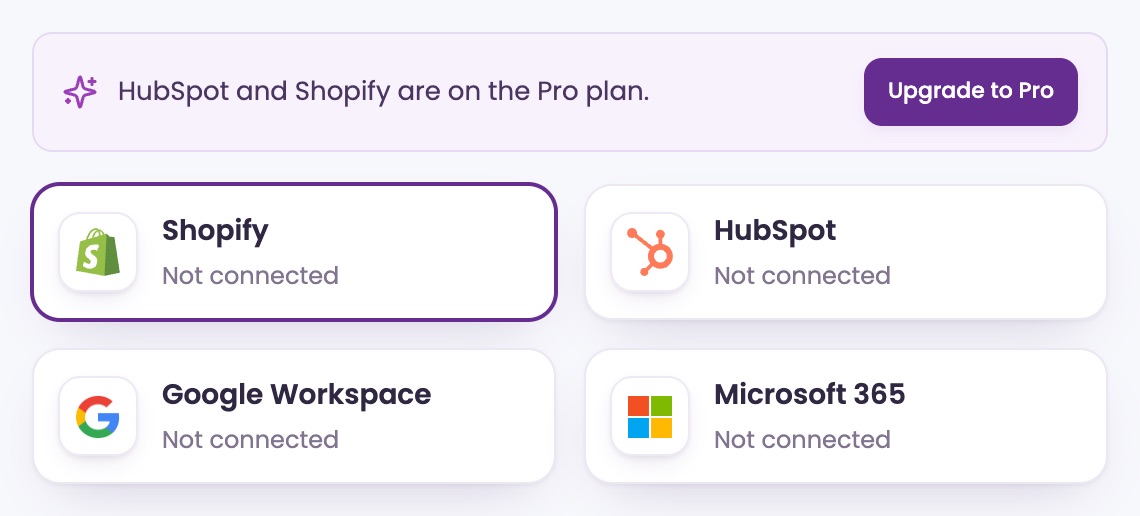
A notice says HubSpot and Shopify are on the Pro plan, with an Upgrade to Pro button. You can look at their settings, but they're locked until you upgrade.
Answer order questions from your store.
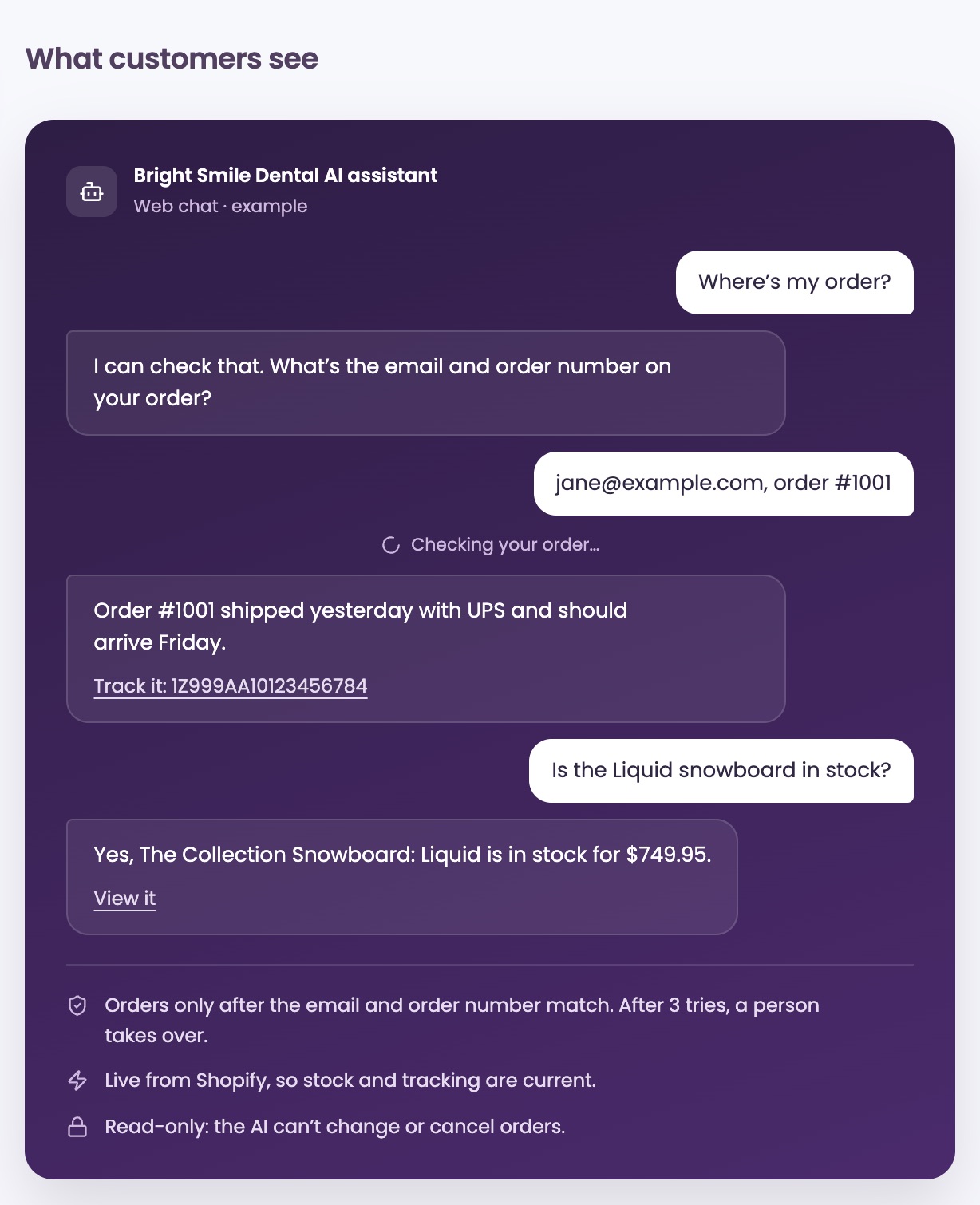
Connect your Shopify store and your AI can look up orders, stock, prices and your store's policies while it chats with customers.
Connect your store Pro
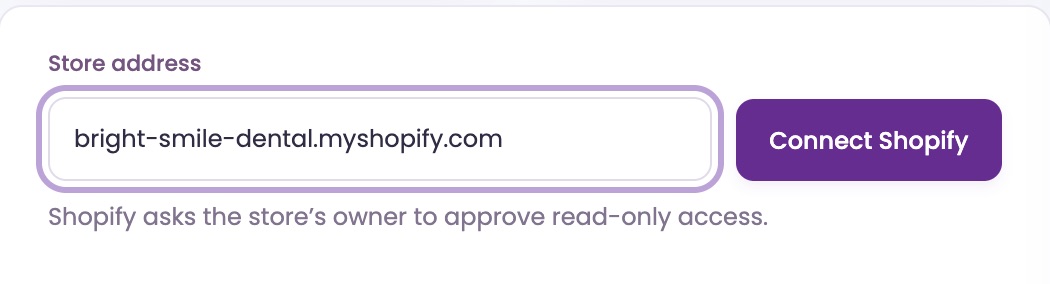
Click the Shopify card. Type your Store address, for example your-store.myshopify.com, and click Connect Shopify.
Approve it in Shopify
Shopify asks the store's owner to approve read-only access. Once it's approved, you're back in ChatFX and the card says Connected.
Choose what the AI can do
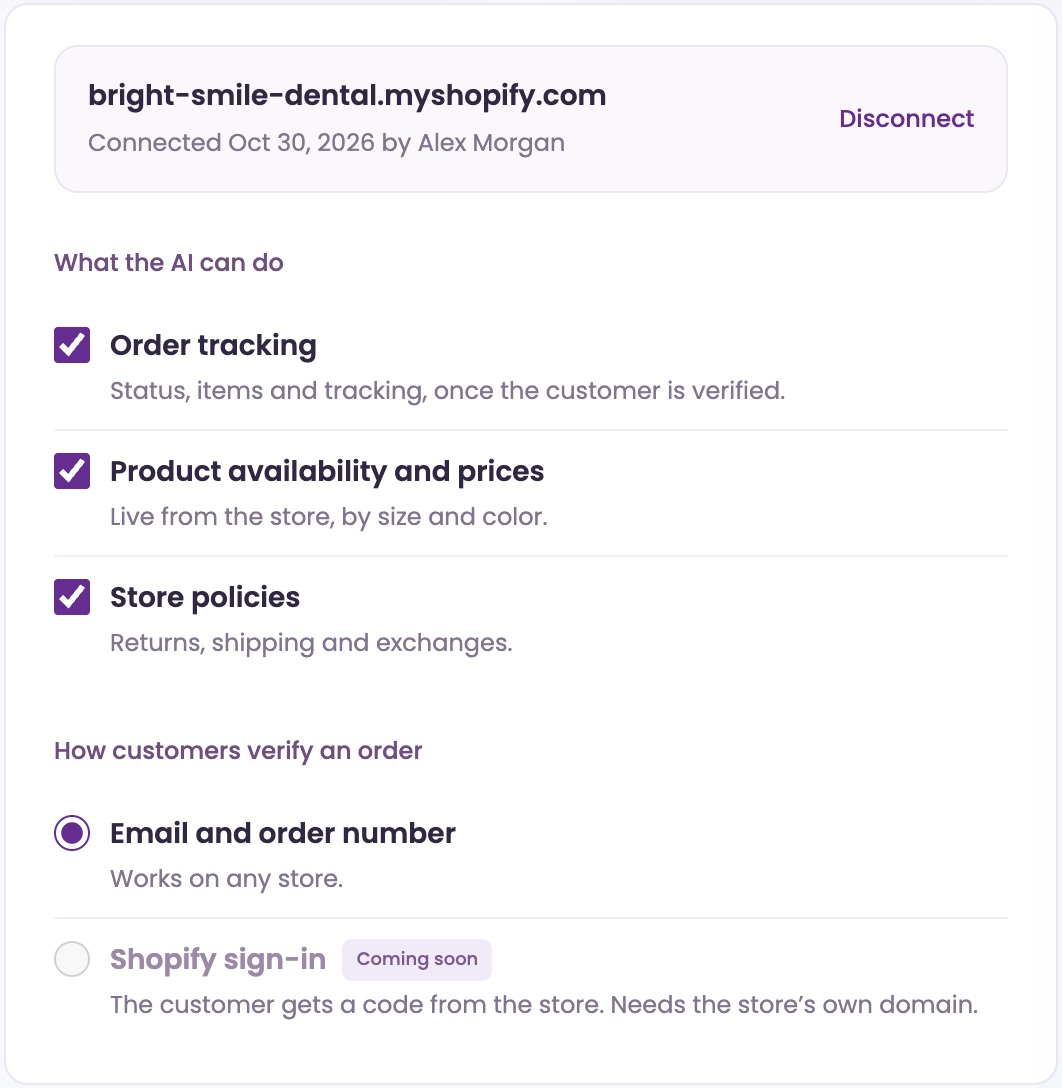
Under What the AI can do, check Order tracking, Product availability and prices and Store policies, or only the ones you want. Then click Save changes at the top of the page.
How customers check an order
Before the AI shares anything about an order, the customer gives the email and order number on it. If they don't match after 3 tries, a person takes over. Signing in with Shopify is coming soon.
Send your leads to HubSpot.
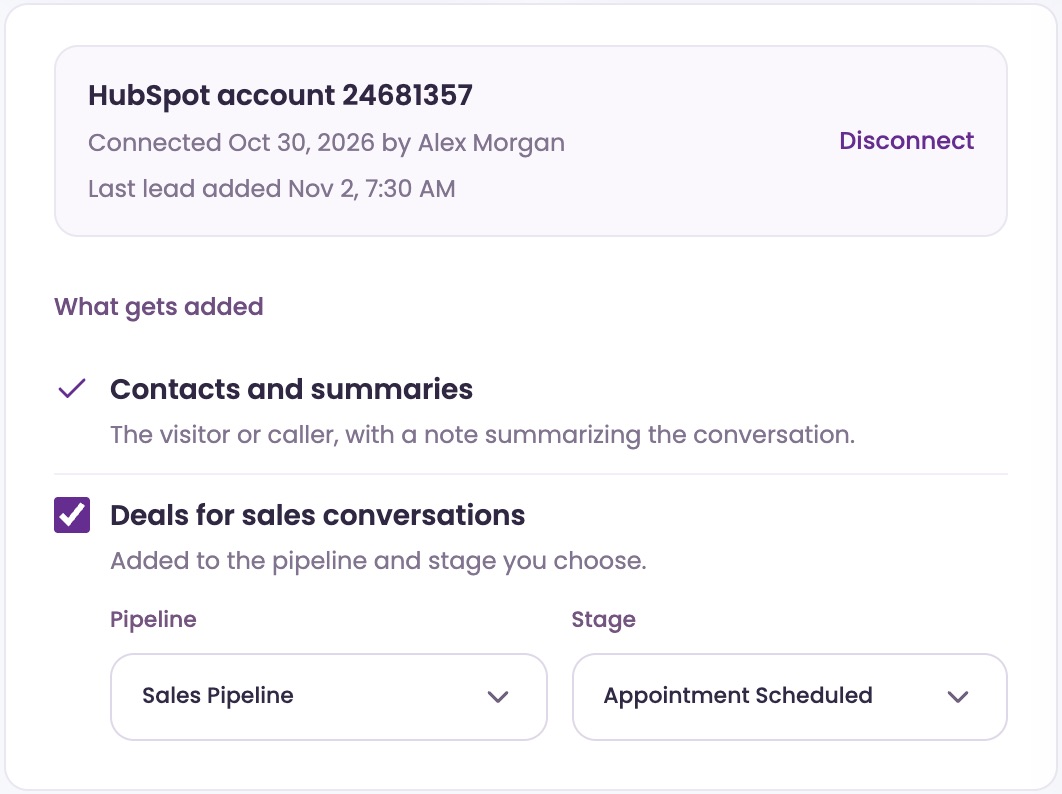
Connect HubSpot and each new lead lands there as a contact, with a note summarizing the conversation.
Connect HubSpot Pro
Click the HubSpot card, then Connect HubSpot. HubSpot asks one of your HubSpot super admins to approve access to contacts and deals.
Choose what gets added
Contacts and summaries are always added. Check Deals for sales conversations to add a deal too, then pick its Pipeline and Stage. Click Save changes at the top of the page.
See it in HubSpot
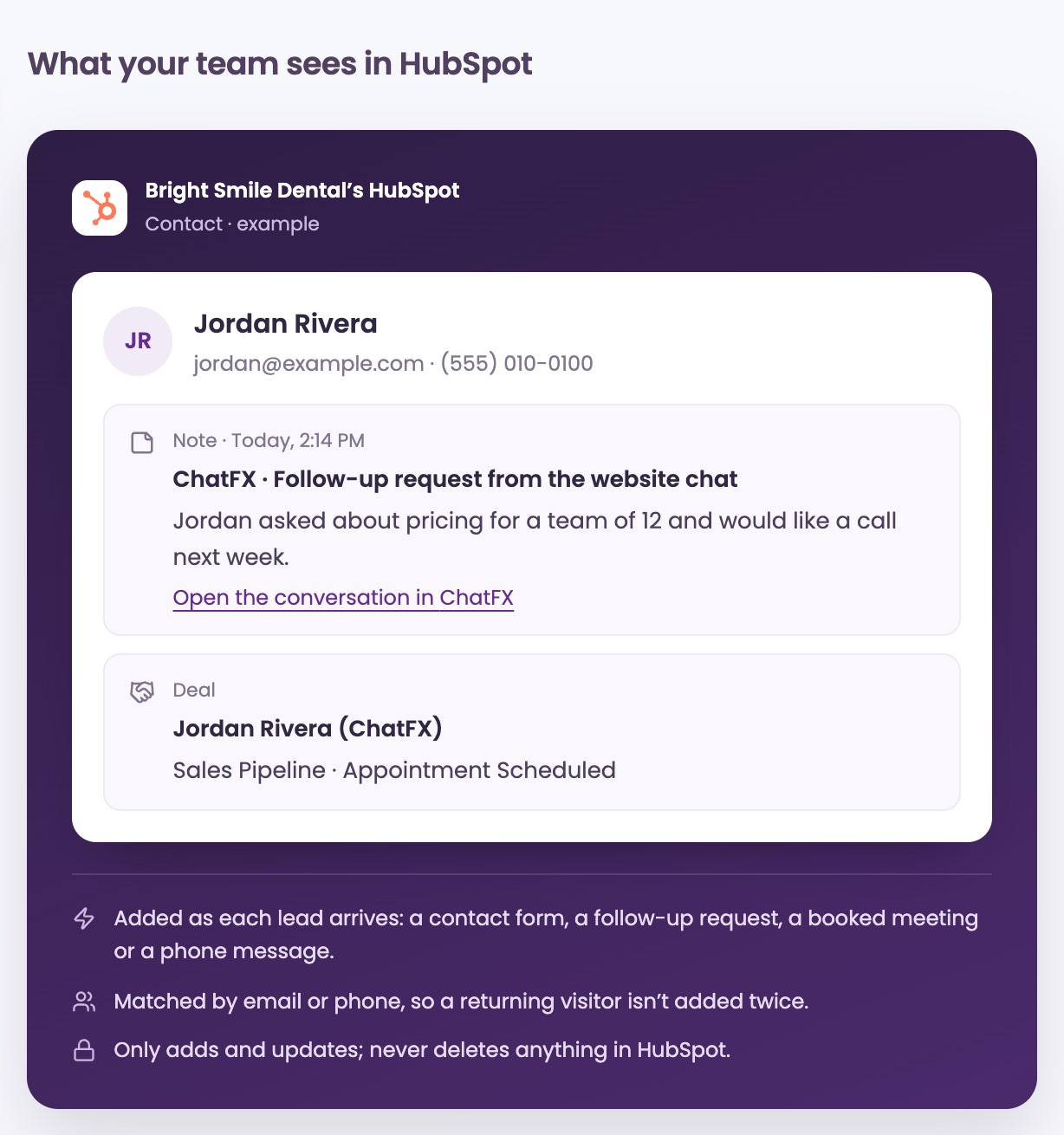
A lead is added as it arrives: a contact form, a follow-up request, a booked meeting or a phone message. Contacts are matched by email or phone, so a returning customer isn't added twice.
The note links back to the conversation in ChatFX. Under your HubSpot account, ChatFX shows when the last lead was added.
Use your own email and calendar.
Each person connects their own Google or Microsoft mailbox. It works on every plan.
Open Email & calendar
Click the Google Workspace or Microsoft 365 card, then Open Email & calendar. Your workspace opens at Email & calendar.
Connect your mailbox
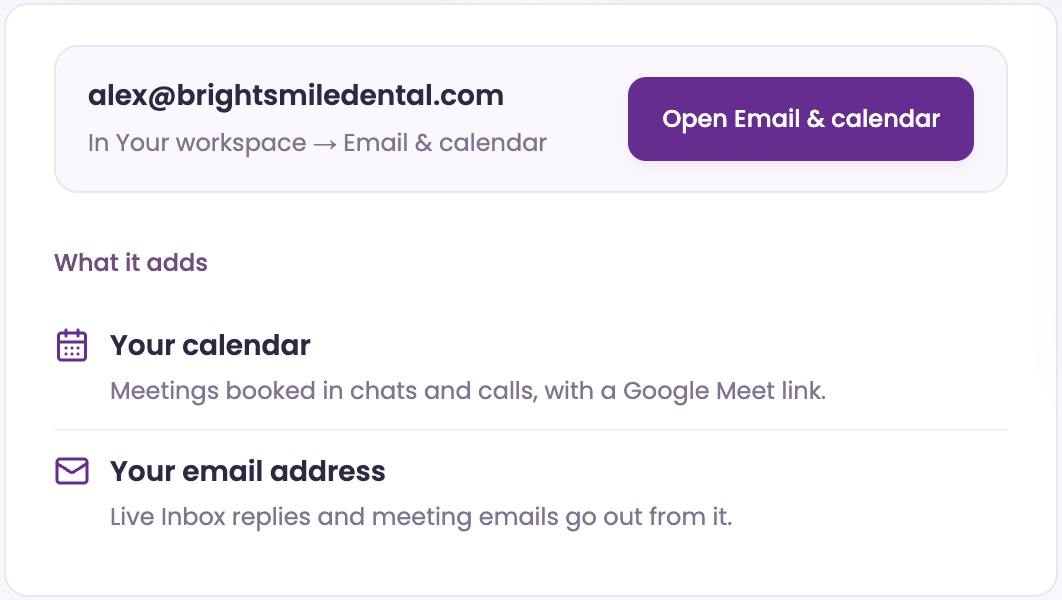
Click Connect Google or Connect Microsoft and sign in. Microsoft needs a work account. The card then says Connected, with your address.
What it adds
Your Live Inbox replies and meeting emails go out from your own address, so replies reach you. On Pro, meetings booked in chats and calls go on your calendar with a Google Meet or Teams link.
Ask our assistant or a person.
Our assistant answers questions about ChatFX right away. For anything else, email service@chatfx.com and a real person will reply.
Frequently asked questions
Do I need the Pro plan to connect Shopify or HubSpot to ChatFX?
Yes. Shopify and HubSpot are available on Pro. On Starter, you can view their settings, but they remain locked until you upgrade. Google Workspace and Microsoft 365 connections are available on every plan. You can review your options in Plans, Credits and Billing.
Can ChatFX change or cancel Shopify orders?
No. Shopify access is read-only, so the AI cannot change or cancel orders. You can choose whether it checks order tracking, product availability and prices, or store policies. To stop those checks, disconnect your store from the Shopify integration settings.
How does ChatFX verify a customer before sharing Shopify order details?
The customer must provide the email address and order number associated with the order. If those details do not match after three tries, a person takes over the conversation. You can also choose whether to enable order tracking in your Shopify integration settings.
Will ChatFX create duplicate HubSpot contacts for returning customers?
ChatFX matches contacts by email or phone so returning customers are not added twice. New leads are added as they arrive, with a conversation summary and a link back to ChatFX. You can also choose to create deals for sales conversations.
Can my team use their own email addresses and calendars with ChatFX?
Yes. Each team member can connect their own Google or Microsoft mailbox in Your workspace. Live Inbox replies and meeting emails then go out from that person's address. On Pro, meeting booking also adds meetings to the connected calendar with a Google Meet or Teams link.