
Great service on every call.
Pick a local number and your AI answers every call from what it knows about your business. When a caller wants a person, ChatFX rings your team or takes a message.
Get your local number.
Every plan includes one local US or Canadian number. The Client Admin chooses, adds and removes numbers.
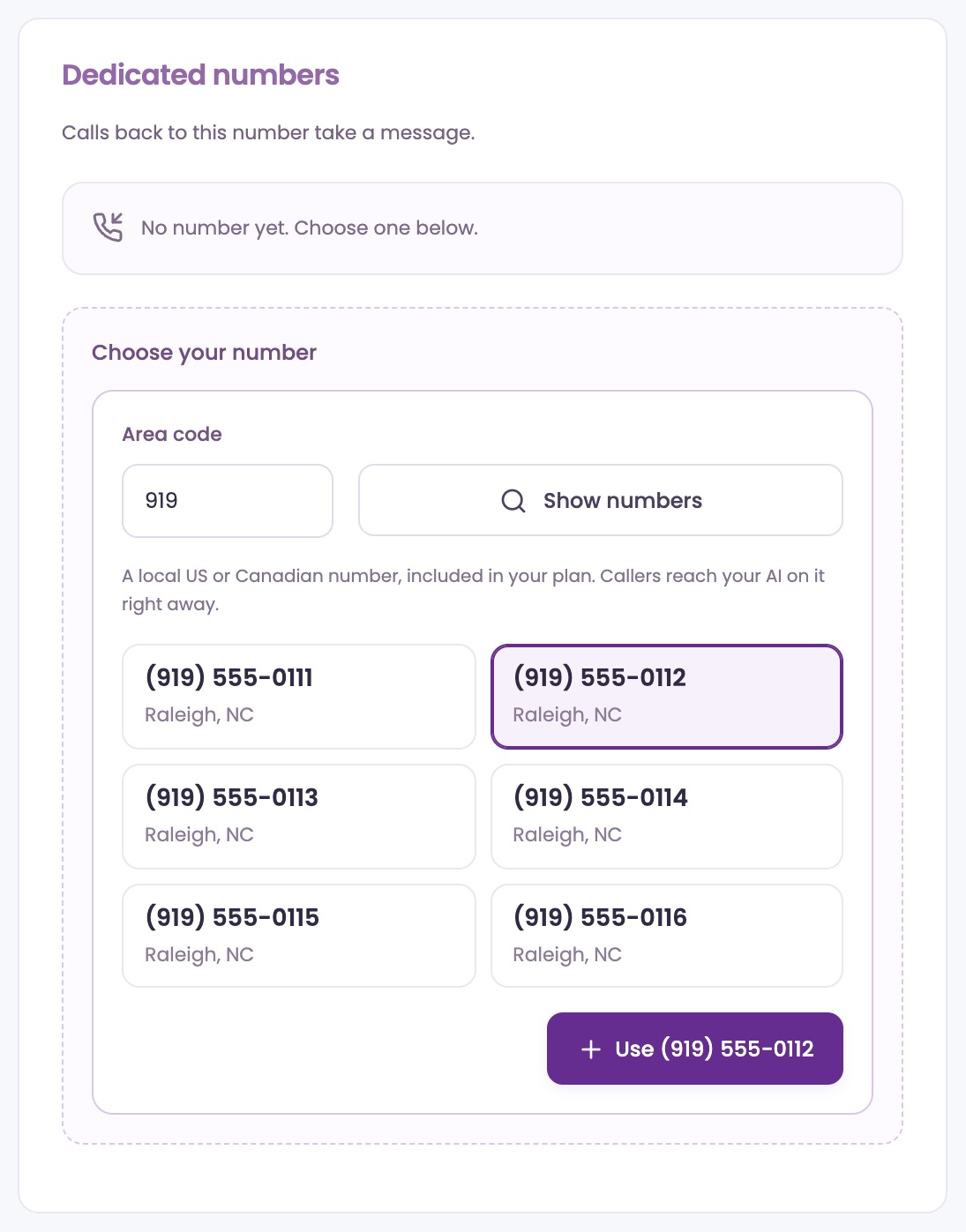
Choose your number
Open Phone LinesNumbers. Under Choose your number, type an area code, or leave it on Any, and click Show numbers.
Click the number you want, then click Use and the number. Calls to it reach your AI right away.
Name it
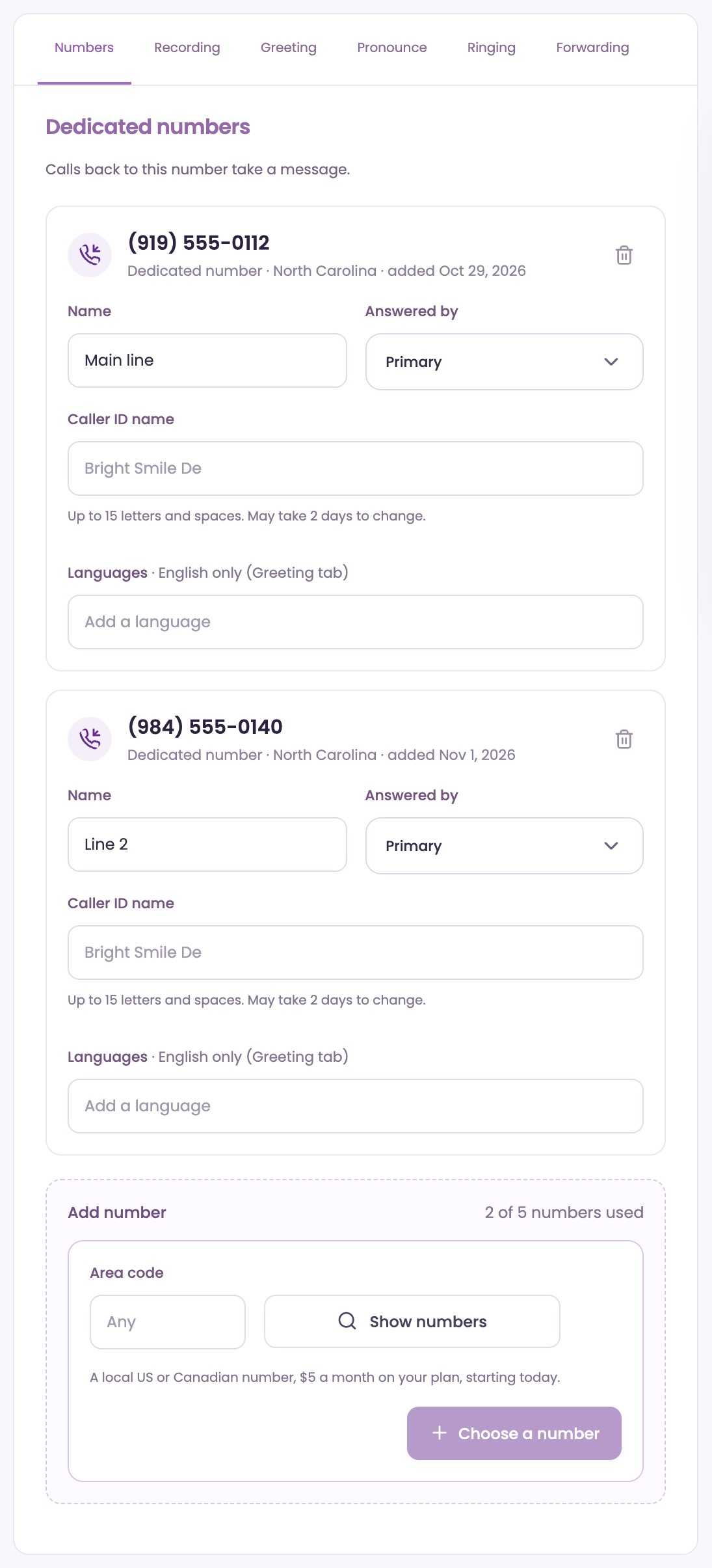
Your first number is called Main line. Change its Name if you like, for example Spanish line. The name shows on incoming calls and in your call history.
Caller ID name is the name some phones show when your team calls out from this number: up to 15 letters and spaces, and a change can take 2 days. Click Save changes at the top.
Add more numbers
Once your plan has started, Add number adds another local number for $5 a month, charged from the day you add it. Beside it, ChatFX shows how many you use, like 2 of 5 numbers used.
Extra numbers aren't available during the free trial. Each account can have up to 5. Email service@chatfx.com if you need more.
Remove a number
Click the trash can next to the number and confirm. The number is released right away and can't be recovered.
If it was an extra number, the rest of its month comes back as a credit on your next bill.
What callers hear first.
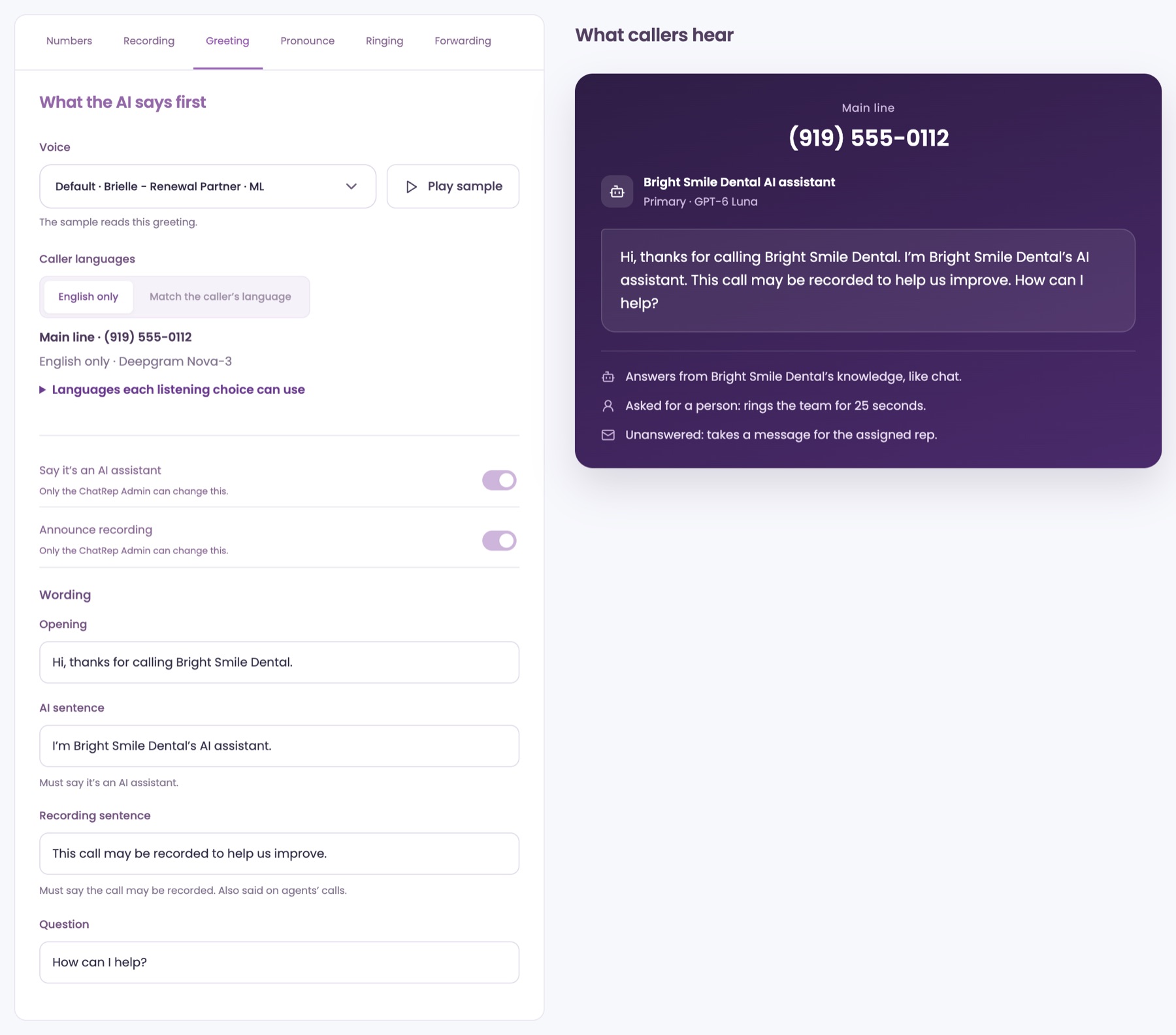
Set the greeting, the voice and recording. The What callers hear panel on the right shows the result as you type.
Write your greeting
Open Phone LinesGreeting. Under Wording, edit the four sentences, said in this order: Opening, AI sentence, Recording sentence and Question.
Each can be up to 200 characters. The AI sentence must include the word AI, and the recording sentence must say the call may be recorded.
Callers always know it's an AI
Say it's an AI assistant and Announce recording are always on. Every caller hears that they're talking to an AI, and the AI says so again whenever someone asks.
Choose a voice
Open Voice and pick one, then click Play sample to hear your greeting in it. Voices marked ML can speak other languages.
Choose what's recorded
Open Phone LinesRecording. Under Record agents' calls, Both sides records every call in full and keeps it 90 days. Agent only records only your team member's voice on their calls. Don't record records nothing.
With Agent only or Don't record, the AI's part of a call isn't recorded and its greeting leaves out the recording sentence. Messages callers leave are always kept.
Speak your callers' language.
Calls are answered in English unless you choose more. The AI tells callers in other languages that your team will talk with them in English.
Choose caller languages
On Phone LinesGreeting, set Caller languages to English only or Match the caller's language. Matching needs a voice marked ML.
Give a number its own languages
On the Numbers tab, click Add a language under a number and pick one. You can add up to 8, and the first one greets callers.
When you save, the AI translates your greeting. Check it on the Greeting tab with the language buttons above Wording, or click Translate again from English.
Choose how it listens
For a number that answers in more than English, pick its Listening on the Greeting tab: Deepgram Nova-3, the fastest, AssemblyAI, or Soniox, which hears the most languages. Languages each listening choice can use lists them all.
Fix how a word sounds
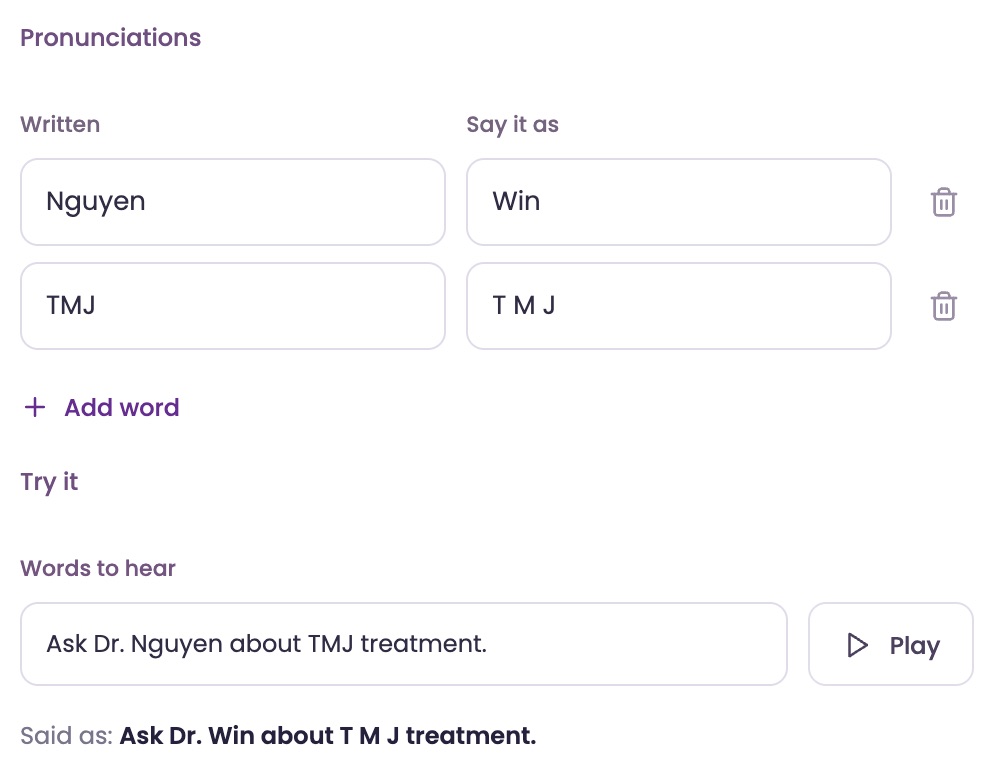
Open Phone LinesPronounce and click Add word. Under Written, type the word as it's spelled. Under Say it as, type how it should sound, like S A P for SAP.
Under Try it, type a sentence in Words to hear and click Play. Said as shows the words the voice will say. Click Save changes when it sounds right.
Hand callers to a real person.
When a caller asks for a person, ChatFX rings your team in the browser while the AI keeps the caller company.
Go Available
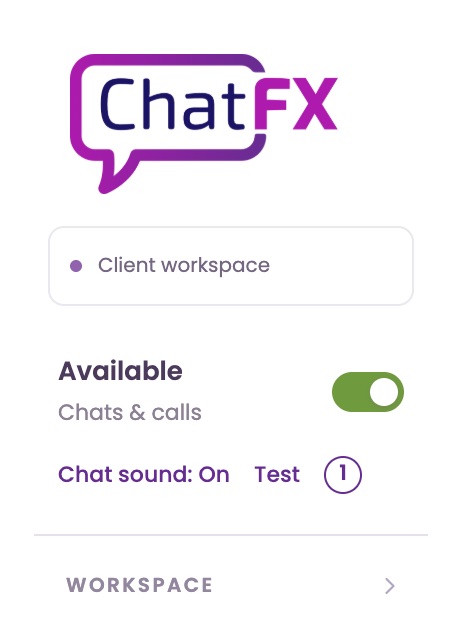
Calls ring people whose switch at the top of the left menu says Available and who have ChatFX open in their browser. Switch to Unavailable when you step away.
Who rings first follows the routing choice in Web Chat.
Set how long it rings
On Phone LinesRinging, set Ring for between 10 and 60 seconds. It starts at 25.
If nobody answers in time, the AI takes a message, or forwards the call first if you've turned on forwarding.
Answer a call
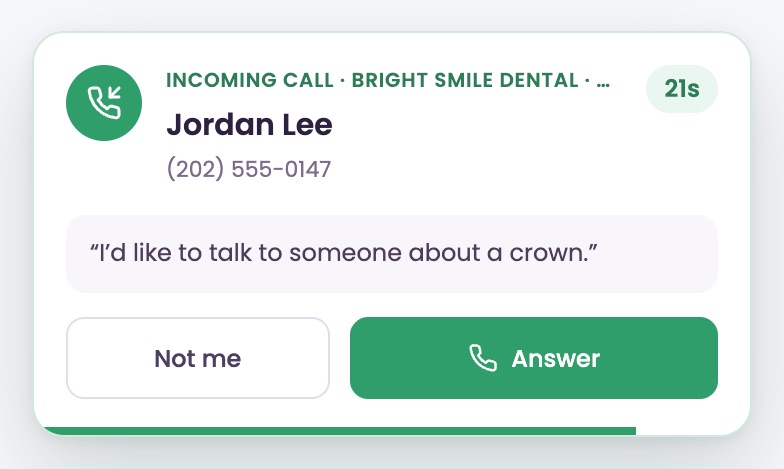
A card with the caller's details pops up on any page of ChatFX. Click Answer to talk in your browser, or Not me to pass the call on.
Allow the microphone when your browser asks, in Chrome, Edge or Safari. During the call you have Mute, Keypad, Hold and Hang up.
Take over from the AI
To follow a call live, open Live InboxVoice. While the AI is answering, click Take over to join the call.
Never miss a message.
If nobody can take the call, the AI takes a message and sends it to your team.
Choose what the AI asks
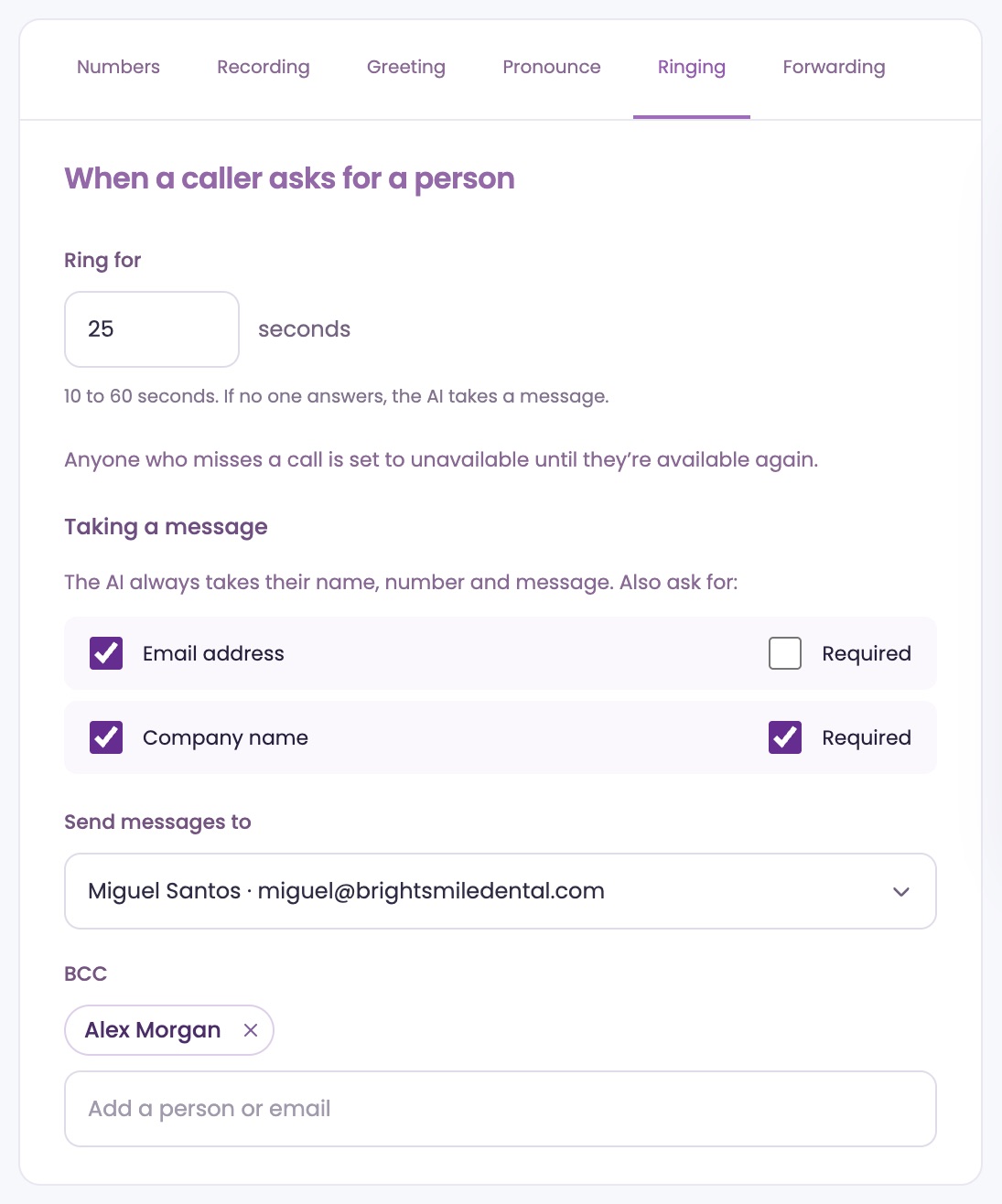
On Phone LinesRinging, under Taking a message, the AI always takes the caller's name, number and message. Check Email address or Company name to ask for those too.
Check Required beside one to have the AI ask a second time if the caller skips it.
Choose who gets messages
Under Send messages to, pick who gets each message by email: someone on your team, or Other email to type an address. Add up to 5 people in BCC for a copy.
Until you choose, messages go to your Web Chat email, or to your account's admin. They also show in Live Inbox, on the Reply tab.
Urgent calls
When a caller describes something that can't wait, like damage happening now, the AI marks the call urgent. If someone may be hurt or in danger, it tells them to call 911 first.
An urgent caller is put through if someone can take the call. If not, the message email's subject starts with Urgent.
Forward calls to your own phone
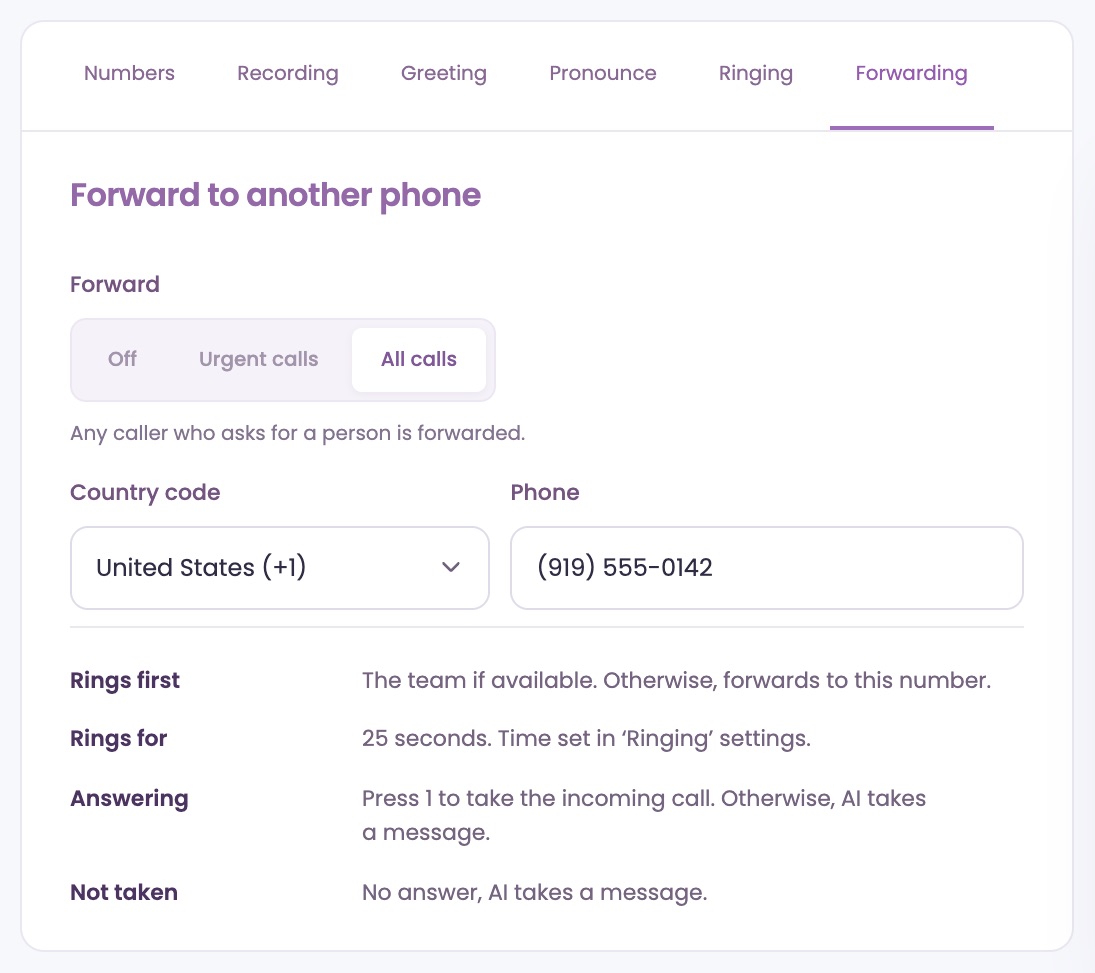
On Phone LinesForwarding, set Forward to Urgent calls or All calls (any caller who asks for a person), enter the number and save. Use a mobile or another line that doesn't forward to ChatFX.
Your team rings first. If nobody answers, your phone rings for the Ring for time. Press 1 to take the call, or the AI takes a message.
Every call, on record.
Look back at past calls, see what they use in credits, and let calls book meetings.
Find past calls
Open HistoryCalls to see each call with its transcript, the AI's summary and, if it was recorded, the recording. More in the History guide.
Credits for calls
Each minute of a call to your numbers uses one credit, rounded up per call. Time a caller spends with your team counts too.
If your account reaches its credit limit, the AI pauses until next month or a higher limit. Callers then hear a short greeting and can leave a voicemail. See Plans, credits and billing.
Book meetings by phone Pro
When a caller wants a call back or a set time with your team, the AI can book it on the call. It offers two open times, takes their name, number and email, and reads the time back before booking.
Set it up with the Meeting booking guide.
Ask our assistant or a person.
Our assistant answers questions about ChatFX right away. For anything else, email service@chatfx.com and a real person will reply.
Frequently asked questions
Can I keep my existing business phone number with ChatFX?
Yes. Ask your phone company to forward calls from your existing business number to your ChatFX number. Callers can keep dialing the number they already know, while the AI answers calls that reach your ChatFX line.
How much does an extra ChatFX phone number cost?
An extra local number costs $5 a month, charged from the day you add it. Each plan includes one local US or Canadian number, and each account can have up to five numbers. Extra numbers aren't available during the free trial.
Can ChatFX answer calls in languages other than English?
Yes. Choose a voice marked ML and set caller languages to match the caller's language. You can add up to eight languages to a number; the first one greets callers. The AI translates your greeting, which you can review on the Greeting tab.
Are calls to my ChatFX number recorded?
Recording depends on your settings. You can record both sides of every call, only your team member's voice, or nothing. Full-call recordings are kept for 90 days. Callers' messages are always kept, and recorded calls can be found in [History](https://chatfx.com/support/history/).
What happens if my ChatFX account runs out of call credits?
When your account reaches its credit limit, the AI pauses until next month or until you set a higher limit. Callers hear a short greeting and can leave a voicemail. Each call uses one credit per minute, rounded up per call, including time with your team. See [plans, credits and billing](https://chatfx.com/support/billing/) for more details.
Can ChatFX book an appointment while answering a phone call?
Yes. With the Pro plan, the AI can offer a caller two open times, collect their name, phone number and email, and read the time back before booking. Use the [meeting booking guide](https://chatfx.com/support/meetings/) to connect your calendar and set up meeting times.