
Your account and sign-in.
Change your email or password, add two-step sign-in, connect your mailbox and calendar, and get back in if you forget your password.
Change your email or password.
Your own settings live in one window. ChatFX asks for your current password before any change, to make sure it's you.
Open Your workspace
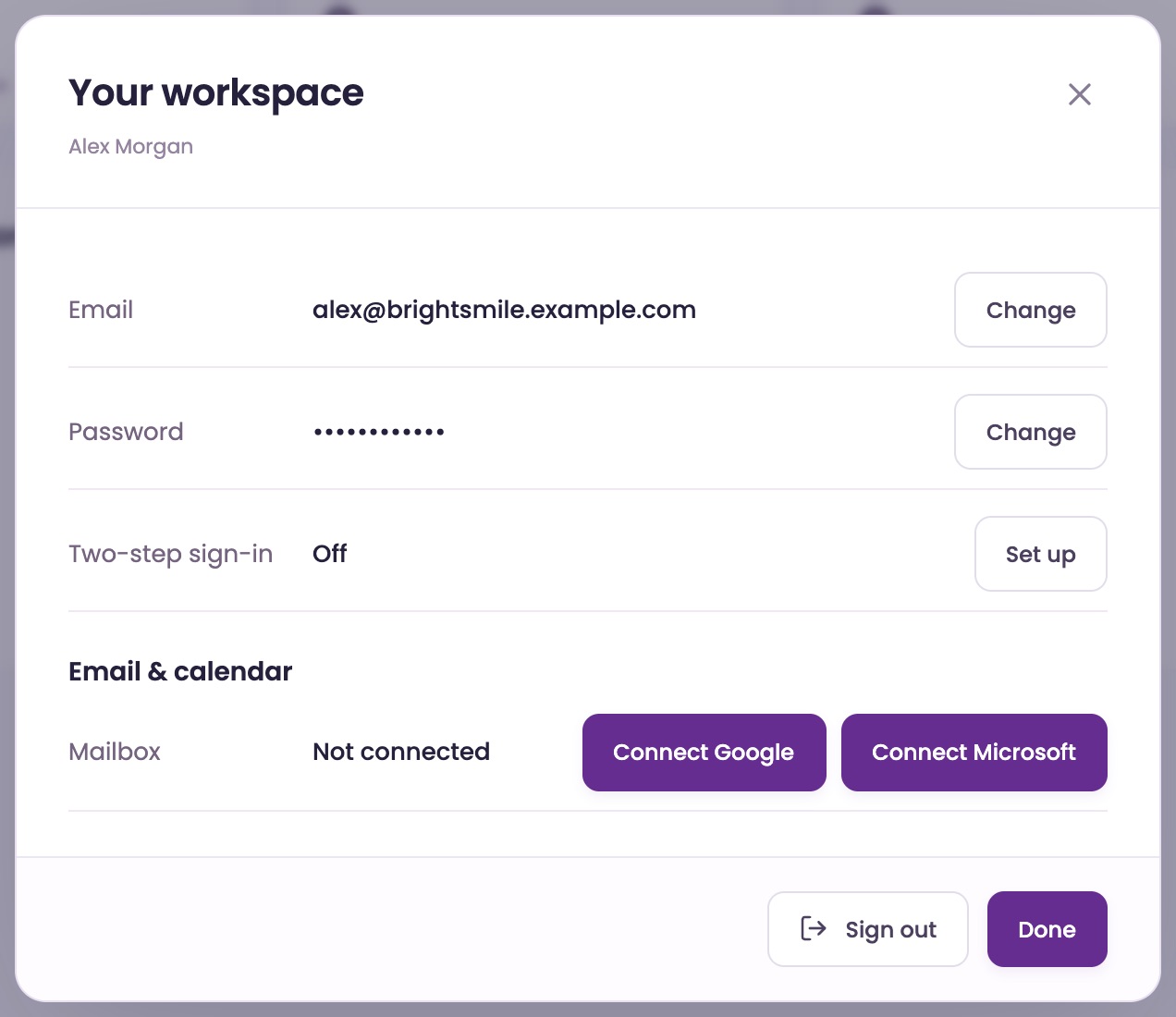
Click your name at the bottom of the left menu, or your picture at the top right. A window called Your workspace opens.
Change your email
Click Change next to Email. Type your New email and your Current password, then click Save email.
Confirm from both inboxes
We send an email to your old and your new address. Click Confirm email change in each. Your email changes once you've confirmed.
Change your password
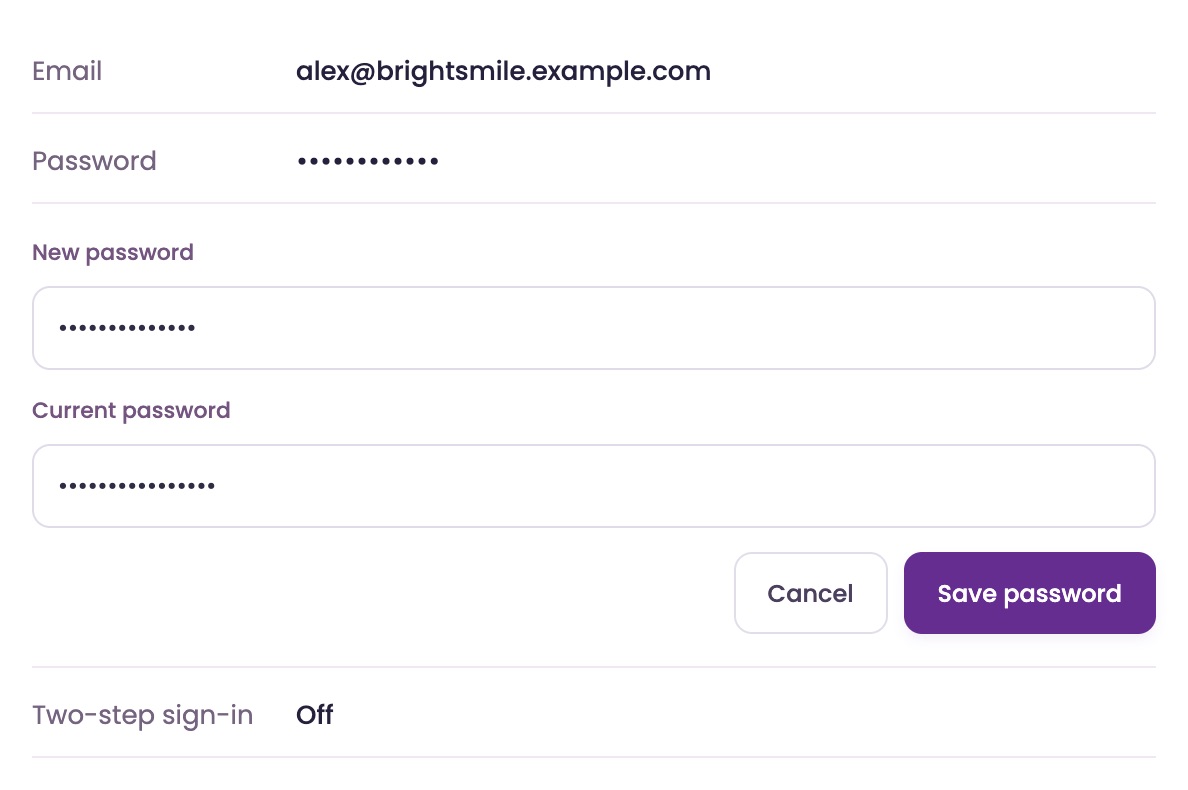
Click Change next to Password. Type a New password of at least 12 characters and your Current password, then click Save password.
We email you to let you know your password was changed.
Connect your mailbox.
Connect your own Google or Microsoft mailbox. Your replies to leads in Live Inbox then come from your own address. On Pro, booked meetings go on your calendar and meeting emails come from you too.
Connect Google or Microsoft
In Your workspace, under Email & calendar, click Connect Google or Connect Microsoft. Sign in to your mailbox and allow access. You come back to ChatFX with the window open.

Check it's connected
Your address shows with Connected · Calendar included. If it says Calendar not included or Calendar needs reconnecting, click Connect again.
Disconnect or delete it
Click Disconnect to stop using it. It stays listed, so you can click Connect again later. To remove it, click Delete, then Delete for good.
Get in, even if you forget.
ChatFX is at app.chatfx.com. Sign in with the email and password you chose.
Sign in
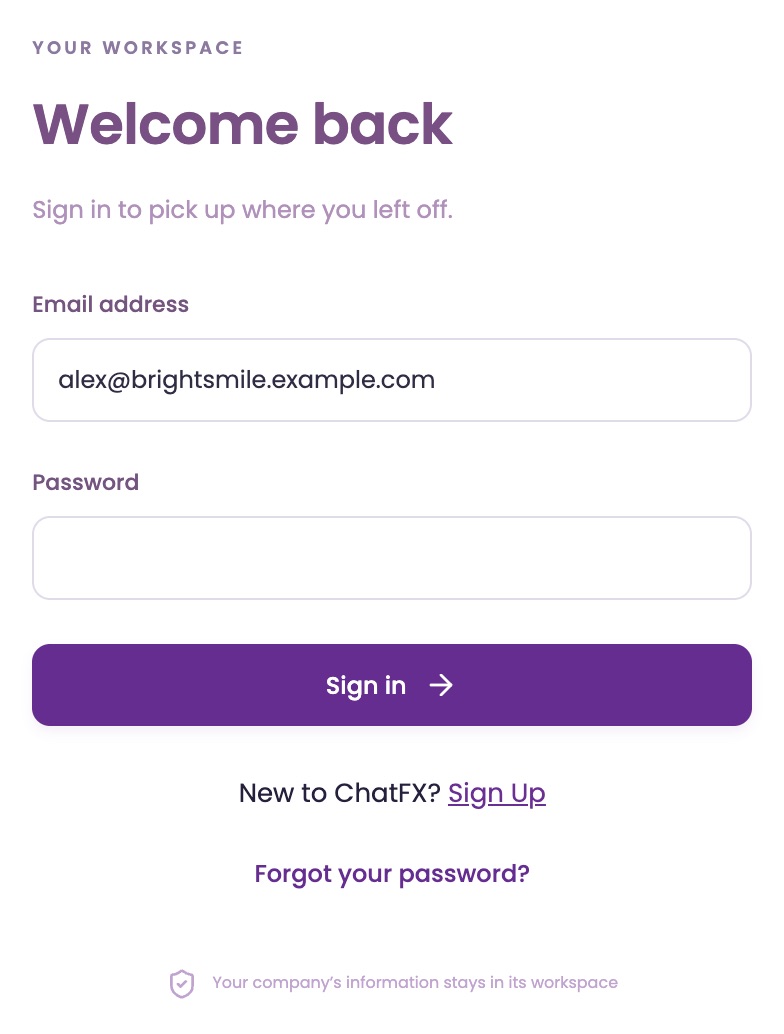
Go to app.chatfx.com, enter your Email address and Password, and click Sign in.
Forgot your password?
On the sign-in page, type your email address, then click Forgot your password?. We email you a link. Check your spam folder if it doesn't arrive.
Choose a new password
Click Reset password in the email. Choose a password of at least 12 characters and click Save password.
Sign out
In Your workspace, click Sign out. This signs you out on every device.
Add a code to every sign-in.
Two-step sign-in is off until you turn it on. Once it's on, signing in asks for your password and a code from an authenticator app on your phone.
Turn it on
In Your workspace, click Set up next to Two-step sign-in. Type your Current password and click Continue.
Scan the QR code with an authenticator app, such as Google Authenticator, Microsoft Authenticator or your phone's passwords app. Or copy the Setup key into it.
Confirm the code
Type the 6-digit code from the app in Code from the app and click Turn on. From then on, each sign-in asks for a code.
Add a backup
Click Add backup to add a second authenticator, on another phone or in a password manager. A code from either one works, so losing a phone doesn't lock you out.
Replace or turn off
Got a new phone? Click Replace. To stop using codes, click Turn off. Both ask for a code from your app first.
Ask our assistant or a person.
Our assistant answers questions about ChatFX right away. For anything else, email service@chatfx.com and a real person will reply.
Frequently asked questions
Do I need access to both email addresses to change my ChatFX account email?
Yes. We send a confirmation email to both your old and new addresses, and you need to click Confirm email change in each one. Your account email changes after both confirmations.
What happens if I lose the phone I use for two-step sign-in?
If you added a backup authenticator beforehand, you can use a code from it to sign in. In Your workspace, click Add backup to set up a second authenticator on another phone or in a password manager. A code from either authenticator works.
Does signing out of ChatFX sign me out on every device?
Yes. Clicking Sign out in Your workspace signs you out on every device. To sign in again, use your account email and password; if you have two-step sign-in enabled, you’ll also need a code from your authenticator app.
What’s the difference between disconnecting and deleting my mailbox in ChatFX?
Disconnecting stops ChatFX from using the mailbox but keeps it listed so you can reconnect it later. Deleting removes it from the list. A connected mailbox lets your replies to leads in Live Inbox come from your own address.
Does everyone on my team need to connect their own calendar to host meetings?
Yes. On Pro, only people with a connected calendar can host meetings, and each person connects their own mailbox in their own Your workspace window. Meeting booking is part of the Pro plan.
Can I get help from a person if I’m having trouble with my ChatFX account?
Yes. Email service@chatfx.com and a real person will reply. You can also ask our assistant a question about ChatFX.